
WordPress for owners: the complete guide
Running a WordPress site well comes down to a few habits. Edit content in the block editor or your page builder, preview before you save, and reuse content instead of copying it. Leave themes, plugins and core settings to whoever maintains the site. Keep WordPress, plugins and PHP current, and check Site Health monthly.
The short version
- Use Pages, Posts and Media for everyday work. Leave Appearance, Plugins and most of Settings to whoever maintains the site.
- Preview before you save. In the block editor, Save on a published page changes the live page at once.
- Put repeated content, like hours or a call-to-action, in one synced place so you change it once.
- Keep WordPress, plugins, themes and PHP current. The only officially supported WordPress version is the latest one.
- Check Tools, then Site Health once a month, and give every person their own login.
How is a WordPress site put together?
WordPress is the software behind a large share of small-business websites. It stores your words and images in a database and shows them through a theme. Plugins add features such as forms, calendars and online stores. Our glossary explains a plugin, a theme and a page builder in one paragraph each.
For an owner, the useful split is simple. Content is yours: pages, posts, images, staff bios, menus. The machinery is the theme, plugins, settings and server. Content changes are low risk and easy to undo. Machinery changes can take the whole site down. Most of this hub is about doing the first well and knowing when to stop before the second.
This hub doesn’t repeat our step-by-step help articles. If you need to edit the text yourself, change a photo or banner, add a blog post, add a page, change the menu, update the staff page or upload a PDF, go straight there. The guides below cover the questions behind those jobs.
Where is everything in the dashboard?
When you log in, you land on the Dashboard. The black menu on the left holds every part of the site. WordPress’s Administration Screens page lists the default menu: Dashboard, Posts, Media, Pages, Comments, Appearance, Plugins, Users, Tools and Settings. Plugins often add their own items, so your menu may be longer.
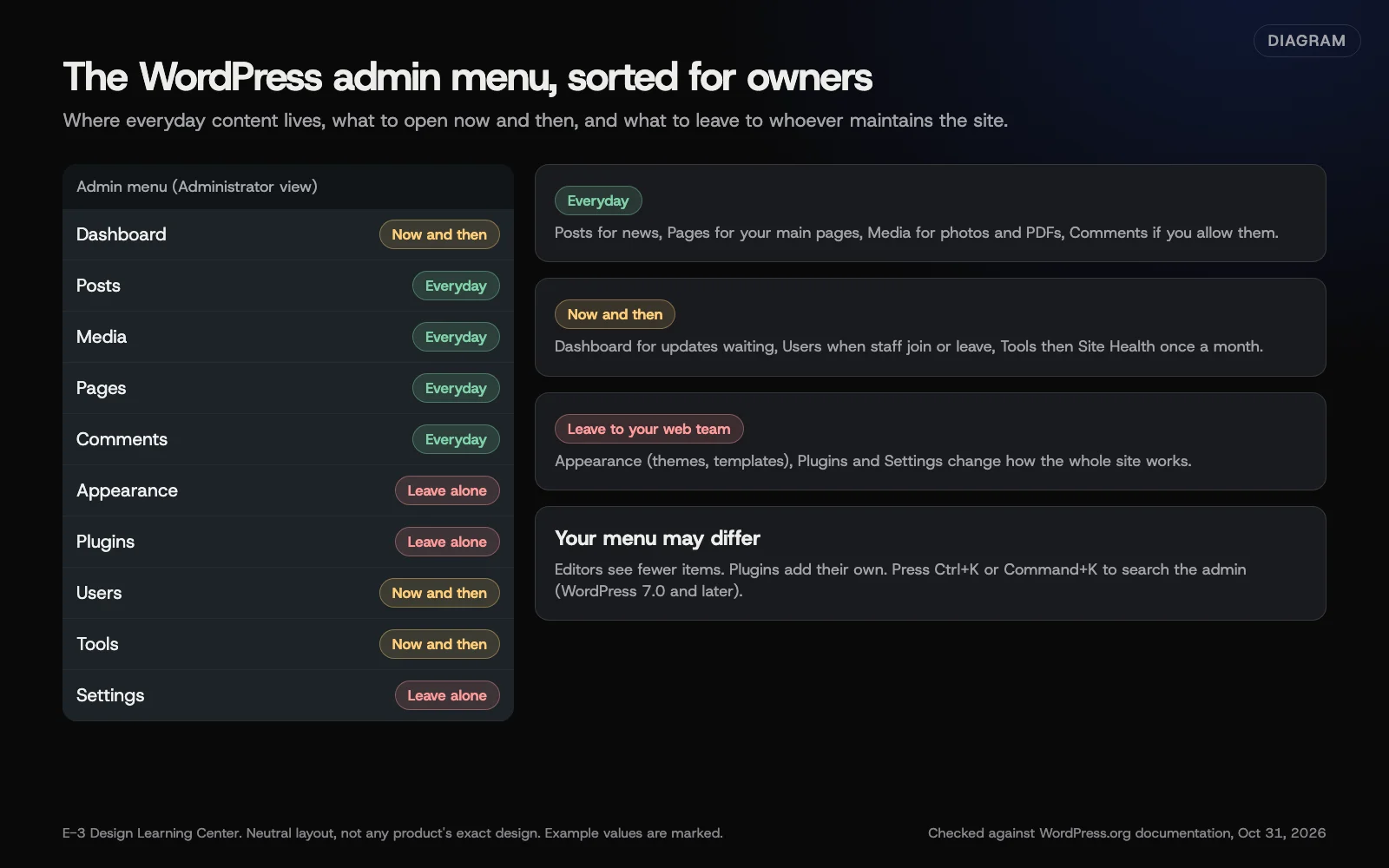 Diagram: the WordPress admin menu sorted by how often an owner should use each part. Based on WordPress.org’s Administration Screens documentation (October 2026). E-3’s grouping, not WordPress’s.
What you see depends on your role. An Editor sees fewer items than an Administrator, which is a good thing. Our dashboard tour walks through each menu item, what lives there and whether you need it. WordPress 7.0 also added a command palette: press Ctrl+K (Command+K on a Mac) and type what you’re looking for.
How do I edit pages without breaking them?
Most WordPress sites are edited one of two ways. Newer sites use the block editor, built into WordPress, where each paragraph, image and button is a separate block. Many sites use a page builder such as Beaver Builder, which edits the page visually on the front end. Our answer on page builder or block editor explains the trade-off; you don’t need to switch to edit safely.
- Learn the block editor’s parts. The inserter, the Document Overview list, the Settings sidebar and the save button do most of the work. See how the block editor works.
- Know your builder’s save options. Beaver Builder’s Done button offers Publish, Save Draft and Discard, as its top bar guide shows. See editing a Beaver Builder page safely.
- Don’t let half-done work go live. In the block editor, a published page has a Save button, not “Update.” It changed in WordPress 6.6, and it puts your change live as soon as you select it. See changing a live page without customers seeing it.
If something does go wrong, revisions can put a page back. Our help article on undoing a website change shows the steps, including the new visual revisions screen added in WordPress 7.0.
How should I handle images?
Photos are one of the most common edits we’re asked to make. The Media Library guide covers what WordPress does to every upload, how to name and describe files, and why Delete permanently really is permanent: the Media Library has no trash by default. For the right pixel sizes, see our answer on how big website images should be.
How do I change something once and have it update everywhere?
Hours, a phone number, a “Book now” banner or a team photo often appear on several pages. Copying them means one day they won’t match. WordPress has synced patterns for this. Edit one and every copy changes. Beaver Builder has global rows and modules that work the same way. Our guide to reusable content explains both, and when a plain pattern is the better choice.
Which parts should I leave alone?
A few settings can take a site offline or hide it from Google with one click. Changing WordPress Address (URL) or Site Address (URL) under Settings, then General, is the classic example. The Discourage search engines from indexing this site box under Settings, then Reading, is another.
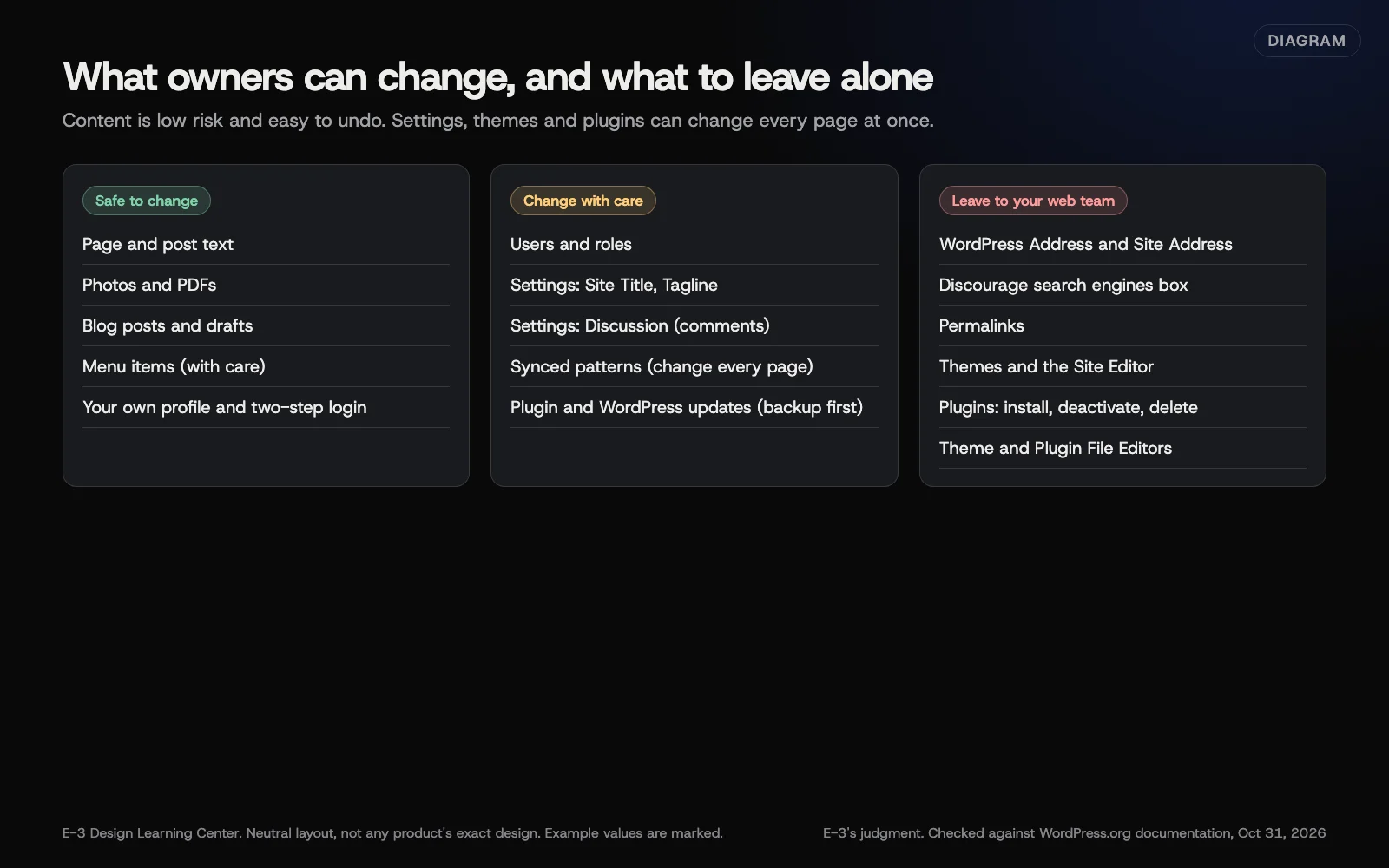 Diagram: which WordPress areas are safe for owners to change, which need care, and which to leave to whoever maintains the site. E-3’s judgment, based on WordPress.org documentation (October 2026).
Our guide to what not to touch lists each one and why. It isn’t about keeping you out of your own site. It’s about knowing which buttons have no undo.
Who should be able to edit?
Every person gets their own login, with the lowest role that fits. Our answer on which WordPress role to give staff explains the roles, and the help article on adding or removing editor access shows the clicks.
A common follow-up is “can I let someone edit only the events page?” Core WordPress doesn’t do that page by page, but there are safe ways to get close. See letting staff edit only some content.
How do WordPress updates work?
WordPress ships major versions with new features and minor versions with fixes. In 2026 the project returned to about three major releases a year, per its 2026 schedule proposal. WordPress 7.0 came out in May 2026 and 7.1 in August. The releases page lists 7.1.4 as current on October 31, 2026.
The important rule is on WordPress’s supported versions page: only the latest major release is officially supported. Older branches get security fixes only as a courtesy. Our guide to WordPress releases and the update cycle explains what updates on its own, what doesn’t and how to read an update notice.
Two related questions have their own answers already:
Our help article Do you keep my WordPress site and plugins updated? covers how to update safely yourself.
And the PHP version?
PHP is the programming language WordPress runs on, and your host controls which version you use. WordPress’s requirements page recommends PHP 8.3 or newer. Hosts send warnings when a version reaches end of life. See which PHP version your site should run.
How do I know if something’s wrong?
WordPress has a built-in check-up under Tools, then Site Health. It sorts findings into critical issues, recommended improvements and passed tests. Our Site Health guide explains which items matter for a small business and which you can ignore.
For outright problems, our help library has first steps for a site that’s down, a critical error or white screen, a login page that shows a 404 and a site you think was hacked.
What about security?
A WordPress site is only as safe as its weakest login and its oldest plugin. Our article on keeping a small-business WordPress site secure is the full checklist. The wider business side, from phishing to backups of your office computers, is in our cybersecurity basics hub. Start with its one-page security plan.
What changed in WordPress in 2025 and 2026?
Older tutorials may not match your screen. Here’s what changed, as of October 31, 2026:
- “Update” became “Save” on published pages in WordPress 6.6. Same behavior, new label.
- Notes, comments on individual blocks for people working on a page together, arrived in 6.9 in December 2025. WordPress 7.1 added @mentions.
- WordPress 7.0, May 2026, refreshed the admin colors and added the command palette and a visual revisions screen, per the 7.0 release post. It also dropped support for PHP 7.2 and 7.3.
- Real-time co-editing was planned for 7.0 but removed before release. It isn’t available yet.
- WordPress 7.1, August 2026, moved image processing into the browser, added a new crop tool and made the Media Library scroll endlessly by default, per the 7.1 release post.
- Security fixes for WordPress 4.1 to 4.6 ended in 2025. Courtesy fixes now go back to 4.7 only.
What are the most common mistakes?
These come up again and again in our support records:
- Saving half-finished work on a live page, then running out of time to finish it.
- Deleting an image from the Media Library to “tidy up,” not knowing a page still used it.
- Copying hours or prices onto many pages, then updating only some of them.
- Switching themes to “try one out.” Menus, widgets and layouts can change at once.
- Deactivating a plugin to fix a problem without knowing what else depends on it.
- Sharing one Administrator login among staff and past vendors.
- Ignoring update notices for months, then facing many updates at once.
Should I do it myself or ask for help?
A simple rule: do it yourself if it’s content and you can preview it. Ask for help if it touches the theme, plugins, settings, PHP or anything that affects every page at once.
| Job | Do it yourself? |
|---|---|
| Change words, photos, a blog post or a PDF | Yes, with a preview first |
| Add a page and put it in the menu | Yes |
| Add or remove a staff login | Yes, if you’re an Administrator |
| Update plugins and WordPress | Only with a backup and a test plan |
| Change themes, PHP version or core settings | Ask whoever maintains the site |
| Clean up after a hack | Ask for help straight away |
How much does it cost, and how long does it take?
WordPress itself is free. The time is in the habits: a few minutes to preview each edit, a monthly Site Health check, and tested updates whenever they arrive. Paid plugins, themes and hosting vary by provider, so check each one’s renewal date.
How does E-3 handle this?
“Editing my website” is the most common reason clients contact us: about 1,600 requests in our support records since 2019. On sites we look after through website care, our monitoring tracks the PHP version, waiting updates and known plugin vulnerabilities, and bigger jobs such as redesigns and speed fixes go to a staging copy before the live site.
Related questions
Sources
- Administration Screens (WordPress.org Documentation)
- WordPress Block Editor (WordPress.org Documentation)
- Revisions (WordPress.org Documentation)
- Patterns, formerly reusable blocks (WordPress.org Documentation)
- Releases (WordPress.org)
- Supported versions (WordPress.org Documentation)
- Requirements (WordPress.org)
- Site Health screen (WordPress.org Documentation)
- Roles and capabilities (WordPress.org Documentation)
- Proposal: 2026 major release schedule (Make WordPress Project)
- WordPress 7.0 Armstrong (WordPress.org News)
- WordPress 7.1 Mary Lou (WordPress.org News)
- Top bar (Beaver Builder Knowledge Base)
Every WordPress for owners guide
- What's in the WordPress dashboard, and what do I need?The WordPress dashboard is the admin area you reach by logging in. Its left menu holds Posts, Media and Pages for everyday content, plus Comments, Users and Tools for occasional jobs. Appearance, Plugins and Settings control how the whole site works, so most owners leave them to whoever maintains the site.
- How does the WordPress block editor work?The block editor builds every page from blocks: a paragraph, a heading, an image or a button is each its own block. Add blocks with the plus button, select and move them with Document Overview, change their options in the Settings sidebar, check the page with View, then save. On a published page, Save puts changes live.
- How do I edit a Beaver Builder page safely?Open the page with Launch Beaver Builder or the Beaver Builder link in the admin bar, then click the text or image you want to change. When you're done, choose Save Draft to keep the live page unchanged, or Publish to put it live. Beaver Builder's History undoes recent steps, and Revisions restores an older published version.
- Can I edit a live WordPress page without it going live?In the block editor, no: selecting Save on a published page updates the live page straight away. Use View to check first, work on a draft copy for big changes, or schedule a new version. Beaver Builder pages are different, because Save Draft keeps changes hidden until you publish. For risky changes, use a staging copy.
- How do I manage the WordPress Media Library safely?Upload images already resized, with clear file names, and fill in alt text when you place them. WordPress makes several smaller copies of every image and scales anything over 2,560 pixels. Before deleting a file, check no page still uses it, because Delete permanently has no trash and no undo by default.
- How do I update the same content everywhere at once?Put content that repeats on several pages, like hours, a booking banner or a call to action, in a synced pattern in the block editor or a global row in Beaver Builder. Edit it once and every page updates. Use an unsynced pattern instead when you want a starting layout that each page can change.
- Which WordPress settings should I leave alone?Leave WordPress Address and Site Address, Permalinks, the search engine visibility box, themes, plugins, the Site Editor templates and the file editors to whoever maintains your site. Each can take the site offline, hide it from Google or change every page at once, and several have no simple undo.
- Can I let staff edit only some of our website?Not page by page in core WordPress. Roles decide what kinds of content someone can edit: an Author edits only their own posts, an Editor edits everything. Beaver Builder can stop a role from moving or deleting layout. For one person on one page, use a well-chosen plugin, or have them send changes for someone else to publish.
- How do WordPress releases and updates work?WordPress ships major releases with new features, about three a year in 2026, and minor releases with fixes and security patches in between. Minor releases install themselves by default. Only the latest major version is officially supported, so plan to move to each new major release within weeks, after a backup and a test.
- What PHP version should my WordPress site run?WordPress recommends PHP 8.3 or newer. On October 31, 2026, PHP 8.4 and 8.5 get full support, 8.2 and 8.3 get security fixes only, and 8.1 and older get none. Check your version in Site Health, then upgrade on a staging copy first, because old plugins and themes can break on newer PHP.
- What does WordPress Site Health tell me?Site Health, under Tools, is WordPress's built-in check-up. The Status tab sorts findings into critical issues, recommended improvements and passed tests; the Info tab lists technical details like your PHP version. Act on critical issues soon, pass recommended ones to whoever maintains the site, and check it monthly.
- Is my site on an old PHP or WordPress version?Sign in to WordPress and read the version at the bottom of the At a Glance box on the Dashboard. Then open Tools, Site Health, Info for the PHP and database versions, and compare them with the support dates. If PHP is 8.1 or older, or WordPress isn't the latest major release, ask your host for an upgrade plan.
Common questions
- Do I need to know code to run my WordPress site?
- No. Everyday jobs like changing words, photos, posts and menus happen in the editor. Code, themes and server settings are for whoever maintains the site.
- Which version of WordPress is current?
- On October 31, 2026, the current release is WordPress 7.1.4, released October 28, 2026. WordPress 7.2 is in beta and planned for December 2026.
- Will saving a change on a published page put it live straight away?
- In the block editor, yes. Selecting Save on a published page updates the live page. Beaver Builder is different: Save Draft keeps your changes hidden until you select Publish.
Next step
- Start here: What's in the WordPress dashboard, and what do I need?The first guide in WordPress for owners.
- Website careUptime monitoring, tested updates, daily backups and security alerts.
Still stuck? Ask E-3 for an answer from our help guides.
Rather we handled wordpress for owners for you?
It’s part of what we do every week for small businesses, as part of website care. Start with a free check of your site and profile, or call and ask.