
How do I edit a Beaver Builder page safely?
Open the page with Launch Beaver Builder or the Beaver Builder link in the admin bar, then click the text or image you want to change. When you're done, choose Save Draft to keep the live page unchanged, or Publish to put it live. Beaver Builder's History undoes recent steps, and Revisions restores an older published version.
The short version
- Open the page, then select Launch Beaver Builder, or Beaver Builder in the black admin bar while viewing the page.
- Click the words or image to edit them. Leave rows and columns where they are.
- Select Done, then Save Draft to keep working later without changing the live page, or Publish to put it live.
- Discard throws away everything since the last publish.
- Tools, then Revisions brings back an earlier published version.
How do I open a page in Beaver Builder?
Beaver Builder’s launch guide gives three ways in:
- While viewing the page on your site, select Beaver Builder in the admin bar at the top.
- In Pages, hover over the page and select the Beaver Builder link.
- In the block editor, select Launch Beaver Builder.
The page opens with your real header and footer. What you see is close to what visitors will see.
How do I make a change?
- Hover over the item you want. A box outlines the module, such as a heading, text, photo or button.
- Click it. A settings panel opens.
- Change the words, swap the photo or edit the link.
- Select Save in the panel.
- Check the change on the page, then switch to Beaver Builder’s responsive editing mode to see it at phone size.
Bigger boxes outline columns and rows. Opening their settings changes spacing and backgrounds for everything inside, so only open them if you mean to.
What do Save Draft, Publish and Discard do?
When you select Done, Beaver Builder’s top bar guide lists four choices:
- Save Draft. Keeps your changes, but they’re “not visible except when editing in Beaver Builder.” The live page stays as it was.
- Publish. Puts your changes live. The keyboard shortcut is Ctrl+P, or Command+P on a Mac.
- Discard. Throws away every change since the last publish.
- Cancel. Goes back to editing.
This is the big difference from the block editor. In Beaver Builder you can work on a live page over several sessions and publish only when it’s right.
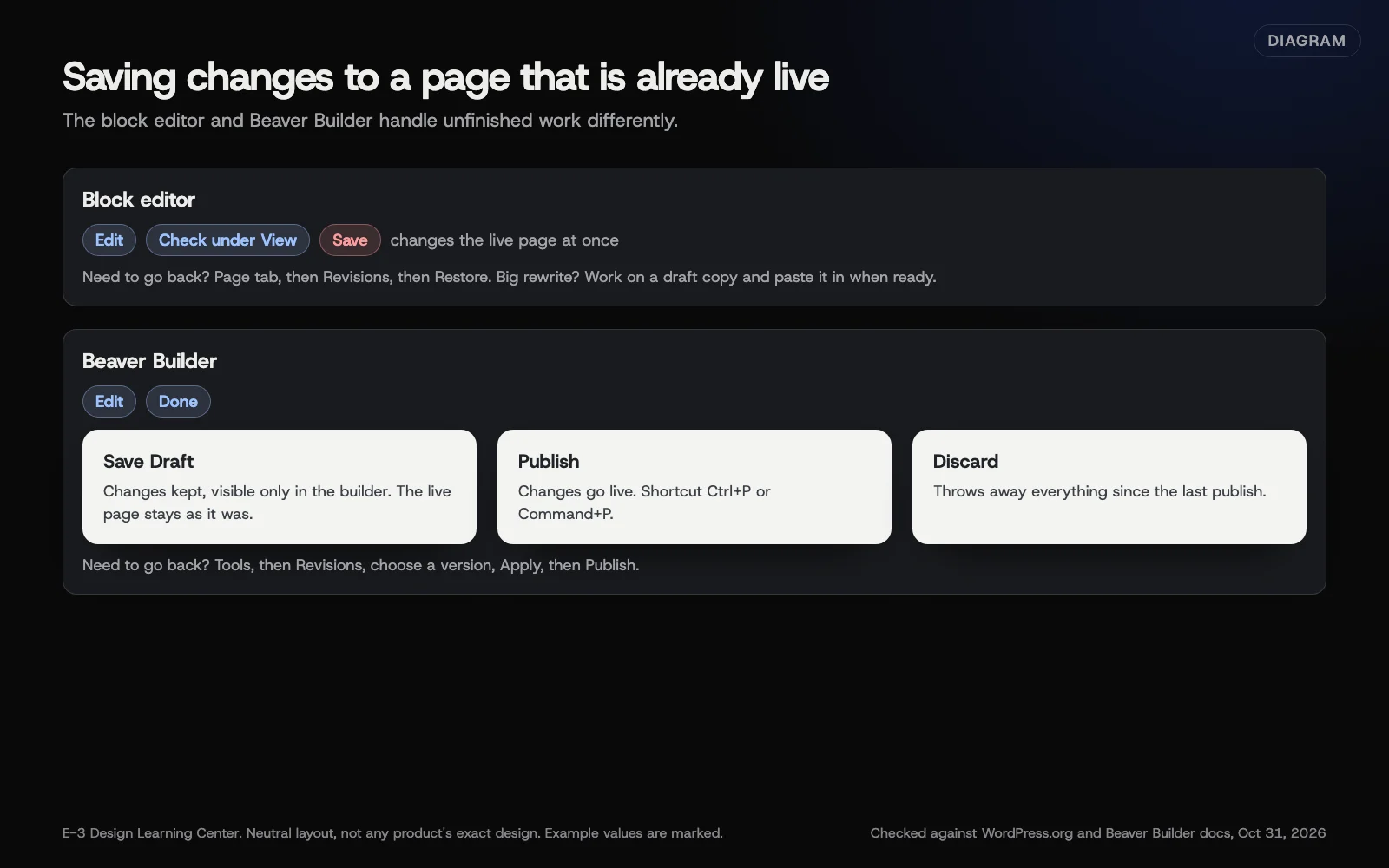 Diagram: how saving works in the block editor and in Beaver Builder on a page that’s already live. Based on WordPress.org and Beaver Builder documentation (October 2026).
How do I undo a mistake?
Beaver Builder has two safety nets.
History, for recent steps. Its undo guide says Ctrl+Z (Command+Z) undoes and Ctrl+Shift+Z (Shift+Command+Z) redoes. Tools, then History lists recent steps; it keeps 20 by default. Publishing clears History. Save Draft and Discard keep it.
Revisions, for older versions. From the restore guide:
- Open the page in Beaver Builder.
- Select Tools, then Revisions.
- Choose the version you want and select Apply.
- Check it, then Publish.
Only published versions are listed. Drafts don’t count.
Beaver Builder stores its layout separately from WordPress’s own revisions. Use Beaver Builder’s Revisions for Beaver Builder pages.
What are the common mistakes and edge cases?
- Editing a global row. A row or module marked as global appears on many pages. The globals guide says changes apply everywhere it’s used. That’s handy for a phone number, risky for a one-off tweak. See reusable content.
- Dragging by accident. Click to select, don’t drag. If something moves, undo straight away.
- Leaving a draft forever. A saved draft waits silently. If someone else later publishes the page, check what’s in the draft first.
- The header or footer won’t open. Those are often built with Beaver Themer or the theme, not the page. Ask whoever maintains the site.
- You can edit words but can’t move anything. Your login may have limited builder access, set by an Administrator. See letting staff edit only some content.
What if this didn’t work?
- If the builder won’t open, try a private browser window, then log in again.
- If the page looks broken after publishing, use Revisions to go back, then ask for help with the change.
- If the whole site shows an error, see what a critical error or white screen means.
How long does it take?
A simple text or photo change takes a few minutes, plus a phone check. Allow longer for a new section, and use Save Draft if you need to stop halfway.
How does E-3 handle this?
On sites we look after through website care, people at E-3 make the changes, and updates and bigger changes are tested on a staging copy first. Daily backups mean an earlier version can be restored.
Related questions
Next step
- Next: Can I edit a live WordPress page without it going live?The next guide in WordPress for owners.
- Website careUptime monitoring, tested updates, daily backups and security alerts.
Still stuck? Ask E-3 for an answer from our help guides.
Rather we handled wordpress for owners for you?
It’s part of what we do every week for small businesses, as part of website care. Start with a free check of your site and profile, or call and ask.