
Which WordPress settings should I leave alone?
Leave WordPress Address and Site Address, Permalinks, the search engine visibility box, themes, plugins, the Site Editor templates and the file editors to whoever maintains your site. Each can take the site offline, hide it from Google or change every page at once, and several have no simple undo.
The short version
- Settings, then General: don’t change WordPress Address (URL) or Site Address (URL).
- Settings, then Reading: never tick Discourage search engines from indexing this site on a live site.
- Settings, then Permalinks: changing the structure changes every web address.
- Appearance: don’t switch themes or edit templates to fix one page.
- Plugins: don’t deactivate, delete or install plugins without a backup and a reason.
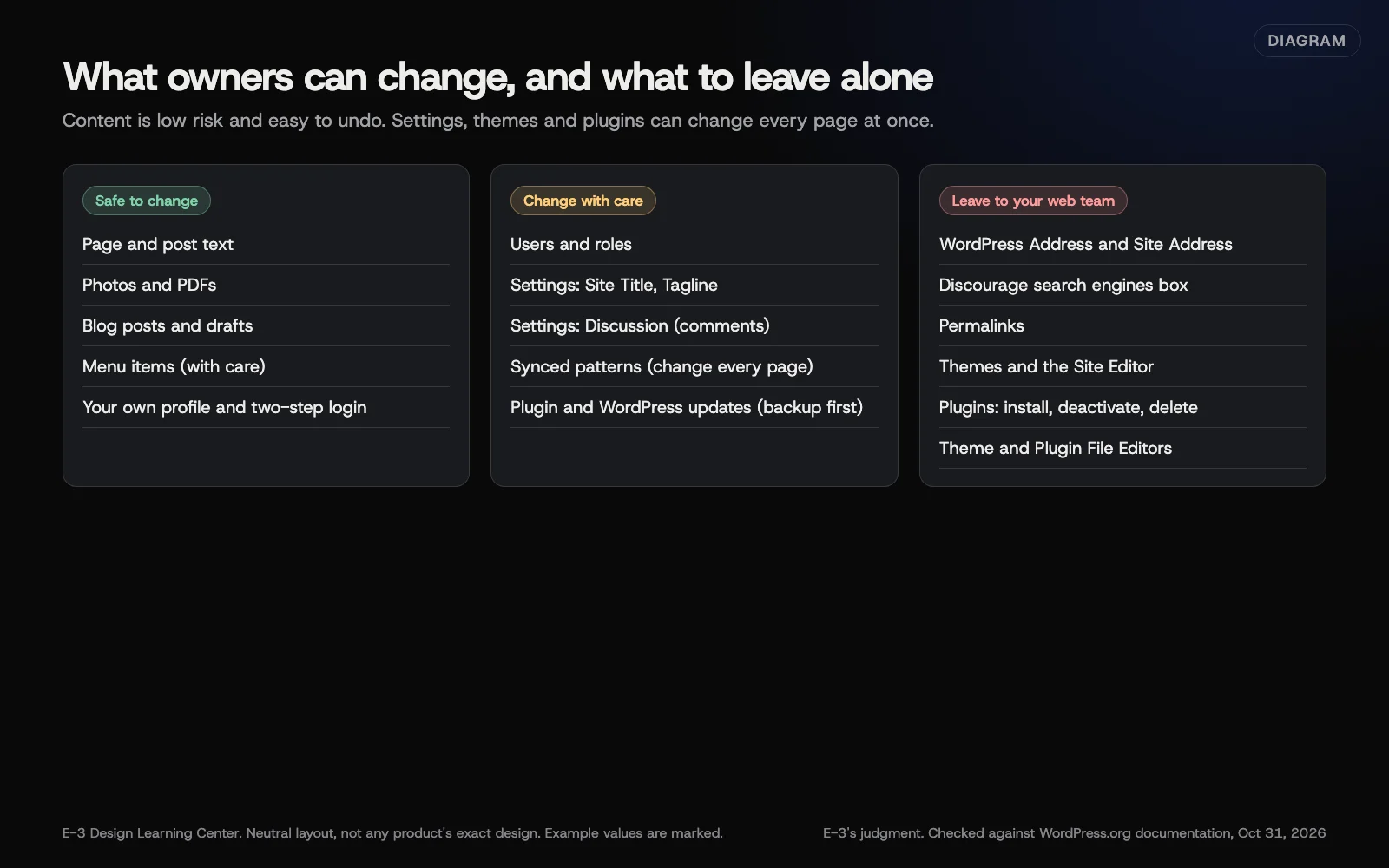 Diagram: which WordPress areas are safe for owners to change, which need care, and which to leave to whoever maintains the site. E-3’s judgment, based on WordPress.org documentation (October 2026).
Which settings can take the site down?
WordPress Address and Site Address. These two boxes under Settings, then General, tell WordPress where it lives. WordPress’s moving guide warns that a wrong value can leave you unable to change it back using the WordPress interface. The fix needs file or database access. If the boxes are greyed out, your developer has locked them, which is good.
Permalinks. Under Settings, then Permalinks, the structure decides your page addresses. Changing it changes every address on the site at once. Old links from Google, emails and printed material can break unless redirects are set up.
Which setting can hide the site from Google?
Under Settings, then Reading, the Search engine visibility box says Discourage search engines from indexing this site. WordPress’s Reading settings guide explains that it asks search engines not to index the site. It belongs on a staging copy, never on a live business site.
If your site has disappeared from Google, this box is one of the first things to check. Our answer on why a site isn’t showing on Google lists the others.
Why leave themes alone?
Your theme controls the design of every page. Switching themes, even “just to look,” can change menus, widgets, page layouts and fonts. Some settings don’t come back when you switch again.
On block themes, Appearance, then Editor edits templates, the header and the footer. A change there shows on every page that uses the template. Change one page’s content in the page editor instead.
The Customize screen on classic themes is a little safer, because it shows a live preview before you select Publish. Even so, check with whoever maintains the site first.
Why leave plugins alone?
Plugins add features, and they depend on each other. Deactivating one to “see if it helps” can switch off your forms, store or security. Deleting one can remove its settings. Installing a new one adds code from another company to your site.
Our answers on plugin updates and how many plugins is too many cover updates and clean-ups. If you have a plugin idea, send it to whoever maintains the site to check first.
What are the file editors, and why are they dangerous?
Appearance, then Theme File Editor, and Plugins, then Plugin File Editor (listed on WordPress’s Administration Screens page) let you edit code inside the dashboard. One typo can crash the site, and there’s no undo. WordPress’s hardening guide recommends turning them off with a setting called DISALLOW_FILE_EDIT. If you can’t see them, that’s probably why.
What can I change safely?
- Your own profile, password and two-step login under Users, then Profile.
- Pages, posts and media content.
- Menu items, with care. See changing your menu.
- Settings, then General: Site Title and Tagline, if you check the result.
- Settings, then Discussion, to turn off comments if you don’t use them. See stopping comment spam.
- Adding and removing staff logins, if you’re an Administrator. See adding or removing editor access.
What are the common edge cases?
- The administration email address. It’s under Settings, then General. WordPress sends recovery links there when the site crashes, so it must be an inbox someone reads. Changing it needs the new address to confirm.
- Time zone. A wrong one makes scheduled posts appear at the wrong time.
- Homepage displays. Under Settings, then Reading, this sets which page is your home page. Changing it changes what visitors see first.
- Plugin settings screens. Treat SEO, cache, security and form plugin settings like core settings.
What if I already changed something?
- Change it back if you remember the old value, then check the site in a private window.
- If you can’t log in or the site is down, don’t keep trying. Contact whoever maintains the site and say exactly what you changed. It’s quicker for everyone.
- If you ticked the search engine box, untick it and save. Then ask Google to recrawl your home page; see checking a page in Search Console.
How long does a fix take?
Unticking a box takes seconds. Recovering from a wrong site address or a theme switch can take an hour or more of developer time, and a restore if settings were lost.
How does E-3 handle this?
On sites we look after through website care, we look after themes, plugins and settings so owners can stick to content. Structural changes are tested on a staging copy first, and every change has a backup behind it.
Related questions
Next step
- Next: Can I let staff edit only some of our website?The next guide in WordPress for owners.
- Website careUptime monitoring, tested updates, daily backups and security alerts.
Still stuck? Ask E-3 for an answer from our help guides.
Rather we handled wordpress for owners for you?
It’s part of what we do every week for small businesses, as part of website care. Start with a free check of your site and profile, or call and ask.