
How do I update the same content everywhere at once?
Put content that repeats on several pages, like hours, a booking banner or a call to action, in a synced pattern in the block editor or a global row in Beaver Builder. Edit it once and every page updates. Use an unsynced pattern instead when you want a starting layout that each page can change.
The short version
- Synced pattern: one piece of content shown on many pages. Edit it once, and it changes everywhere.
- Unsynced pattern: a saved layout you drop in and then change freely on each page.
- Beaver Builder global row or module: the same idea as a synced pattern.
- Good candidates: hours, phone and address blocks, a “Book now” banner, a newsletter sign-up, a trust strip.
- Detach a copy when one page needs to be different.
Why does it matter?
The same detail in several places is how sites end up with three different opening times. Our help article on editing text yourself mentions this problem. This guide is the long-term fix: keep repeated content in one place.
“Reusable blocks” were renamed patterns in WordPress 6.3. WordPress’s patterns guide still lives at the old reusable-blocks address. If an older tutorial says “reusable block,” it means a synced pattern.
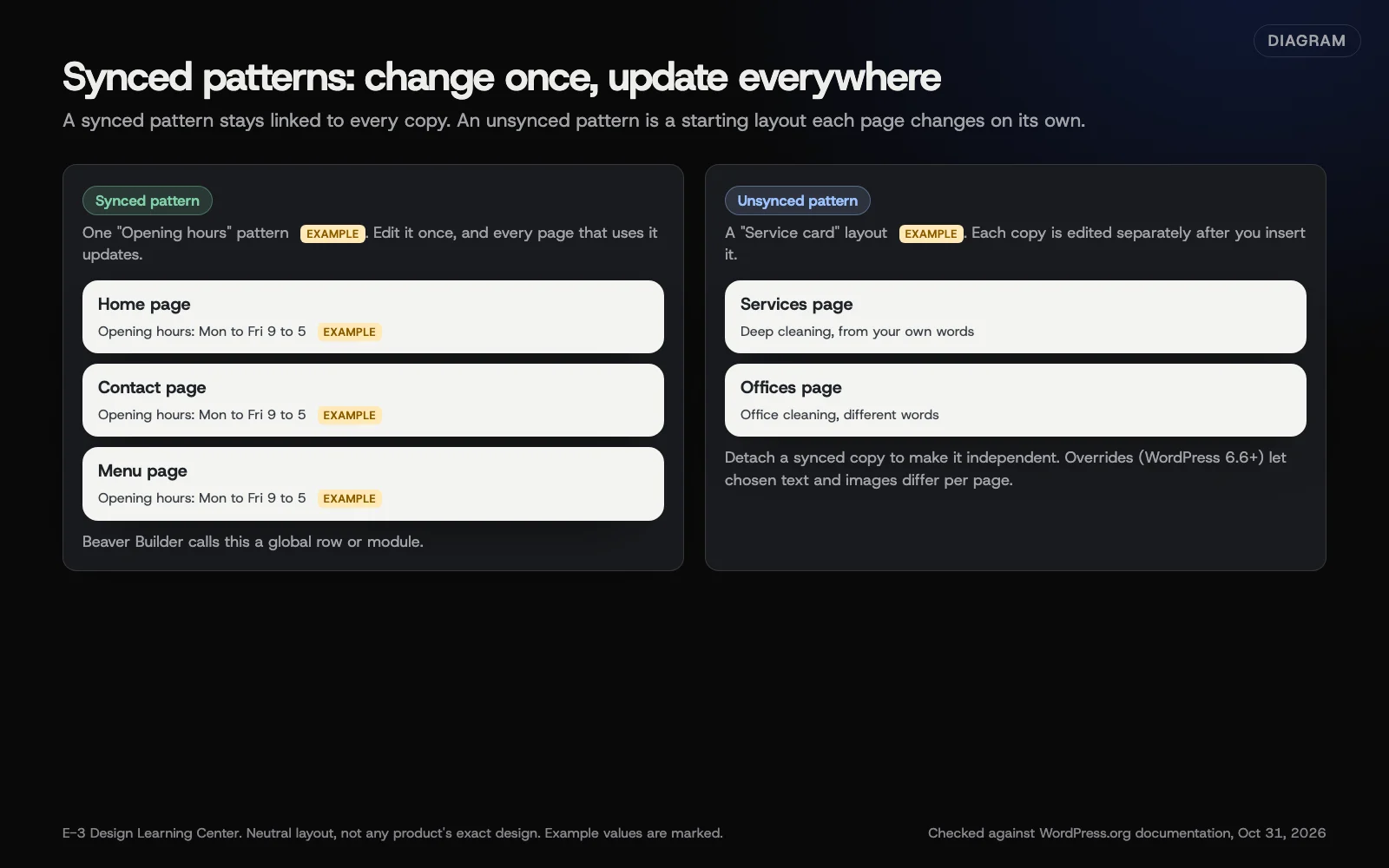 Diagram: a synced pattern edited once updates every page that uses it; an unsynced pattern is copied and then changes on its own. Based on WordPress.org documentation (October 2026). Example content is marked.
How do I make a synced pattern?
These steps follow the patterns guide:
- In the editor, select the block or blocks you want to reuse. Use List View to select a group.
- Open the three-dot menu in the block toolbar and choose Create pattern.
- Give it a clear name, such as “Opening hours.”
- Leave Synced on for content that should match everywhere. Turn it off for a starting layout.
- Select Add.
To add it to another page, open the inserter, go to Patterns, find your pattern and select it.
How do I edit one?
Select the pattern on any page and choose to edit the original. Your change shows on every page using it once you save. Before saving, think about every page it appears on. If you aren’t sure where it’s used, ask whoever maintains the site.
To manage all your patterns, open the editor’s Options menu and choose Manage patterns.
What if one page needs something different?
You have two choices:
- Detach the copy on that page. It becomes ordinary blocks, no longer linked, so future edits to the pattern won’t reach it.
- Use overrides. Since WordPress 6.6, a synced pattern can allow chosen headings, paragraphs, buttons and images to differ per page, per the WordPress developer blog. This needs setting up first in the pattern’s Advanced settings with Enable overrides. It suits things like a staff card with the same layout but different names.
How does Beaver Builder do it?
Beaver Builder calls synced content global. Its globals guide describes it:
- Open the row or module settings.
- Choose Save As… and set the type to Global.
- Find it later under Saved Rows or Saved Modules to place on other pages.
Edits to a global item apply everywhere. If a global item is deleted, each copy turns into an ordinary row or module, so pages don’t lose content. Beaver Builder also has a newer Components feature; check its documentation for your version.
What are the common mistakes and edge cases?
- Editing the pattern when you meant to edit one page. Detach first, or use a plain block.
- Making everything synced. Only sync what must always match. A heading that says “About us” doesn’t need it.
- Prices and offers in a synced pattern. Handy for a site-wide sale, but remember to change it back. Put a reminder in your calendar.
- Header and footer. On block themes these are template parts edited in Appearance, then Editor. Changes affect every page. See what not to touch.
- Image in a synced pattern. Deleting that image from the Media Library breaks it on every page at once.
What if this didn’t work?
- If you can’t see Create pattern, your theme or role may limit it, or the page may be built in Beaver Builder.
- If a pattern change went wrong, page revisions won’t always fix it, because the pattern is saved separately. Ask whoever maintains the site to restore it from backup.
How long does it take?
Setting up a few synced patterns takes under an hour. After that, changing your hours across the site takes a minute.
How does E-3 handle this?
When we build or look after a site through website care, we keep details that repeat, like hours and contact details, in one place where we can. Edits to shared content get a preview for the client to approve, like any other change.
Related questions
Next step
- Next: Which WordPress settings should I leave alone?The next guide in WordPress for owners.
- Website careUptime monitoring, tested updates, daily backups and security alerts.
Still stuck? Ask E-3 for an answer from our help guides.
Rather we handled wordpress for owners for you?
It’s part of what we do every week for small businesses, as part of website care. Start with a free check of your site and profile, or call and ask.