
Website forms and lead follow-up: the complete guide
A website lead is only worth something if a person replies to it. Keep the form short, protect it with quiet spam checks, save every entry on the site as well as emailing it, send each lead to the person who handles it, reply the same day, and record which page and source it came from.
The short version
- Ask for as little as you can, and make the form easy to finish on a phone.
- Use quiet spam checks first: a honeypot, then Turnstile or reCAPTCHA v3 if needed.
- Save every entry on the website, and email each one to the person who handles it, with a backup copy.
- Reply the same day, then follow up a few times on a set schedule. Stop when the person answers, says no or asks you to stop, or when your last planned follow-up goes unanswered.
- Record which page and source each lead came from, so you know what’s working.
How do I set up forms that bring in work?
A contact form looks simple: a few boxes and a button. Behind it is a chain of five steps, and a lead can be lost at any of them. This guide walks through each step in order, with a deeper guide for each part. Everything here was checked against the vendors’ own documentation and the W3C on October 31, 2026. Form plugins update often, so if a setting has moved, the sources on each guide are the place to check.
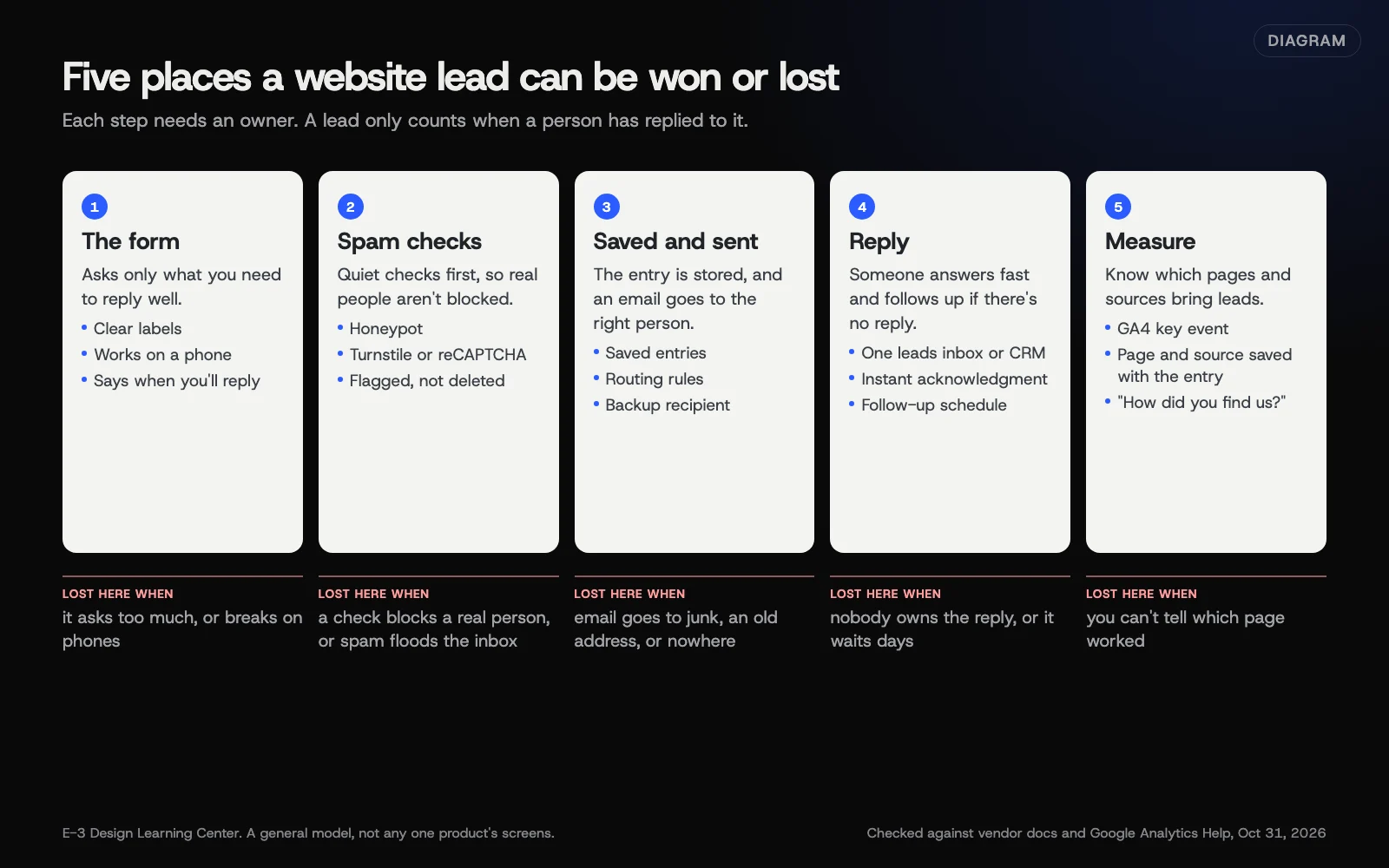 Diagram: the five steps a website lead passes through, and where each one is most often lost. A general model, not any one product’s screens.
1. A form people finish
The W3C’s forms tutorial puts it plainly: “Only ask users to enter what is required to complete the transaction or process.” For a general contact form, that’s usually a name, one way to reach them and what they need. Our answer on which fields a contact form should have covers the basic form.
Some businesses need more before they can quote: a job type, a rough size, a photo, a postcode. That’s a different kind of form. Our guide to quote request forms that qualify leads explains how to ask those questions without scaring people off, using conditional fields that only appear when they apply.
Two more choices shape this step:
- Which plugin builds the form. On WordPress, most small business sites use Gravity Forms, WPForms or Contact Form 7. They differ most in whether entries are saved and what connects to what. See choosing a form plugin for WordPress.
- Whether it should be a form at all. If the next step is always “pick a time,” an online booking page may suit customers better. See online booking or a contact form.
Every form also needs to work for people using a keyboard, a screen reader or a phone. That means real labels, clear error messages and no time limits. Our guide to making your forms accessible walks through the checks.
2. Spam checks that don’t block real people
Any public form attracts bots. The fix is layers of checks that real visitors never notice. Our help article on stopping spam through your website form has the step-by-step, and our answer on contact form spam explains why forms attract so much of it.
The order that works:
- A honeypot. A hidden field that only bots fill in. Gravity Forms calls the setting Detect Spam using the Advanced Honeypot in its form settings. WPForms turns its own spam protection on by default.
- A background check, if spam continues. Cloudflare Turnstile or Google reCAPTCHA v3. Neither normally asks the visitor to do anything.
- Flag, don’t delete. Send caught entries to a spam list you can check. Gravity Forms’ default is Create an entry and mark it as spam.
There are real trade-offs between Turnstile and reCAPTCHA, in cost, privacy and accessibility. reCAPTCHA is now a Google Cloud product with a free monthly allowance, according to Google’s tier comparison. Turnstile has a free plan, and Cloudflare says it meets WCAG 2.2 AA. Our guide to whether CAPTCHAs hurt accessibility and privacy compares them.
3. Saved on the site, and sent to the right person
This is where the most leads go missing, and owners usually don’t know it has happened. Two habits fix most of it.
Save every entry on the website. If the notification email lands in junk or goes to a mailbox nobody reads, the entry is still there. Not every plugin does this. WPForms Lite doesn’t save entries to your WordPress database, according to WPForms’ own docs. Contact Form 7 doesn’t either; its maker’s Flamingo plugin adds storage. See whether to save form entries or only email them. How long you keep them is a privacy question, covered in how long to keep form submissions.
Route each lead to the person who handles it. A form can email different people depending on an answer. Repairs go to the service desk, and quotes go to sales. In Gravity Forms that’s Configure Routing, and its routing documentation warns that if no rule matches, the notification goes out with an empty recipient. Our guide to routing form leads to the right person covers routing, a backup copy and the Reply To setting.
If emails go missing even though entries are saved, the problem is how your website sends mail. Our help article on form emails that go to spam or go missing finds the lost leads, and the email-deliverability guide on making WordPress send email properly fixes the cause.
4. A reply, fast, and follow-up
A saved lead is still only a name until someone answers it. Our answer on how fast to reply to a new website lead sets the target: the same hour if you can, and never later than the next business day. Plan a short follow-up schedule, such as a couple of tries over the next week, and give it an end: stop as soon as the person replies, declines or asks you to stop, and don’t keep going indefinitely.
As leads grow, email alone gets hard to track. Who replied? Did anyone follow up? That’s when forms should feed a CRM, or one leads inbox that also collects calls and texts. See sending website form leads into a CRM or HighLevel.
Many small businesses follow up by text. That’s effective, but it comes with rules: consent, a way to opt out, and in the US, carrier registration for business texting. HighLevel’s A2P 10DLC page says registration “is required when a business sends SMS or MMS messages to U.S. recipients” from standard local numbers. Our guide to the rules for texting and emailing leads covers texting and the FTC’s CAN-SPAM rules for marketing email. It isn’t legal advice.
Calls are leads too. For calls you miss, see what missed-call text-back does and what an AI receptionist does. Our article on a follow-up system for missed calls puts calls, texts and forms into one routine.
5. Know which pages and sources bring leads
If you can’t say how many leads the website brought last month, start with our answer on whether your website brings in calls and leads. It covers the basics: key events in Google Analytics 4, your Google profile’s numbers, and asking every customer how they found you.
Two guides here go further:
- Which page each form lead came from. Save the page and campaign tags with every entry using hidden fields, and use GA4’s Landing page report for the totals. Setting up the key event itself is covered in the Google Analytics guide to key events.
- How call tracking works. Tracking numbers show which ad or page made the phone ring. Used carelessly, they spread to directories and confuse your listings.
Why do forms and follow-up matter so much?
Most small business websites have one job: getting the phone to ring or a form to arrive. Design, speed and search all serve that job. A form that quietly loses one lead in five does more damage than a slightly slow page, and nobody notices, because a lost lead leaves no trace.
People also contact more than one business at once. Whoever replies first, clearly and politely, often gets the work. That makes the reply step as important as the form.
Our free lost-lead calculator estimates what missed calls and slow replies cost, using your own numbers.
What are the most common mistakes?
These are the problems we see most when we look at a small business’s forms:
- Nobody has tested the form in months. The notification address belongs to someone who left, or the site stopped sending mail after a hosting change. Send a test from a personal address once a month.
- Entries aren’t saved anywhere. When the email fails, the lead is gone for good.
- The form sends “from” the visitor’s address. Mail systems often treat that as forged and send it to junk. Send from your own domain and put the visitor in Reply To.
- Spam checks with no spam folder. A real customer caught by mistake disappears without a trace.
- Image puzzles. They block some real people, and the W3C’s note on the inaccessibility of CAPTCHA says “we prefer non-interactive approaches.”
- Routing with a gap. One answer on the form has no rule, so those leads go nowhere.
- Leads live in one person’s inbox. When they’re on holiday, nobody replies.
- No idea which page works. The business keeps paying for pages and ads without knowing which ones bring work.
What if leads still aren’t coming in?
Work backward through the chain:
- Do messages reach you? Send a test from your phone using a personal email address. Check the saved entries, the inbox and the junk folder. See form emails that go to spam or go missing.
- Does the form put people off? Count the required fields, and try it on a phone with one thumb. See quote request forms and accessible forms.
- Do people reach the form? Check how many visitors reach the pages it sits on. Our answer on why a contact form isn’t bringing in leads walks through all three checks.
For changes to the form itself, our help article on adding or changing a form shows where the settings live. If you need event sign-ups or paid registration, see online registration for your event.
How much does it cost, and how long does it take?
The basic tools can be free. Contact Form 7 is free on WordPress.org. WPForms has a free Lite version. Gravity Forms is a paid annual license with no free version, according to its pricing page. Turnstile has a free plan. reCAPTCHA is free up to 10,000 checks a month per organization, then needs billing on Google Cloud.
CRMs, texting, call tracking and lead tools are paid services, and costs vary by provider and volume. Checking and fixing an existing form usually takes an hour or two. Routing, saved entries, hidden source fields and a CRM connection take longer, depending on how many forms the site has.
How does E-3 handle this?
Forms come up constantly in our support history. “How do I add or change a form?” and “Why are my form emails going to spam or missing?” are both among the ten questions E-3’s clients have asked most, across about 7,100 support requests since 2019 (about 6,100 help-desk tickets from 2019 on, plus about 970 requests in 2026, counted in October 2026).
Our leads and follow-up service uses HighLevel to bring forms, calls and texts into one leads inbox, with missed-call text-back and an AI receptionist where they fit. Changes to a live site are made on a staging copy first. If you’d rather hand the whole lead path to someone else, we can set it up and look after it.
Related questions
Sources
- Forms tutorial (W3C Web Accessibility Initiative)
- Notifications settings reference (Gravity Forms documentation)
- Email routing (Gravity Forms documentation)
- Form settings: spam detection (Gravity Forms documentation)
- Using Lite Connect entry backups in WPForms Lite (WPForms documentation)
- Flamingo (WordPress.org plugin directory)
- Turnstile overview (Cloudflare docs)
- Compare reCAPTCHA tiers (Google Cloud documentation)
- Inaccessibility of CAPTCHA (W3C Group Draft Note)
- [GA4] Recommended events (Analytics Help)
- [GA4] Landing page report (Analytics Help)
- Guidelines for representing your business on Google (Google Business Profile Help)
- CAN-SPAM Act: A Compliance Guide for Business (FTC)
- What is A2P 10DLC: brand and campaign registration (HighLevel Help)
Every Forms and lead follow-up guide
- How do I build a quote request form that qualifies leads?Ask only what you need to give a first price or decide if the job fits: the job type, rough size, location and timing. Use conditional questions so each visitor sees only what applies to them, make photos optional, split long forms into short steps, and say what happens next and when you'll reply.
- Which WordPress form plugin should a small business use?Pick the plugin by what happens after someone presses Send. Gravity Forms is paid and saves entries, routes leads and connects to many tools. WPForms has a free Lite version, but its saved entries need a paid license. Contact Form 7 is free and simple, and needs the Flamingo plugin to save messages.
- Do CAPTCHAs hurt accessibility and privacy?Visible puzzles do. The W3C says image and audio CAPTCHAs shut out many disabled people, so prefer checks visitors never see: a honeypot first, then Cloudflare Turnstile or reCAPTCHA v3. Both load a third-party script that handles visitor data, so name them in your privacy policy, and check reCAPTCHA's free monthly limit.
- Route form leads to the right person, every timeUse your form plugin's routing to send each lead to the person who handles it, based on an answer such as the type of request. Cover every possible answer, copy one owner as a backup, send from your own domain with the visitor in Reply-To, and test each path from a personal address.
- Save form entries on your site, or only email them?Save them on the site as well as emailing them. An email can land in junk, go to an old address or never be sent, but a saved entry is still there to find. Check whether your form plugin stores entries, since some free versions don't, then limit who can see them and delete old ones on a schedule.
- How do I send website form leads into a CRM or HighLevel?There are three common ways: embed the CRM's own form on your site, use your form plugin's add-on for that CRM, or send each entry by webhook or a connector like Zapier. Map every field, tag the lead's source, keep a saved copy where your setup allows, and send a test lead before you rely on it.
- What are the rules for texting and emailing website leads?A personal reply about someone's own request is the lowest-risk message, but get clear permission before automated or marketing texts, honor STOP and any other plain request to stop, and register your business texting number with the carriers. Marketing emails need your real name, a postal address and a working unsubscribe. This isn't legal advice.
- How does call tracking work, and is it safe for local SEO?Call tracking gives each ad, page or source its own phone number that forwards to your real line, so you can see which one made the phone ring. It's safe for local search when your main number stays the main number everywhere: on your Google profile, your listings and in your website's code.
- How do I see which page each form lead came from?Do two things. Add hidden fields to your form that save the page it was sent from and any campaign tags, so every entry shows its source. Then mark form submissions as a key event in Google Analytics 4 and open the Landing page report to see which pages and sources produce leads overall.
- How do I make my website forms accessible?Give every field a visible label, mark required fields in words, let people fill in contact details automatically, explain errors in plain text next to the field, and make sure the whole form works with a keyboard alone. Avoid image puzzles. Then test it yourself with the keyboard, a phone and a free checker.
- Should I use online booking instead of a contact form?Use online booking when the next step is almost always a set appointment you can price and schedule without talking first, such as a consultation, a lesson or a standard service. Keep a form when you need details before you can quote or decide if the job fits. Many businesses offer both, side by side.
Common questions
- Should form leads go to email or into a CRM?
- Both, if you can. Save every entry on the website, email a notification to the person who handles it, and, once you have more leads than one inbox can track, send them into a CRM or one leads inbox so nothing is forgotten.
- Which spam protection should I add first?
- Your form plugin's built-in honeypot. It costs nothing and visitors never see it. Add Cloudflare Turnstile or reCAPTCHA v3 only if spam keeps coming, and avoid image puzzles, which the W3C says shut out many disabled people.
- How do I know which pages bring in leads?
- Mark form submissions as a key event in Google Analytics 4 and check the Landing page report, and also save the page and campaign with each entry using hidden fields, so you can see where real customers came from.
Next step
- Start here: How do I build a quote request form that qualifies leads?The first guide in Forms and lead follow-up.
- Free website checkPublic checks on your own site, then an action plan of what to fix first.
Still stuck? Ask E-3 for an answer from our help guides.
Rather we handled forms and lead follow-up for you?
It’s part of what we do every week for small businesses, as part of leads and highlevel. Start with a free check of your site and profile, or call and ask.