
How long should I keep form submissions?
Keep form submissions only as long as you have a real business reason, then delete them. No US or UK law sets one fixed period for contact forms, so you decide, write it down and stick to it. Start by finding every copy: website entries, inboxes, your CRM, spreadsheets and backups. This isn't legal advice.
The short version
- Ask for less in the first place. Data you never collect can’t leak.
- Find every place a form message ends up. There are usually four or five.
- Pick a time limit for each kind of record and write it down.
- Let your form plugin delete old entries automatically, and clear inbox copies and exports on the same schedule.
- Customers you win move into your normal business records, which have their own rules, such as tax records.
This isn’t legal advice. Some industries, like health care, finance and legal services, have their own record-keeping rules.
How do I set a retention schedule?
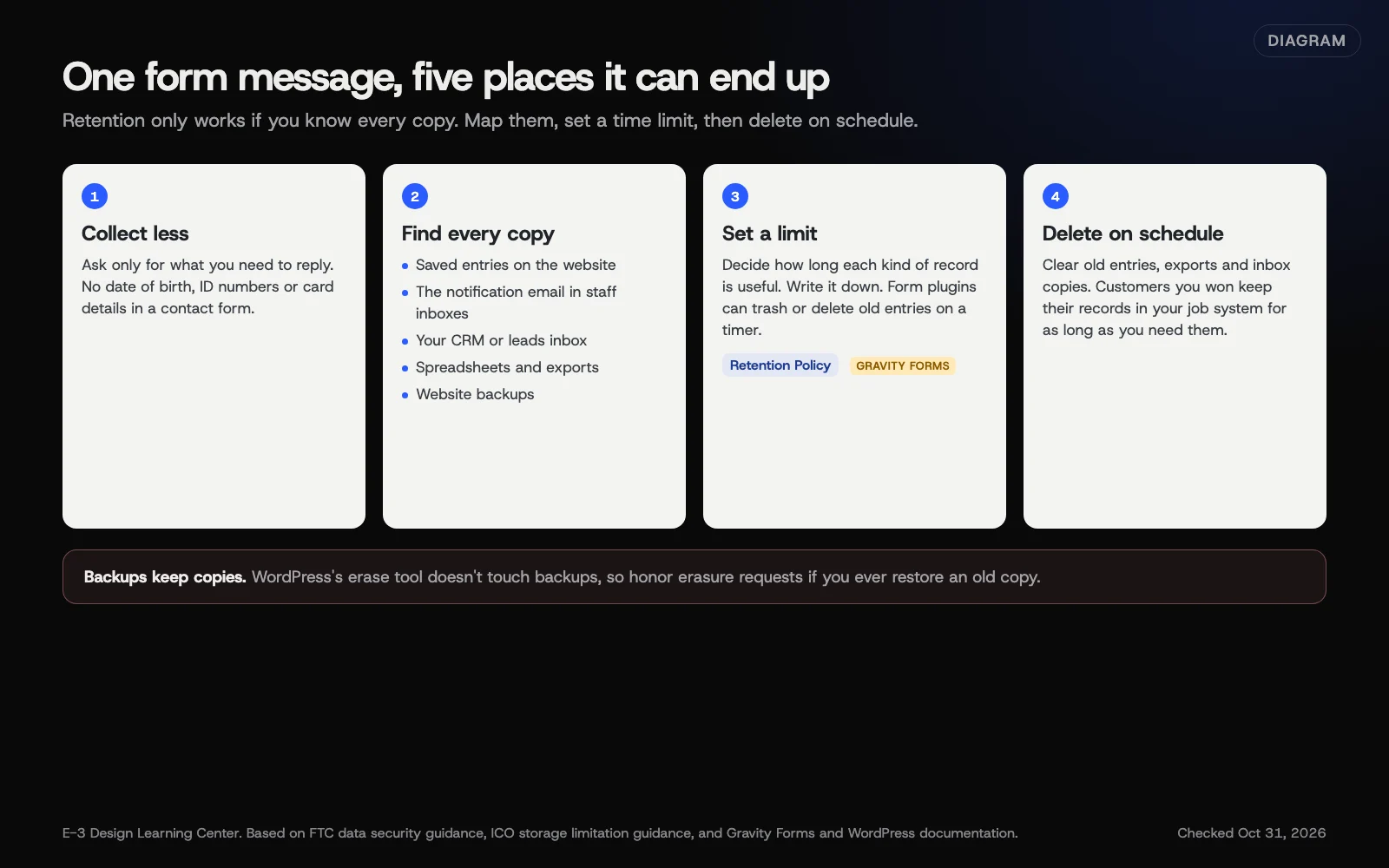 Diagram: collect less, find every copy, set a limit and delete on schedule. Based on FTC and ICO guidance and Gravity Forms and WordPress documentation (October 2026).
Step 1: Collect less
Go through each form field by field and ask, “Do I need this to reply?” The FTC’s Start with Security guide puts it simply: “No one can steal what you don’t have.” It suggests checking each form item is really needed. A contact or quote form rarely needs a date of birth, full address, Social Security number or card details. Our forms hub covers what a good quote request form asks.
Step 2: Find every copy
One form message often ends up in several places:
- Saved entries on the website (most form plugins keep them).
- The notification email in one or more staff inboxes, plus their phones.
- Your CRM or leads inbox, if the form connects to one.
- Spreadsheets or exports someone downloaded.
- Website backups, which keep copies of the database.
Write the list down. Our guide on where form entries should be stored helps you decide which of these you need at all.
Step 3: Choose a time limit for each kind of record
The ICO’s storage limitation guidance says the law “does not set specific time limits.” But you must be able to justify how long you keep data. You should write down standard periods and “periodically review the data you hold.” The FTC’s guide to protecting personal information gives the same advice for US businesses: keep it only as long as you need it.
An example schedule (these periods are examples, not rules):
| Record | Example period | Why |
|---|---|---|
| Enquiries that didn’t become customers | 12 months | Long enough to follow up and spot repeat enquiries |
| Spam and junk entries | 30 days | Long enough to check nothing real was caught |
| Job applications | Set with your adviser | Employment rules vary by state |
| Customers | Moves to your job and accounting records | Those have their own rules |
Step 4: Turn on automatic deletion
Many form plugins can do this for you. In Gravity Forms, the form’s personal data settings include:
- an IP Addresses option to stop storing the sender’s IP address;
- a Retention Policy with Retain entries indefinitely, Trash entries automatically or Delete entries permanently automatically after a number of days;
- an Enable option to include the form in WordPress’s personal data export and erase tools, using an email field to identify the person.
Gravity Forms notes the clean-up runs once a day, so entries can stay up to a day longer than the setting. Other form plugins have their own options; check their documentation.
Step 5: Clear the other copies
Set a monthly reminder to empty old form notification folders, delete downloaded exports and archive or delete old CRM records that never became customers.
Step 6: Remember backups
WordPress’s erase tool documentation warns that it “does not remove the data from backups.” Backups normally age out on their own schedule. If you ever restore an old backup, check that it doesn’t bring back data you’d already deleted on request.
Why does it matter?
Old form entries are a liability with no upside. If your site or an inbox is ever breached, everything stored there is exposed. A short retention period also makes data requests quicker, because there’s less to search.
What are the common mistakes?
- Entries kept forever because nobody changed the default.
- Every lead copied to five people’s inboxes. Each copy needs clearing.
- Sensitive fields “just in case.” If you don’t use it, remove it.
- Deleting from the website but not the CRM, or the other way round.
- No written schedule, so nobody knows what’s supposed to be kept.
What if I can’t turn on automatic deletion?
- Your form plugin has no retention setting. Delete old entries by hand each month. Or ask your web company about a plugin that can.
- Entries are only emailed, never stored. Then your inbox is the record. Set up a folder rule and clear it on schedule.
- You’re not sure what’s safe to delete. Export first, check with whoever needs the records, then delete the export too.
How much does it cost, and how long does it take?
Retention settings are usually included in the form plugin you already have. Mapping the copies and writing a schedule takes an hour or two. The monthly clear-out takes minutes once it’s routine.
How does E-3 handle this?
As part of website care, we can map where each form sends and stores data, and remove fields you don’t need. We can also set up automatic deletion in your form plugin, using the periods you choose. If a backup is ever restored, data you deleted can come back, so keep a note of deletion requests so they can be applied again. You decide which changes to make.
Related questions
Next step
- Next: Does COPPA apply to my small business website?The next guide in Privacy and cookies.
- Free website checkPublic checks on your own site, then an action plan of what to fix first.
Still stuck? Ask E-3 for an answer from our help guides.
Rather we handled privacy and cookies for you?
It’s part of what we do every week for small businesses, as part of website care. Start with a free check of your site and profile, or call and ask.