
Route form leads to the right person, every time
Use your form plugin's routing to send each lead to the person who handles it, based on an answer such as the type of request. Cover every possible answer, copy one owner as a backup, send from your own domain with the visitor in Reply-To, and test each path from a personal address.
The short version
- Decide who handles each kind of request before touching any settings.
- Add a question the routing can use, such as “What do you need help with?”
- Write one rule per answer, including “Something else.” A gap means a lost lead.
- Send from an address on your own domain, put the visitor’s email in Reply To, and copy one owner as a backup.
- Submit a test for every answer, and check every inbox and junk folder.
How do I set up routing?
Routing means the form picks the recipient from something the visitor chose. Repairs go to the service desk, new quotes go to sales, and job applications go to the office. The example below uses Gravity Forms, because its notifications reference documents each setting. Other plugins have similar options with different names, and some offer them only in paid versions. WPForms’ plugin page lists conditional logic as a Pro feature, for example.
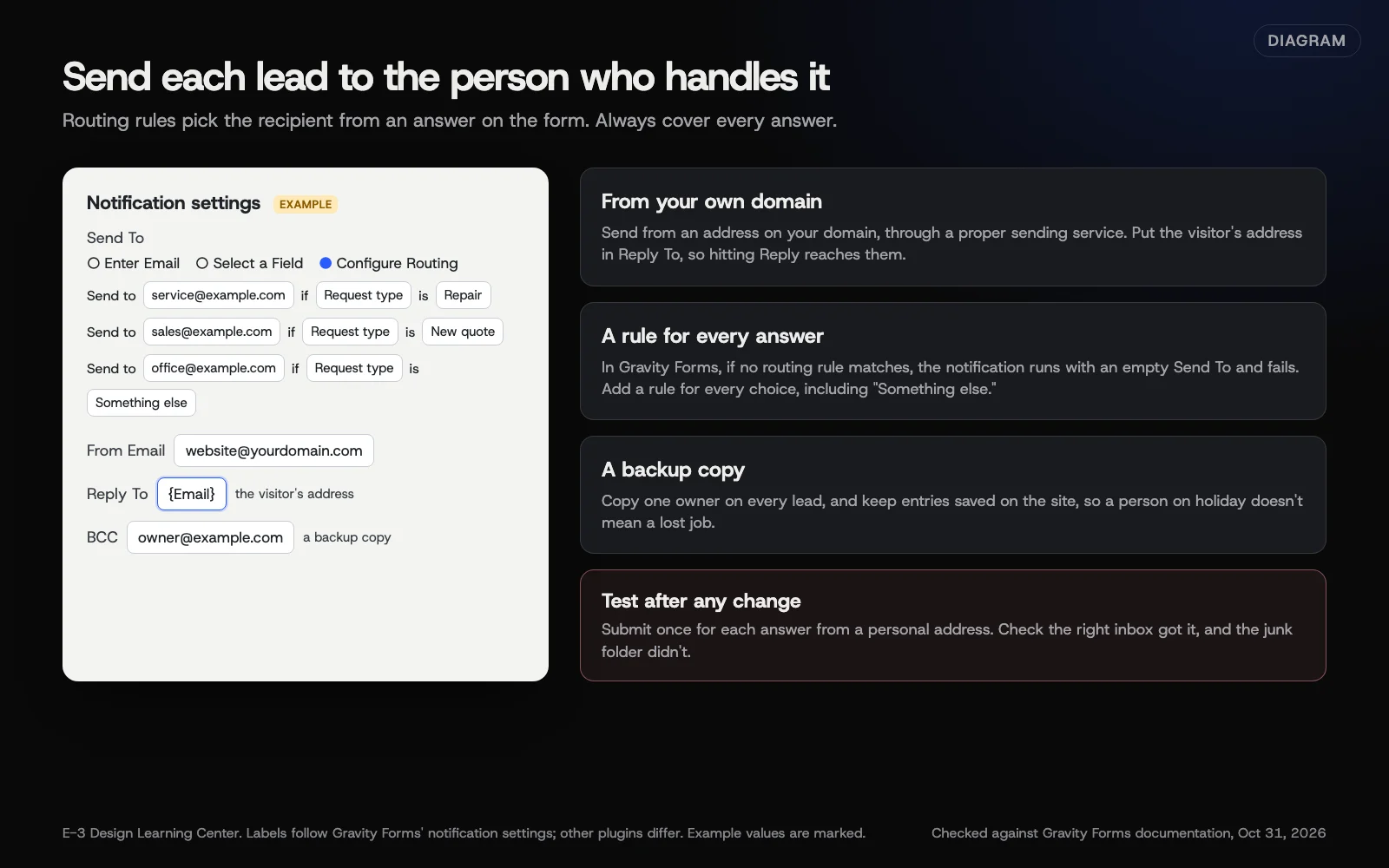 Diagram: routing rules, From, Reply To and a backup copy in a form notification. Labels follow Gravity Forms; other plugins differ. Example values are marked.
Step 1: Map who handles what
Write a short list on paper first. For each kind of request, note one person or shared mailbox, plus who covers when they’re away. Use role addresses like service@ where you can, so the form doesn’t need changing when someone leaves.
Step 2: Add a question the routing can use
Routing needs an answer with fixed choices, such as a drop-down or radio buttons. A free-text box won’t work, because people type things in a hundred ways. Keep the choices few and plain, and always include “Something else.”
Step 3: Write the rules
In Gravity Forms, the path is Forms, your form, Settings, then Notifications, as its notifications guide describes. Open the admin notification and find Send To. It offers three choices:
- Enter Email: one fixed address.
- Select a Field: an address the visitor typed. That’s for sending the visitor a copy, not for routing leads.
- Configure Routing: different addresses depending on answers.
Choose Configure Routing. Each rule reads like a sentence: send to this address if this field is this value. Add a rule for every choice in your question.
Step 4: Cover every answer
This is the step people skip. Gravity Forms’ routing documentation warns that when no rule matches, “the notification is processed with an empty value for the Send To,” and it fails. So if a visitor picks a choice with no rule, nobody gets the lead.
The same page notes that rules are based on the choice values as they were when you saved them. If you rename a choice later, update the rules too.
Step 5: Set From and Reply To
- From Email: an address on your own domain, such as website@yourdomain.com. Gravity Forms advises a valid From address to avoid sending problems.
- Reply To: the visitor’s email field. The reference describes it as the address “used as the reply to address for the notification email.” When you press Reply, your answer goes to the customer.
Don’t put the visitor’s address in From. Mail systems see a message “from” a Gmail address sent by your web server, and treat it as forged. Our email-deliverability guide on making WordPress send email properly covers the sending side.
Step 6: Add a backup copy
Add one owner’s address as BCC, or as a second address on each rule. If the main person is out sick, someone still sees the lead. Saved entries on the site are the second safety net; see saving form entries.
Step 7: Test every path
From a personal email address, submit the form once for each answer. Check that the right inbox got each one, that nothing went to junk, and that pressing Reply goes to the address you typed in the test.
Why does routing matter?
A lead sent to the wrong person waits while it gets forwarded, and sometimes it’s never forwarded at all. The person who handles repairs should see repair requests first. Routing also stops one inbox from becoming a pile that everyone assumes someone else is clearing.
What are the common mistakes and edge cases?
- A choice with no rule. The most common routing failure, and silent.
- Personal addresses in the rules. When someone leaves, their leads keep going to a closed mailbox. Use role addresses.
- Several forms, one forgotten. Sites often have a contact form, a quote form and a careers form. Check them all when someone leaves.
- Addresses printed on pages. Changing the form doesn’t change an email address typed into the footer or a PDF.
- Too many recipients. Copying everyone on everything means nobody owns the reply. One owner per lead, plus a backup.
- Routing on a typed answer. Free text can’t match a rule reliably.
What if it still doesn’t work?
- Check the saved entries first. If the entry is there, the form worked and the email failed. Our help article on form emails that go to spam or go missing walks through it.
- Check the rules against the current choices. A renamed choice breaks an old rule.
- Look for a sending log. An SMTP plugin’s email log shows whether the site sent the message at all.
- Send the leads into a CRM. When routing by email gets complicated, a CRM can assign leads instead. See sending form leads into a CRM.
How much does it cost, and how long does it take?
Routing is built into some plugins and part of paid tiers in others. Setting it up on one form takes under an hour, including tests. A site with many forms takes longer, mostly for testing.
How does E-3 handle this?
When a client asks us to change who gets form emails, every form on the site needs checking, not just the obvious one, along with old addresses still printed on pages. Each routing path needs its own test submission before you rely on it. With our leads and follow-up service, leads can also land in one shared leads inbox instead of individual mailboxes.
Related questions
- Should form entries be saved on the site or only emailed?
- How do I send form leads into a CRM or HighLevel?
- How do I build a quote request form that qualifies leads?
- Which WordPress form plugin should I use?
- How do I add or change a form on my website?
- Back to the complete guide to forms and lead follow-up
Next step
- Next: Save form entries on your site, or only email them?The next guide in Forms and lead follow-up.
- Free website checkPublic checks on your own site, then an action plan of what to fix first.
Still stuck? Ask E-3 for an answer from our help guides.
Rather we handled forms and lead follow-up for you?
It’s part of what we do every week for small businesses, as part of leads and highlevel. Start with a free check of your site and profile, or call and ask.