
How do I see which page each form lead came from?
Do two things. Add hidden fields to your form that save the page it was sent from and any campaign tags, so every entry shows its source. Then mark form submissions as a key event in Google Analytics 4 and open the Landing page report to see which pages and sources produce leads overall.
The short version
- GA4 tells you totals: which pages and sources led to form leads.
- Hidden fields tell you the source of each person, right in the entry.
- Use both: totals to judge pages, entries to judge which leads became customers.
- Tag links in emails, social posts and ads with UTM parameters, so the source is known.
- Never send names, emails or phone numbers into Google Analytics.
How do I save the source with every entry?
Hidden fields are form fields the visitor never sees. They fill in automatically when the form is sent, and the value is saved with the entry and shown in the notification email. Hidden doesn’t mean trusted: anyone can change these values, so treat them as a helpful label for reporting, never as a basis for pricing, access or anything security-related. The steps below use Gravity Forms because its documentation is specific; other plugins have similar features, sometimes in paid versions.
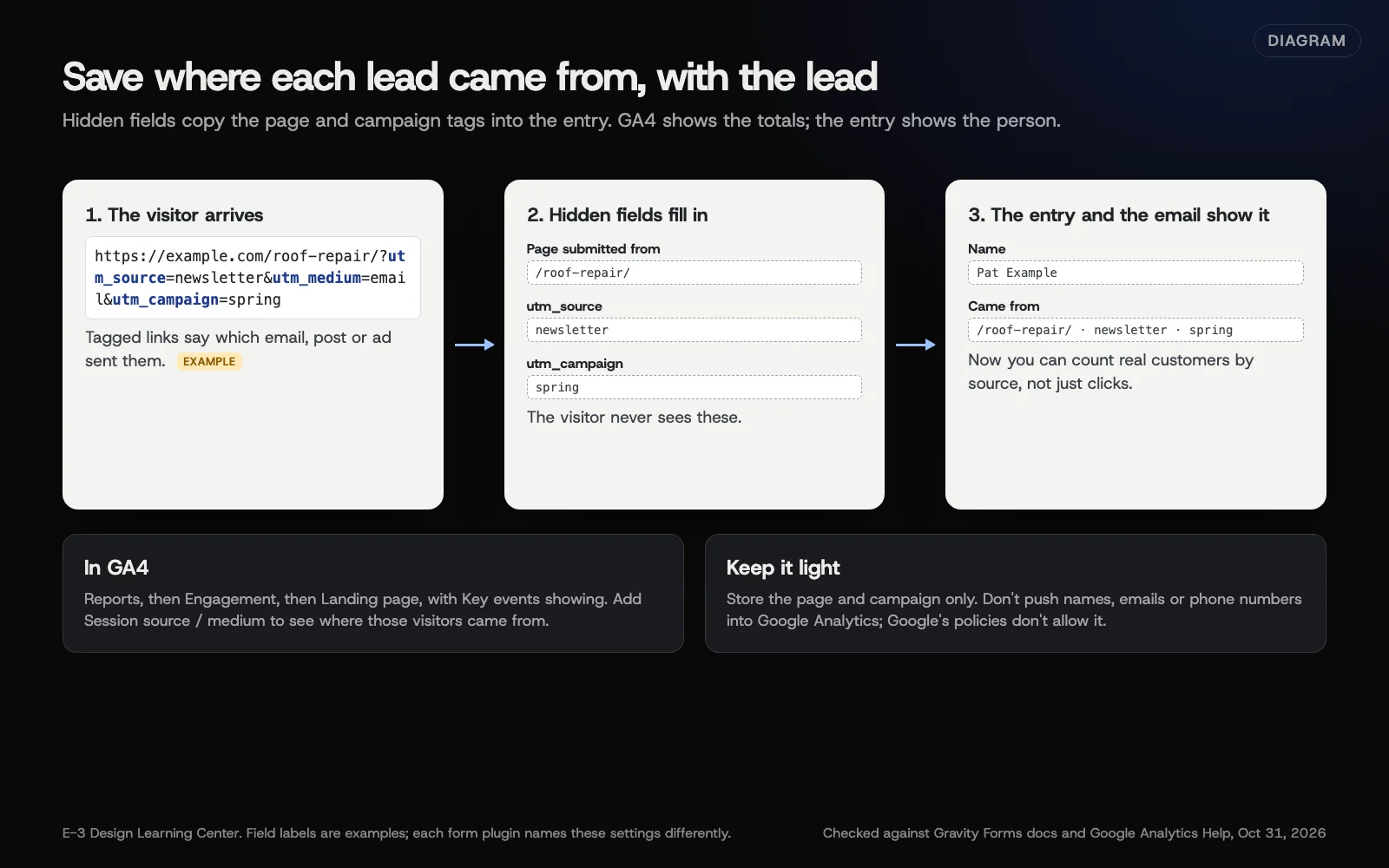 Diagram: how hidden fields copy the page and campaign tags into a form entry, and where GA4 shows the totals. Field labels are examples.
Step 1: Save the page the form was sent from
If the same form appears on many pages, add a Hidden field and set its default value to the {embed_url} merge tag. Gravity Forms’ embed_url page says it “displays the URL from which the form was submitted.” Every entry then shows the page, such as your roof repair page or your contact page.
Step 2: Save the campaign tags
Links in your newsletter, social posts and ads can carry UTM tags, such as utm_source=newsletter. The social media guide on measuring with insights and UTMs explains how to tag links.
To save them with the entry, add a Hidden field for each tag you use. Following Gravity Forms’ dynamic population guide:
- Open the field’s Advanced tab.
- Tick Allow field to be populated dynamically.
- In Parameter Name, type the tag name, for example
utm_source.
Parameter names must match exactly, including capital letters. The same guide warns that some hosts cache pages with query strings, which can stop this from working, so test it.
Step 3: Test it
Open a page with the form using a test link, such as your page address followed by ?utm_source=test. Send the form, then check the entry shows the page and test.
There’s a limit: tags in the address only last for the page they arrive on. If a visitor lands on one page and fills in the form on another, the tag is gone unless a script carries it across. Page capture with {embed_url} still works.
How do I see totals in Google Analytics 4?
First, GA4 needs to record form submissions as a key event. The Google Analytics guide to key events covers that. GA4’s enhanced measurement can record form_submit events automatically, per Google’s enhanced measurement page. Check in DebugView that it fires once per real submission, not on failed attempts.
Then:
- Open Reports, then Engagement, then Landing page. Google’s Landing page report page describes it.
- Look at the Key events column, and choose your form event if there are several.
- Add Session source / medium as a second dimension to see where those visitors came from.
This shows which pages people arrive on before becoming leads. To see paths through the site, the Google Analytics guide to Explorations goes further.
Why do both?
GA4 counts. It doesn’t know which lead became a paying customer. The entry knows the person but not the totals. Together, you can say “the roof repair page brought 12 leads last quarter, and four became jobs” and judge pages by work won, not just by clicks. That example is an illustration, not real data.
If leads go into a CRM, send the hidden fields there too; see sending form leads into a CRM.
What are the common mistakes and edge cases?
- Personal details in Google Analytics. Google’s PII guidance says Google policy requires that “no data be passed to Google that Google could use or recognize as personally identifiable information.” Watch for forms that put the visitor’s email in the thank-you page address.
- Counting thank-you page views as leads, when people can reach that page by refreshing or bookmarking it.
- Inconsistent tags. “Facebook,” “facebook” and “fb” show up as three sources. Agree on one spelling.
- Tagging links between your own pages. UTMs are meant for links from outside your site. On links between your own pages, they can replace the visitor’s real source in reports.
- Judging a page on one month. Small numbers swing a lot. Look at a quarter.
- Forgetting calls. Many leads phone. See how call tracking works.
What if the numbers don’t match?
GA4 and your saved entries will never match exactly. Some visitors block analytics or decline cookies, spam entries aren’t GA4 events, and some people send the form twice. Compare trends, not exact totals. If GA4 shows far fewer key events than real entries, test the event; if it shows far more, look for an event firing on page loads or failed sends.
How much does it cost, and how long does it take?
GA4 is free. Hidden fields are included in most form plugins; dynamic population may depend on the plugin or license. Adding page and campaign fields to a form and testing them takes about an hour.
How does E-3 handle this?
Tracking setup is part of our SEO and AI search service, and our leads and follow-up service keeps each lead’s source with the lead in one leads inbox.
Related questions
Next step
- Next: How do I make my website forms accessible?The next guide in Forms and lead follow-up.
- Free website checkPublic checks on your own site, then an action plan of what to fix first.
Still stuck? Ask E-3 for an answer from our help guides.
Rather we handled forms and lead follow-up for you?
It’s part of what we do every week for small businesses, as part of leads and highlevel. Start with a free check of your site and profile, or call and ask.