
Make your WordPress site send email properly
Don't rely on WordPress sending mail straight from the web server. Install an SMTP plugin and connect it to your email provider with OAuth, or to a sending service with an API key, then authenticate that service for your domain. Send from your own domain, put the visitor in Reply-To, and test. That helps, but nothing guarantees the inbox.
The short version
- WordPress’s built-in mail sends from the web server, which usually isn’t one of your domain’s approved senders and doesn’t sign for it. That’s a common reason form and order emails go missing.
- Install an SMTP plugin and connect it to a real sending service: your mailbox provider through OAuth, or a transactional service through an API key.
- Authenticate that service for your domain (SPF and DKIM), so its mail passes DMARC.
- From: an address on your own domain. Reply-To: the visitor.
- Avoid plain password SMTP. Google stopped accepting normal account passwords in March 2025 (app passwords are the stated exception), and Microsoft plans to turn it off by default at the end of December 2026.
If your form emails are missing right now, start with our help page on finding form emails that went to spam or never arrived. This guide is the lasting fix.
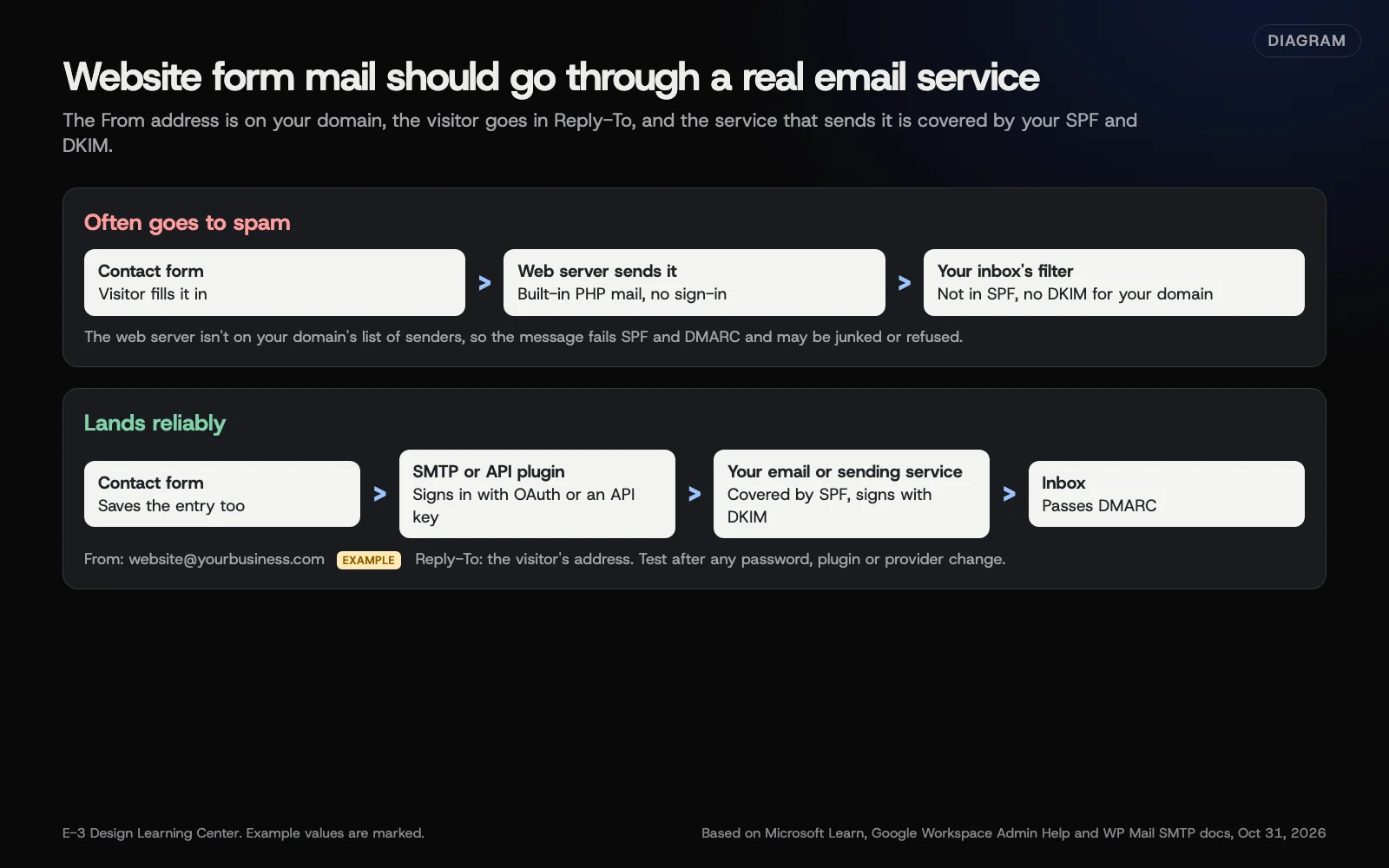 Diagram: website form mail sent straight from the web server compared with mail sent through an authenticated service. Example values are marked. Based on Microsoft Learn, Google Workspace Admin Help and WP Mail SMTP docs (October 2026).
Which way should I connect it?
| Option | How it signs in | Good for | Watch out for |
|---|---|---|---|
| Your mailbox provider (Microsoft 365 or Google Workspace) | OAuth | Low-volume form notifications to your own team | Sending limits; the mailbox needs a license |
| A transactional sending service | API key | Order emails, customer confirmations, anything sent to customers | One more account to own; authenticate your domain in it |
| Plain SMTP with a password | Username and password | Older setups only | Being switched off by Google and Microsoft |
WP Mail SMTP is a widely used plugin, and its mailer guide lists what it supports as of October 2026. In the free version: Google Workspace or Gmail, several transactional services (including SendLayer, Brevo, Mailgun, Postmark, SendGrid and SMTP2GO) and Other SMTP. Its Microsoft 365 / Outlook mailer, Amazon SES and Zoho need a paid license. Other SMTP plugins work the same way. The steps below use WP Mail SMTP’s labels.
How do I set it up?
- Decide the From address. Use a real address on your domain, such as
website@yourbusiness.com(an example). Don’t use an address on a domain you don’t control, and avoid a made-upnoreplyaddress that doesn’t exist. - Install the plugin and run its setup wizard, or open its Settings.
- Choose the mailer that matches your choice from the table.
- Connect it.
- Google Workspace: the plugin walks you through creating Google API credentials and signing in with the Google Account that will send. Google’s transition page confirms OAuth is the supported route since password sign-in ended.
- Microsoft 365: the plugin’s Outlook mailer connects through Microsoft’s Graph API with an app registration in Microsoft Entra. You need a Microsoft 365 admin for the consent step.
- A sending service: create an API key in the service and paste it into the plugin. Then, in the service itself, complete its domain authentication, which usually means publishing its DKIM records.
- Set Force From Email so every plugin on the site uses the same From address.
- Set the form’s Reply-To to the visitor’s email field, so pressing Reply answers the customer, not your website.
- Send a test. WP Mail SMTP has an Email Test page under its Tools menu. Send to an outside address, such as a personal Gmail, and check Show original for SPF, DKIM and DMARC passes.
- Submit the real form once, and check the entry is saved in the form plugin as well as emailed.
Why does it matter?
A missed form email is a missed customer. It’s also invisible: the visitor sees “thanks, we’ll be in touch” and the message vanishes. Built-in mail usually fails because the web server isn’t in your SPF record and isn’t set up to sign with your domain’s DKIM key, so receivers that check DMARC treat it as a likely fake. A server can be authorized and set up to sign, but that depends on the host and is harder to check than a dedicated mailer. Even fully authenticated mail can still be filtered, so test after every change. Our guide to the SPF record for Microsoft 365 or Google Workspace explains the approved-senders list.
What changed with password sign-in?
- Google: less secure apps and password-only SMTP stopped working for all Google Accounts on March 14, 2025. Google’s page lists OAuth or an app password as the options for devices that send mail.
- Microsoft: SMTP AUTH with a password is still possible in Exchange Online, but Microsoft’s Exchange team says it will be disabled by default for existing tenants at the end of December 2026 (admins can turn it back on for now), with a final removal date to be announced in 2027. Microsoft’s SMTP AUTH page also notes it’s already off where security defaults are on.
If your site, or your office scanner, signs in to Microsoft 365 with a username and password today, plan the move to OAuth or a sending service before the end of the year.
What are the common mistakes?
- A From address on someone else’s domain, such as the visitor’s own Gmail address. It fails DMARC every time. Put the visitor in Reply-To instead.
- Connecting the plugin but skipping domain authentication in the sending service. Mail sends, but signs as the service’s domain and still lands in junk.
- A shared staff mailbox password typed into the plugin. When that person changes their password, form mail stops. WP Mail SMTP’s guide makes the same point about Other SMTP.
- Firewalls blocking the port. Some servers block outgoing mail ports; API-based mailers avoid this. In one case in our records, form mail stopped because a firewall blocked the sending service’s port.
- Not testing after changes. A plugin update, password change or provider move can break it. Test after each one.
What if it still doesn’t work?
- Check the plugin’s email log or debug output for the error.
- Check the form plugin’s saved entries. If entries exist, the leads are safe and only the notification is failing.
- Check SPF, DKIM and DMARC with our email deliverability checker.
- Look for the failing source in your DMARC reports.
How much does it cost, and how long does it take?
The free plugin and an existing mailbox cost nothing extra, though WP Mail SMTP’s Microsoft 365 mailer needs its paid license. Transactional services set their own pricing, often with a free tier for low volume. Setup takes an hour or two including DNS, plus waiting for the records to take effect.
How does E-3 handle this?
When a client tells us form submissions aren’t arriving, we usually submit a test entry and check whether the form saved it before looking at email. Then we look at the notification settings, whether an SMTP plugin or sending service is set up, and the domain’s SPF and DKIM. What we usually recommend is sending form mail through an authenticated sending service rather than the web server.
Related questions
Sources
- A complete guide to WP Mail SMTP mailers (WP Mail SMTP docs)
- Enable or disable SMTP AUTH in Exchange Online (Microsoft Learn)
- Exchange Online to retire Basic auth for Client Submission (SMTP AUTH) (Microsoft Exchange Team Blog, updated January 27, 2026)
- Transition from less secure apps to OAuth (Google Workspace Admin Help)
Next step
- Next: Add newsletter and CRM tools without breaking SPFThe next guide in Business email that lands.
- Email deliverability checklistA free printable checklist (PDF).
Still stuck? Ask E-3 for an answer from our help guides.
Rather we handled business email that lands for you?
It’s part of what we do every week for small businesses, as part of website care. Start with a free check of your site and profile, or call and ask.