
Google Business Profile: the complete small-business guide
A Google Business Profile is the free listing that shows your business on Google Search and Maps. Claim or create it with an account the business controls, verify it, fill in every section accurately, then keep it current with hours, photos, reviews and replies. Google says you can't pay for a better local ranking.
Download the Google Business Profile checklist (PDF)6 pages, 449 KB, free to print. What's inside
The short version
- Search Maps first. Claim the listing Google already has, or create one if nothing exists.
- Use a Google Account the business controls, and verify with whichever method Google offers.
- Fill in every section: real name, specific category, services, hours, contact details and photos.
- Keep it current: holiday hours, review replies, the odd post, and a monthly look at the numbers.
- It’s free, and Google says nobody can pay for a better local ranking.
How do I set up and run my profile?
Your Google Business Profile is the box that appears when someone searches for your business, or for what you do nearby. It shows your hours, phone number, directions, photos and reviews. Each part below links to a step-by-step guide, checked against Google’s Business Profile Help Center on October 31, 2026. Google changes its screens often, so if a button has moved, each guide’s sources are the place to check.
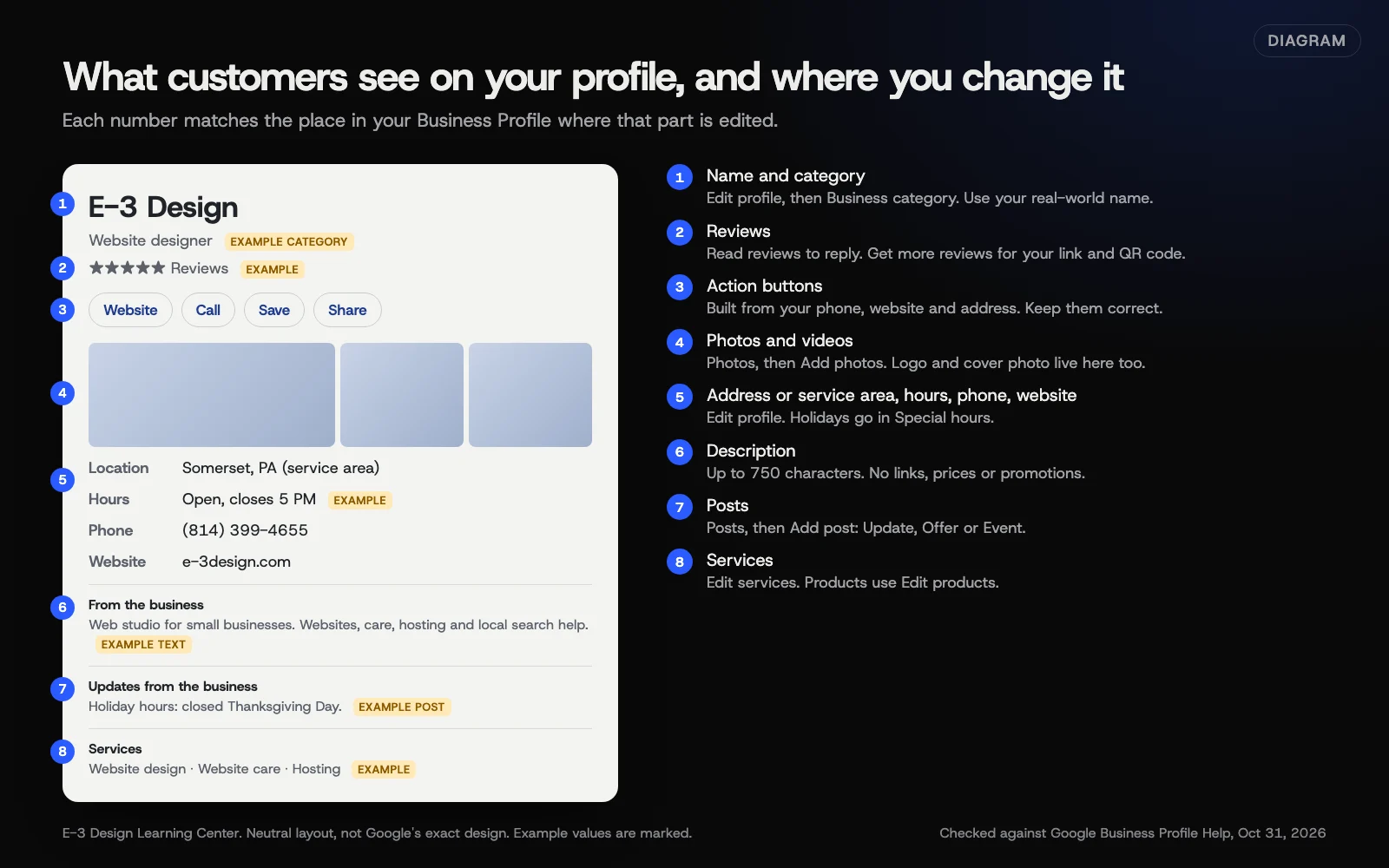 Diagram: the parts of a Business Profile customers see, using E-3 Design’s public details. Example values are marked. Based on Google Business Profile Help (October 2026).
1. Claim or create it
There’s a good chance Google already lists your business, because customers and Google’s data sources add places all the time. Search Google Maps for your name and phone number first. Claim an unmanaged listing, request access to one someone else controls, and only create a new profile when nothing is there. Our guide on how to create or claim your profile covers all three cases, including Google’s 3-day window for an existing owner to answer.
2. Verify it
Nothing you add shows publicly until Google verifies the business. Google decides which methods you’re offered: phone or text, email, a live video call, a postcard, or a short recorded video. Google says reviews usually take up to 5 business days. Our verification guide explains each method and what to do when you see Review issues.
3. Set up access properly
A profile has one primary owner, plus owners and managers. Google’s owners and managers page explains the difference: owners can add and remove people, and managers can do most of the day-to-day work. The safe setup is the business owner as primary owner, one trusted backup owner, and everyone else as a manager. Our guide to owners and managers shows the clicks, plus Google’s 7-day wait for new owners.
4. Fill in every section
- Name. Use your real-world name, exactly as it appears on your sign. Google’s guidelines don’t allow added keywords, city names or taglines.
- Category, services and products. Choose the most specific primary category, a few extras only for real parts of the business, and list everything you do as services. See choosing categories, services and products.
- Contact details, description and attributes. A phone number you control, your best website page, a plain description of up to 750 characters, and only the attributes that are true. See business name, description, contact details and attributes.
- Address or service area. Show your address if customers come to you. If you go to them, remove it and list up to 20 service areas. Our guide to service-area businesses and storefronts helps you choose.
- Hours. Regular hours, special hours for holidays, and Temporarily closed only for longer closures. See hours, holiday hours and closures.
- Photos and videos. A logo, a cover photo, and real photos of your place, team and work. See photos and videos for Google’s limits.
5. Keep it working
- Reviews. Get your review link and QR code, and ask every customer the same way, right after the job. Never offer anything in return. See getting more reviews.
- Replies. Reply to every review, good or bad, briefly and calmly. Report only reviews that break Google’s policies. See replying to reviews, including bad ones.
- Posts. Short updates, offers and events when you have real news. See posts, offers and events.
- Outside changes. Google and the public can change your details. Blue text in the editor marks them. See Google updates and suggested edits.
- Numbers. Check calls, direction requests and website clicks monthly. See reading your performance report.
If your profile already exists but is neglected
Work in this order, because each step depends on the one before:
- Get access sorted. Make sure the business owner is primary owner, and remove people who’ve left.
- Check the name and address against Google’s guidelines, since these are the details most likely to cause trouble.
- Fix the category and services so Google knows what you do.
- Correct hours and contact details, and set special hours for the next holiday.
- Reply to old reviews, starting with the most recent and any unanswered complaints.
- Add a handful of real photos.
- Start asking for reviews with your link or QR code.
Most of this fits into a single afternoon. The reviews part becomes a weekly habit.
A simple routine
Every week (about 10 minutes): reply to new reviews, check for blue-text Google updates and suggested-edit emails, and add a photo of recent work.
Every month: check hours, phone, website link and services; set special hours for any holidays coming up; post an update if you have real news; write down calls, directions and website clicks from Performance.
Every year: review who has access, check your categories still fit, refresh older photos, and re-read Google’s guidelines.
Why does a Google Business Profile matter?
For many customers it’s their first look at you, often before they ever reach your website. They call, get directions or read reviews straight from it. Google’s getting started page says profiles are for businesses that have face-to-face contact with customers: a place customers visit, or a business that goes to them. Online-only businesses and rental properties don’t qualify.
How it affects local ranking
Google says local results depend mainly on three things:
- Relevance: how well your profile matches the search.
- Distance: how far you are from the searcher.
- Prominence: how well known you are, including links and reviews.
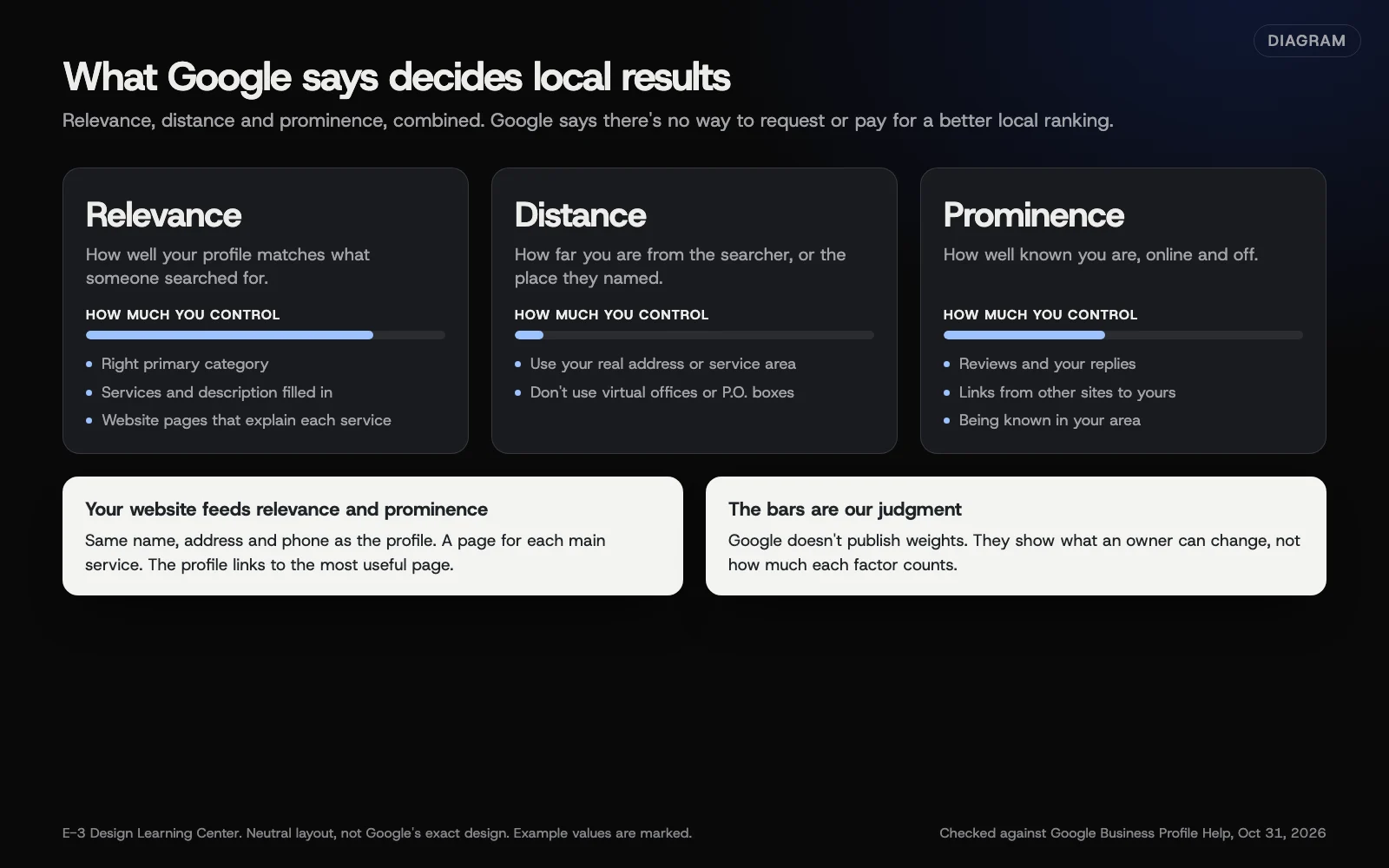 Diagram: Google’s three local ranking factors. The control bars are E-3’s judgment, not Google weights.
You can’t change distance. You can improve relevance with a complete profile and a website that explains your services, and grow prominence over time with reviews and real local links. Google’s local ranking page says “more reviews and positive ratings can help your business’s local ranking,” and also that “there’s no way to request or pay for a better local ranking.” Our guide on how your profile, website and ranking connect goes deeper, and our article on the setup and habits that matter adds a checklist.
How it shows up in AI answers
Some people now ask AI tools where to find a plumber or a good bakery nearby. Google’s guidance on AI features and your website lists keeping your Business Profile information up to date among its best practices. AI assistants from other companies also draw on business listings, reviews and websites. There’s no special trick here. An accurate profile, real reviews and a website that answers customers’ questions clearly help in every place your business might be described. Our article on showing up in AI answers explains what helps and what’s a waste of money.
What it does for customers
Think about what a customer needs in the minute before they call: are you open, are you near, do you do the job, and do other people trust you? A complete profile answers all four on one screen. That’s why accurate hours and a working phone number matter as much as anything clever.
What are the most common mistakes?
If your profile has been running for a while, these are the problems to look for. Each one breaks a Google rule or quietly costs you calls.
- Nobody can sign in. The owner account belongs to someone who left, or to an agency you no longer use. Fix access first, because every other fix depends on it.
- The name has extra words. “Smith Plumbing Somerset Best Rates” isn’t a real-world name. Extra words can lead to a suspension.
- The address isn’t real. A virtual office or mailbox address isn’t allowed.
- A home address is showing when customers never visit. Remove it and set a service area.
- Holiday hours are missing, so customers drive to a closed door.
- There are two listings, from an old address or an earlier attempt. See duplicate, fake and unwanted listings.
- Reviews have no replies, and complaints sit there for every future customer to read.
- The website link is broken, pointing to an old business.site address or a missing page.
A profile also has limits. It won’t make you show up in towns far from where you are, it won’t hide fair negative reviews, and it can’t replace a website where customers check your work in depth. Treat the profile as your front door and your website as the shop behind it.
Which features have changed or been retired?
Older guides still teach some of these. Here’s where things stand as of October 31, 2026.
- Chat and call history: retired July 31, 2024. Google’s chat and call history page says both features are “no longer available” as of that date. Customers can still call you from the profile, and in some regions you can now add a WhatsApp link or a text-message number instead.
- Websites made with Business Profiles: shut down in 2024. Google turned off the free sites on business.site addresses in March 2024, with redirects to the profile until June 10, 2024, as Search Engine Land reported. Google’s original help notice now redirects elsewhere. Replace any old business.site link with your real website.
- Questions and answers: being changed. Google’s developer change log says the Q&A API was discontinued on November 3, 2025, while Google was “updating the Q&A functionality and user experience.” We couldn’t find a current Help Center page describing Q&A on profiles today, so don’t build plans around it. Put answers to common questions in your description, services, posts and website.
- Service areas by radius: gone. Service areas must now be cities, postal codes or named areas.
A few things are new:
- Managing your profile with Gemini. Google’s Gemini page says owners or managers of a single verified profile can connect it to the Gemini web app to update hours, draft review replies and check performance. It isn’t available on work or school accounts. Check anything it drafts before it goes live.
- Business Home. Google’s Business Home page describes a closed beta dashboard for select categories in the US and UK. It combines profile numbers with Merchant Center, Google Ads and YouTube data, and doesn’t replace your profile.
- Review QR codes on a computer only, per Google’s review link page.
What if something goes wrong?
- You can’t get into the profile. Request ownership, as our create or claim guide explains. Don’t start a second profile.
- Verification keeps failing. Fix what Google flagged and try another offered method; see the verification guide.
- Your details changed on their own. Look for blue text and correct it; see Google updates and suggested edits.
- There’s a duplicate or fake listing. See duplicate, fake and unwanted listings.
- The profile was suspended. Fix the cause, gather documents and file one careful appeal; see suspended profiles and reinstatement.
How much does it cost, and how long does it take?
Google’s add or claim page says adding or claiming a profile is free, and there’s no paid tier for better placement. Verification, Google says, usually takes up to 5 business days. The rest varies with your business: entering services and photos is quicker for a simple profile, and recovering an old profile or a video verification can take much longer. The weekly routine above is short once it’s a habit, but how long it takes depends on how many reviews and questions come in.
How does E-3 handle this?
“How do I update my Google Business listing or get reviews?” is one of the most common questions E-3’s clients ask, with about 90 requests in our records. We look after Google profiles as part of our SEO and AI search service, and review requests and replies are part of our leads and follow-up service. People at E-3 make the changes, and accounts we set up stay in your business’s name, with E-3 added as a user.
Related questions
Sources
- Get started with Google Business Profile (Google Business Profile Help)
- Add or claim your Business Profile (Google Business Profile Help)
- Verify your business on Google (Google Business Profile Help)
- Guidelines for representing your business on Google (Google Business Profile Help)
- Tips to improve your local ranking on Google (Google Business Profile Help)
- Manage your Business Profile owners & managers (Google Business Profile Help)
- Changes to Google Business Profile chat and call history (Google Business Profile Help)
- Q&A API change log (Google Business Profile APIs, Google for Developers)
- Google is shutting down websites made with Business Profiles (Search Engine Land, January 2024)
- Manage your Business Profile on Google with the Gemini web app (Google Business Profile Help)
- Understand your business performance & insights (Business Home Help)
- AI features and your website (Google Search Central)
Every Google Business Profile guide
- How to create or claim your Google Business ProfileSearch Google Maps for your business first. If a listing exists and nobody manages it, select Claim this business. If someone else manages it, request access. If nothing exists, add your business at business.google.com/add. Use a Google Account the business controls, then verify. Google charges nothing for any of this.
- Verify your Business Profile, and fix a failed attemptOn your profile, select Get verified and use whichever method Google offers you: phone or text, email, live video call, postcard or a recorded video. You can't pick the method. Google usually reviews it within 5 business days. If it fails, fix what Google flagged and try again, or try another offered method.
- Choose your categories, services and productsChoose the most specific primary category that says what your business is, such as Nail salon rather than Salon. Add only a few extra categories for real parts of the business. List everything you do as services, with short descriptions. Shops selling physical goods can add products with the product editor.
- Business name, description, contact details and attributesUse your real-world business name with nothing added. Write a plain description of up to 750 characters with no links, prices or promotions. List a phone number you control and your most useful website page. Then turn on only the attributes that are true. Google reviews each edit before it shows on your profile.
- Set your hours, holiday hours and closuresSet your regular customer-facing hours under Edit profile, then Hours. Use Special hours for holidays and closures of 7 days or less, so your weekly schedule stays intact. For closures of more than 7 days, mark the business Temporarily closed, and reopen it the day you're back. Never edit regular hours for a one-off day.
- Service-area business or storefront: set it up rightIf customers visit a staffed location with signage, you're a storefront and your address shows. If you travel to customers and don't serve them at your address, remove the address and set up to 20 service areas within about 2 hours' drive. If you do both, you're a hybrid: show the address and add service areas.
- Photos and videos: what to upload and what Google allowsUpload a logo, a cover photo and real, well-lit photos of your place, team and work. Google accepts JPG or PNG photos from 10 KB to 5 MB, and videos up to 30 seconds and 75 MB. You can't delete photos customers post, but you can report ones that break Google's rules using Report a problem.
- Posts, offers and events on your Business ProfilePosts are short updates that appear on your profile in Search and Maps. Select Posts, then Add post, and choose Update, Offer or Event. Add a photo and a button, then post or schedule it. Google reviews every post, and posts older than 6 months are archived unless you set a date range.
- Get more Google reviews with a link and QR codeOn a computer, open your Business Profile and select Read reviews, then Get more reviews, to copy your review link or save a QR code. Send it to every customer right after the job. Never offer anything in return and never ask only happy customers: Google's policies ban both, and it can remove those reviews.
- Reply to Google reviews, including bad onesOpen your Business Profile, select Read reviews and use the Reply icon. Keep replies short, specific and polite. For a bad review, thank them, acknowledge the problem without arguing, say what you'll do, and take it offline. Report only reviews that break Google's policies, then track and appeal them in the Reviews Management Tool.
- Add and remove Business Profile owners and managers safelyKeep the primary owner on a Google Account the business controls, add one trusted backup owner, and give staff and agencies manager access. Manage everyone under More, then Business Profile settings, then People and access. Remove people the day they leave. New owners and managers must wait 7 days before some actions.
- Google updates and suggested edits: catch them fastGoogle can change your profile using public suggestions, user reports and licensed data. Changed details show in blue text in the profile editor. For suggested edits Google asks you to review, you have 4 days to accept or reject. If you don't respond, Google may publish the change when other public information, like your website, supports it.
- Fix duplicate, fake and unwanted Google listingsGoogle allows one profile per business location. A duplicate you made by mistake can be removed from your account, but removal is permanent, so confirm which profile to keep first. If two public listings show the same business, report a duplicate on Google Maps so Google can merge them. If you moved or closed, edit the existing profile.
- Suspended Business Profile: how to get reinstatedFind out which guideline Google says you broke and fix it on the profile first. Then file an appeal in the Google Business Profile appeals tool, with documents showing your business is real at that address, such as a license or utility bill. Google says appeals can only be submitted once, so get the evidence right before you submit.
- Read your Business Profile performance reportOpen your Business Profile, select Performance, choose a time period and select Apply. Focus on calls, direction requests and website clicks, and compare month to month rather than week to week. Views count unique people at most once a day, so they run lower than you might expect. You can also link the report to Google Analytics.
- How your profile, website and local ranking connectGoogle says local results depend mainly on relevance, distance and prominence. You can't change distance. You can improve relevance with the right category, complete details and a website that explains each service, and grow prominence with reviews and links. Google says there's no way to request or pay for a better local ranking.
Common questions
- Is a Google Business Profile free?
- Yes. Google says adding or claiming a profile is free. Anyone who says you must pay Google to keep or verify your listing is not Google.
- Do I need a storefront to have a profile?
- No. Businesses that travel to customers can have a profile as a service-area business and hide their address. Online-only businesses aren't eligible.
- Can I still answer questions or chat with customers on my profile?
- Google's built-in chat ended on July 31, 2024, and Google has been changing its Q&A feature since 2025. In some regions you can add a WhatsApp or text-message link instead.
Next step
- Start here: How to create or claim your Google Business ProfileThe first guide in Google Business Profile.
- Google Business Profile checklistA free printable checklist (PDF).
Still stuck? Ask E-3 for an answer from our help guides.
Rather we handled google business profile for you?
It’s part of what we do every week for small businesses, as part of seo and ai search. Start with a free check of your site and profile, or call and ask.