
Get more Google reviews with a link and QR code
On a computer, open your Business Profile and select Read reviews, then Get more reviews, to copy your review link or save a QR code. Send it to every customer right after the job. Never offer anything in return and never ask only happy customers: Google's policies ban both, and it can remove those reviews.
The short version
- On a computer: Read Reviews, then Get more reviews. Copy the link or save the QR code.
- QR codes can only be made in a computer browser, not on a phone.
- Ask every customer the same way, at the same point: when the job or visit is done.
- Put the link where they already are: a text, an email, a receipt, a counter card.
- No rewards, no asking only happy customers, no staff quotas, no reviewing yourself.
How do I get and share my review link?
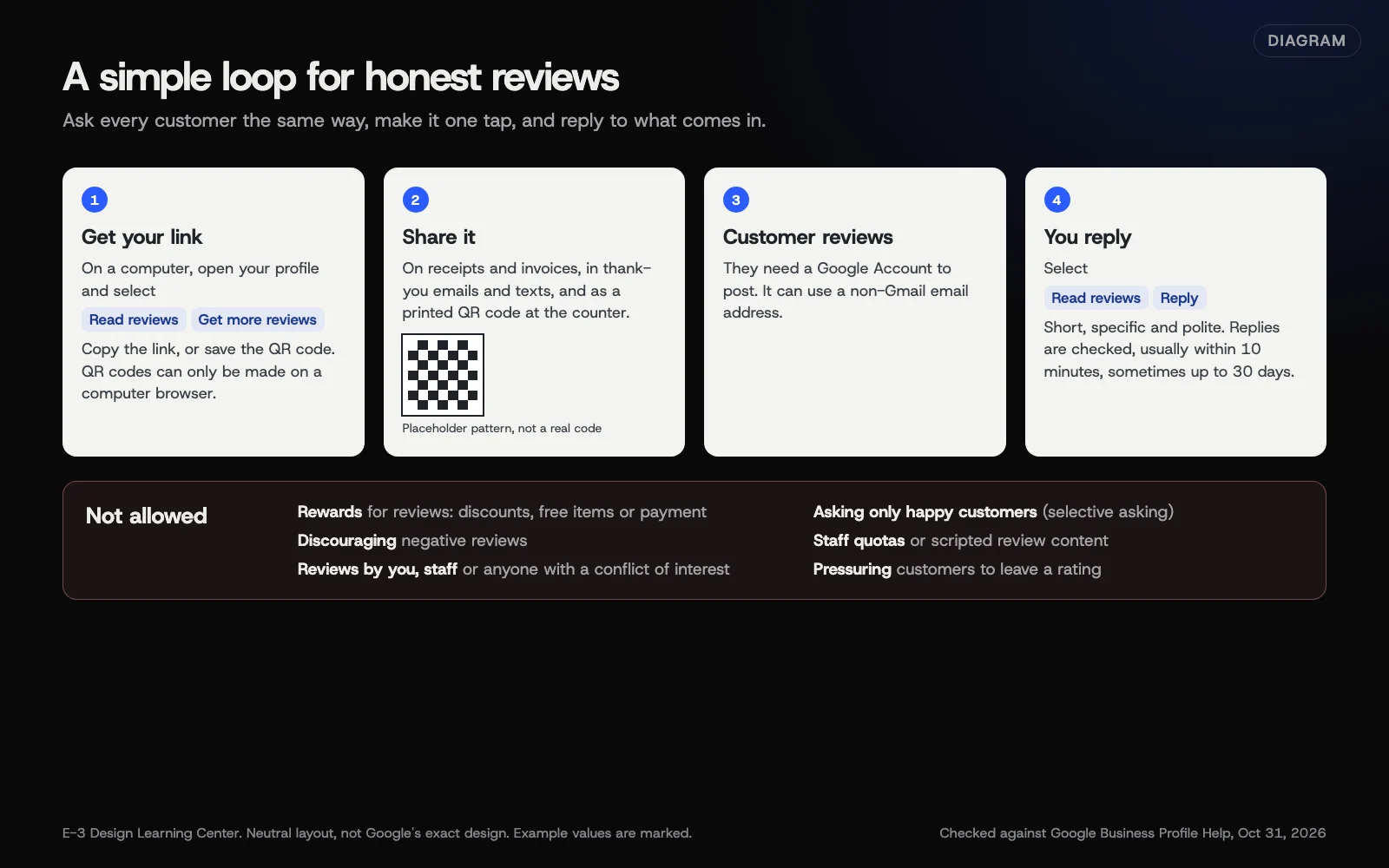 Diagram: a four-step review loop and the asking practices Google’s policies don’t allow. Based on Google Business Profile Help and the Maps user-generated content policy (October 2026).
Step 1: Get the link and QR code
These steps come from Google’s review link page. Use a computer.
- Go to your Business Profile.
- Select Read Reviews, then Get more reviews.
- To copy the link, select the Copy icon.
- To save the QR code, right-click it and select Save image as…
Save the link somewhere your whole team can find it. Our free review link and QR tool can also turn it into a printable card.
Step 2: Ask at the right moment
Pick one fixed point and use it for every customer, whatever you think they felt: when the job is done, at checkout or pickup, or in the thank-you message the same day. Google’s policy says not to ask only customers you expect to be happy, and not to pressure anyone while they’re still with you. Keep it short and personal. For example: “Thanks for choosing us. If you have a minute, a Google review really helps a small business like ours.” That’s sample wording; use your own voice.
Step 3: Make it one tap
Google’s link page suggests receipts, thank-you emails and a printed QR code in your store. A text message right after the visit works too, and so does a link on the invoice.
Step 4: Make it a system
Asking only when you remember gives you a burst, then nothing. Add the request to your job-complete checklist, or use a follow-up text that goes out after each job. One gentle reminder a few days later is plenty.
Why do reviews matter?
People read them before they call. And Google’s local ranking page says “more reviews and positive ratings can help your business’s local ranking.” A request that takes one tap is much easier to act on than “search for us on Google.”
What’s against the rules?
Google’s Maps content policy says businesses may not:
- Offer incentives, such as payment, discounts or free goods or services, for reviews.
- Selectively ask only happy customers. This is sometimes called review gating. “Rate us 1 to 5, and only the 5s get the Google link” breaks the rule.
- Discourage or prohibit negative reviews.
- Set staff quotas for reviews, or ask staff to get reviews that say specific things.
- Pressure customers to leave a rating.
- Post reviews with a conflict of interest. That covers you, current or former staff, and other close business or personal ties.
Google’s review tips page adds that incentivized reviews count as fake content and are “strictly prohibited.” In the US, the FTC also has rules against fake and paid-for reviews; our article on asking for reviews and handling bad ones covers that side.
Edge cases that seem fine but aren’t:
- A raffle entry for everyone who reviews. That’s an incentive.
- Standing over a customer while they review on your tablet. That’s pressure.
- Buying reviews or “review packages.”
- Asking a friend to review a job they didn’t hire you for.
What if people still aren’t leaving reviews?
- The link takes too many steps. Send the direct link, not “search for us on Google.”
- Customers say they can’t post. They need a Google Account. Google notes it can use a non-Gmail email address.
- You only ask in person. Follow up the same day by text or email with the link.
- You can’t make the QR code. Switch to a computer browser.
- A review disappeared. Google removes reviews that break its policies, including ones that look incentivized.
How much does it cost, and how long does it take?
The review link and QR code are free. Making them takes a couple of minutes. Building the ask into every job takes longer to become a habit, which is why an automatic follow-up helps.
How does E-3 handle this?
“How do I get reviews?” is one of the questions E-3’s clients ask most. Together with updating Google listings, it accounts for about 90 requests in our records. Review requests and replies are part of our leads and follow-up service. Tell us how you’d like requests worded, and we’ll keep them in your voice.
Related questions
Next step
- Next: Reply to Google reviews, including bad onesThe next guide in Google Business Profile.
- Google Business Profile checklistA free printable checklist (PDF).
Still stuck? Ask E-3 for an answer from our help guides.
Rather we handled google business profile for you?
It’s part of what we do every week for small businesses, as part of leads and highlevel. Start with a free check of your site and profile, or call and ask.