
Verify your Business Profile, and fix a failed attempt
On your profile, select Get verified and use whichever method Google offers you: phone or text, email, live video call, postcard or a recorded video. You can't pick the method. Google usually reviews it within 5 business days. If it fails, fix what Google flagged and try again, or try another offered method.
The short version
- Select Get verified on your profile, signed in with the account that will own it.
- Google chooses which methods you see. You may need more than one.
- Postcards: don’t edit your name, address or category, and don’t request a new code while you wait.
- Video: one live, unedited take of at least 30 seconds, showing your location and proof you run the business.
- Never share your verification code with anyone.
How do I verify my business?
Verification is how Google confirms your business is real and that you’re allowed to manage it. Until it’s done, your edits, photos and posts don’t appear publicly. Google’s verification page says Google determines which methods you can use, so prepare for all of them.
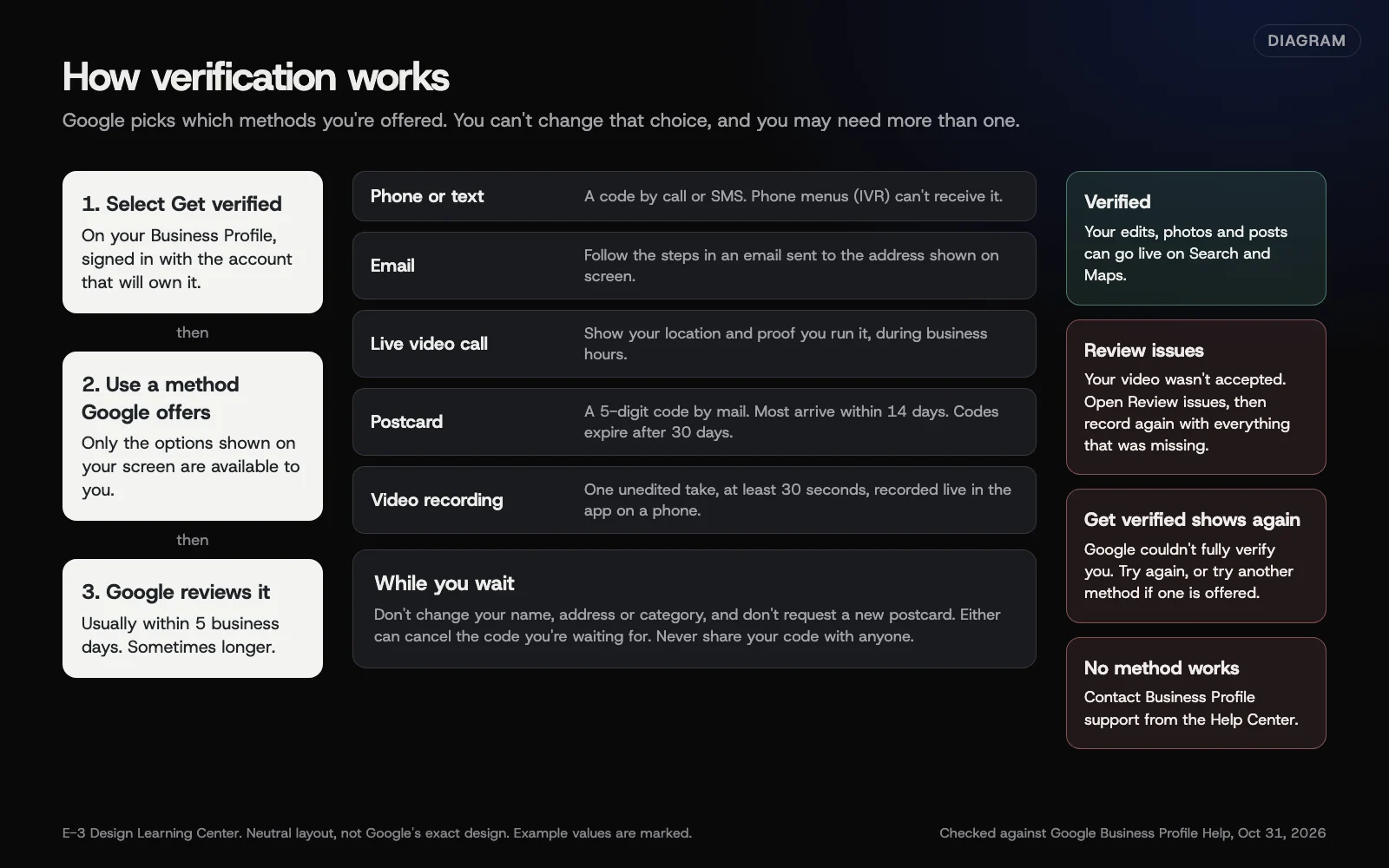 Diagram: the verification flow and the four outcomes, based on Google Business Profile Help (October 2026).
Get ready before you click
- Make your details final. Your name, address and category should be what you plan to keep.
- Have proof on hand. Signage with your business name, your tools or vehicle, and a document like a utility bill or business license in the business name.
- Know your hours. Live video calls only happen during your business hours.
Start the same way each time: go to your Business Profile and select Get verified. Then use whichever option you see.
Phone or text
Select Phone or SMS. Answer the call or open the text, then enter the code on your profile. Google warns that phone menu systems (IVR) won’t receive the code.
Select Email and follow the steps in the message. You must be able to open the inbox for the address shown on the screen.
Live video call
Select Live video call, then Next, choose your language, and select Start call. A support person starts with a text chat and then brings you into a video call. Use your camera to show your location and proof that you run the business.
Postcard
Select Postcard, confirm your mailing address, and request the code. When it arrives, enter the 5-digit code in the Code field and select Submit.
Video recording
Google’s video verification page gives these steps on a phone:
- Open your Business Profile on your mobile device.
- Tap Get verified. You may need to enter a phone number, then tap Next.
- Tap Business video, then Next.
- Read the requirements. Allow camera, microphone and location access.
- Tap Next, then Start recording.
- Record, stop, and review. Tap Try again to redo it.
- Tap Upload video.
The video must be live, unedited and one continuous take of at least 30 seconds. What to show depends on your business:
- Storefront or hybrid: street signs or building numbers, your business name on permanent signage that matches the profile, and an employee-only area like a register, kitchen or stockroom.
- Service-area: street signs or landmarks near your address, your tools or branded clothing, and proof you run it. That could be doing a job, unlocking a branded vehicle, or showing an invoice or utility bill in the business name.
Don’t show bank, tax or ID numbers, private information, or other people’s faces.
Why does verification matter?
An unverified profile is one you can’t really run. Your photos, posts and edits stay hidden until Google confirms you. Verification also protects you: it’s the step that stops a stranger from taking over your listing. That’s why Google says it never asks for your code, and why you shouldn’t share it, even with people who help manage your profile.
What trips people up?
- Editing during a postcard wait. Google says changing your name, address or category makes the code stop working.
- Requesting a second postcard. That cancels the one already in the mail.
- A name that doesn’t match the sign. The business name in the video should match the profile name.
- An address that isn’t allowed. Virtual offices and mailboxes break Google’s guidelines.
- A cut or short video, or one that never shows the street.
- The wrong business type. If customers never visit you, check your service-area setup first.
What if verification failed?
- You see “Review issues.” Your video wasn’t accepted. Select Review issues, read the reasons, and record a new video that includes everything from the first one plus what was missing.
- “Get verified” shows up again. Google couldn’t fully verify the business. Try again, or try another method if one is offered.
- Google asks for more information. This usually follows a recent change. Google’s editing page says a new name or a move may mean verifying again. So can a category change, per the category page. Select Get verified and go through it again.
- No method works. If live video or postcard isn’t available, try the others. If none work, use Contact us in the Business Profile Help Center.
- It led to a suspension. See our guide to suspended profiles.
How much does it cost, and how long does it take?
Verification is part of adding or claiming a profile, which Google’s add or claim page says is free. Google reviews verification within up to 5 business days, and rarely longer. Postcard codes add mailing time: most arrive within 14 days, and they expire after 30 days. It can be instant in some cases, such as when your website is already verified in Google Search Console.
How does E-3 handle this?
Verification is part of the Google profile work in our SEO and AI search service. Profile details we prepare are checked by a person, and you approve them before they go live. The verification code itself always stays with you.
Related questions
Sources
- Verify your business on Google (Google Business Profile Help)
- Verify your business with a video recording (Google Business Profile Help)
- Edit your Business Profile (Google Business Profile Help)
- Manage your business category (Google Business Profile Help)
- Add or claim your Business Profile (Google Business Profile Help)
Next step
- Next: Choose your categories, services and productsThe next guide in Google Business Profile.
- Google Business Profile checklistA free printable checklist (PDF).
Still stuck? Ask E-3 for an answer from our help guides.
Rather we handled google business profile for you?
It’s part of what we do every week for small businesses, as part of seo and ai search. Start with a free check of your site and profile, or call and ask.