
Build a simple social media content calendar
Plan one month at a time. Pick one or two weekly themes, add the dates that matter to your customers, and fill the gaps from a list of ideas. Keep it in a shared spreadsheet or Meta Business Suite's Planner, schedule posts ahead, and leave room for real news. Review it each month against your results.
The short version
- Plan one month at a time, in about an hour.
- Choose one or two weekly themes, such as “finished work Tuesday” and “question Friday.”
- Add the dates that matter: seasons, holidays, local events, your own sales and closures.
- Keep it in a shared spreadsheet, or use Meta Business Suite’s Planner for Facebook and Instagram.
- Schedule ahead, leave room for real news, and review it monthly.
How do I build one?
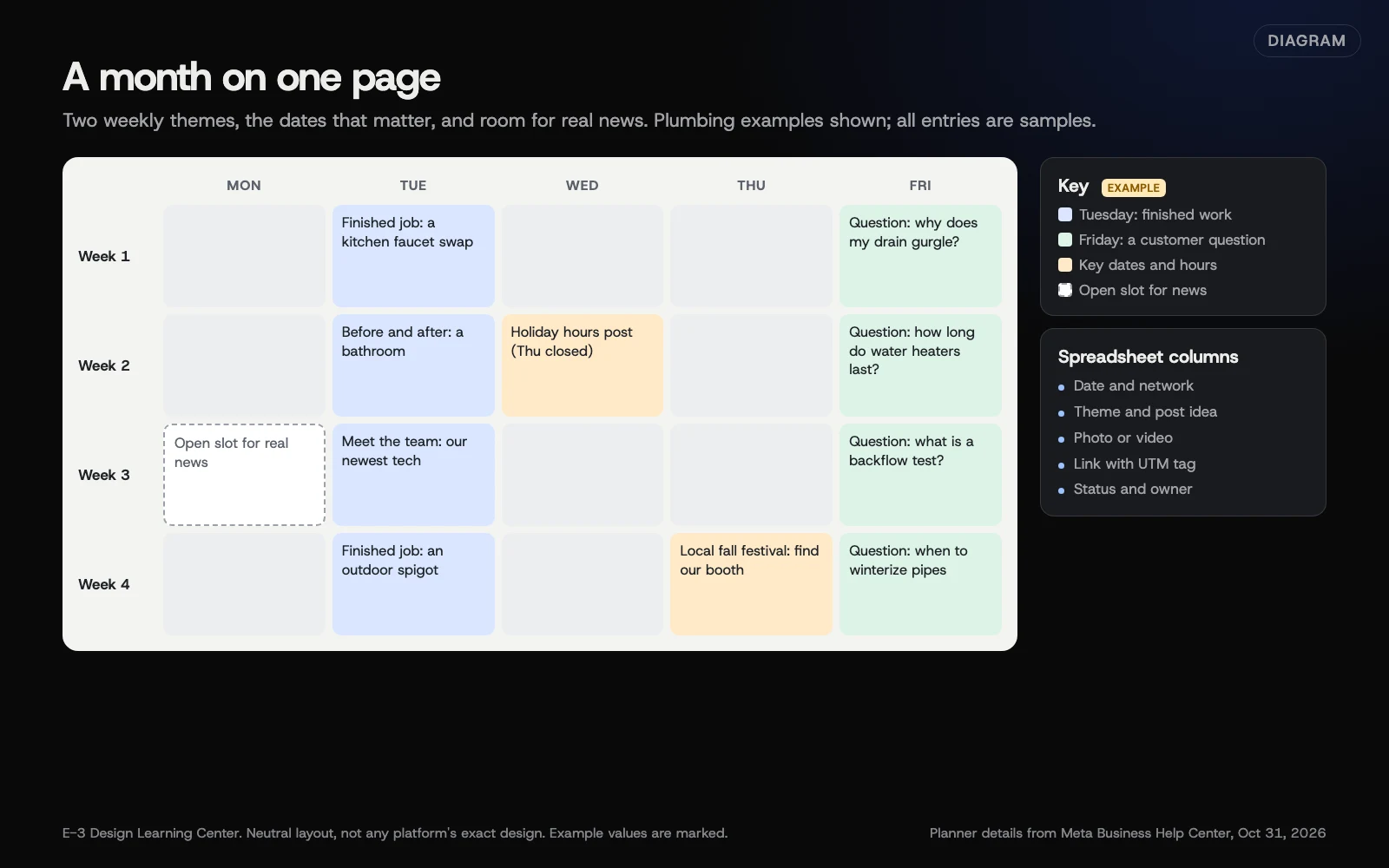 Diagram: a sample four-week calendar with two weekly themes, key dates and open slots for real news. All entries are examples.
Step 1: Pick your pace and your days
Decide how many posts a week you can keep up, using our guide on what to post and how often. Then fix the days. Fixed days turn posting into a habit, like taking out the trash.
Step 2: Choose one or two weekly themes
Themes remove the blank-page problem. A few that work for local businesses:
- Finished work: one job, product or project, with a sentence on what you did.
- Question of the week: answer something a customer asked.
- Meet the team: one person, what they do, a photo.
- Behind the scenes: what happens before the doors open.
Step 3: Mark the dates that matter
Go through the month and add:
- Holidays, and any change to your hours. Update your Google Business Profile hours at the same time.
- Seasonal moments in your trade, like the first cold snap for a furnace company.
- Local events you’re part of or near.
- Your own sales, launches and anniversaries.
Step 4: Fill in the slots
Use a simple spreadsheet with these columns:
| Column | What goes in it |
|---|---|
| Date | When it goes out |
| Network | Facebook, Instagram, LinkedIn, and so on |
| Theme | Which weekly theme, or “news” |
| Post idea | One line on what it says |
| Photo or video | What to shoot, or the file name |
| Link | The page it points to, with a UTM tag |
| Status | Idea, ready, scheduled, posted |
| Owner | Who’s making it |
The link column is where measurement starts. Tag each link so you can see what it brought in; see measuring with insights and UTMs.
Step 5: Batch and schedule
Take photos and write posts in one sitting, then schedule them. For Facebook and Instagram, Meta Business Suite does this for free. Meta’s posting guide says you click Create post, add your content, then set a date and time under Scheduling options and click Schedule.
Step 6: Leave room for real life
Keep one slot a week open for whatever actually happens: a great job, a storm, a new hire. Real, timely posts are often the ones customers remember.
How do I use Meta Business Suite’s Planner?
Meta’s Planner page says Planner shows a calendar view of your Facebook Page’s and Instagram account’s posts, stories, reels and ads, both published and scheduled.
- Go to Meta Business Suite.
- Use the dropdown at the top left to choose your Page or Instagram account.
- Click Planner in the left menu.
- Switch between Week and Month at the top left.
- To filter, use Content type: all or Shared to: all at the top right.
- To add something, hover over an upcoming day, click Schedule, and choose what to schedule, such as a post.
- To move or delete a scheduled item, click it, then Options.
If you can’t see Planner, Meta says you may not have the right permissions. You need content permission to manage posts, and ads permission to manage ads.
Planner covers only Meta’s networks. If you also post on LinkedIn, Nextdoor or TikTok, keep the spreadsheet as your master plan and use Planner for the Facebook and Instagram part.
Why use a calendar at all?
Without one, posting depends on remembering, and busy weeks win. A calendar spreads posts evenly, keeps a balance between work, people and offers, and lines up social posts with what’s happening on your website, your Google profile and your newsletter. It also makes it easy for someone else to cover when you’re away.
What are the common mistakes?
- Planning too far ahead. A year of posts goes stale. A month is plenty.
- Too many themes. Two is easier to keep than six.
- No owner. Every slot needs a name next to it.
- Scheduling and forgetting. Check before each post goes out that nothing has changed, like a sold-out product or a closure.
- Posting through bad news. If there’s a local emergency, pause scheduled cheerful posts.
What if I fall behind?
Don’t try to catch up by posting five times in a day. Skip to the current week, post one real thing, and carry on. Then look at why it slipped: too many posts, the wrong day, or no owner. Adjust the plan, not just the effort.
How much does it cost, and how long does it take?
A spreadsheet and Meta’s Planner are free. Planning a month takes about an hour; making and scheduling the posts takes another hour or two.
How does E-3 handle this?
Your social calendar is yours to run. What we look after is the other end of each post’s link: the website pages and Google Business Profile that posts send people to, kept current as part of our SEO and AI search service. When news changes, like holiday hours, we update your site and Google profile for you.
Related questions
Next step
- Next: Boost a post or use Ads Manager? Social ads basicsThe next guide in Social media.
- Free website checkPublic checks on your own site, then an action plan of what to fix first.
Still stuck? Ask E-3 for an answer from our help guides.
Rather we handled social media for you?
It’s part of what we do every week for small businesses, as part of seo and ai search. Start with a free check of your site and profile, or call and ask.