
Connect your social profiles to your website and Google
Put your website link in every social profile, add social icons to your website's header or footer, and add your profiles to your Google Business Profile under Edit profile, Contact, then Social profiles, where Google offers it. On your website, list the profiles in Organization schema with sameAs. Keep the name, phone and hours identical everywhere.
The short version
- Every social profile links to your website. Your website links to every active profile.
- Add your profiles to your Google Business Profile: Edit profile, Contact, Social profiles.
- Google offers this only in some regions, one link per network.
- On your website, list the profiles in Organization schema using
sameAs. - Keep your name, address, phone and hours the same everywhere.
How do I connect everything?
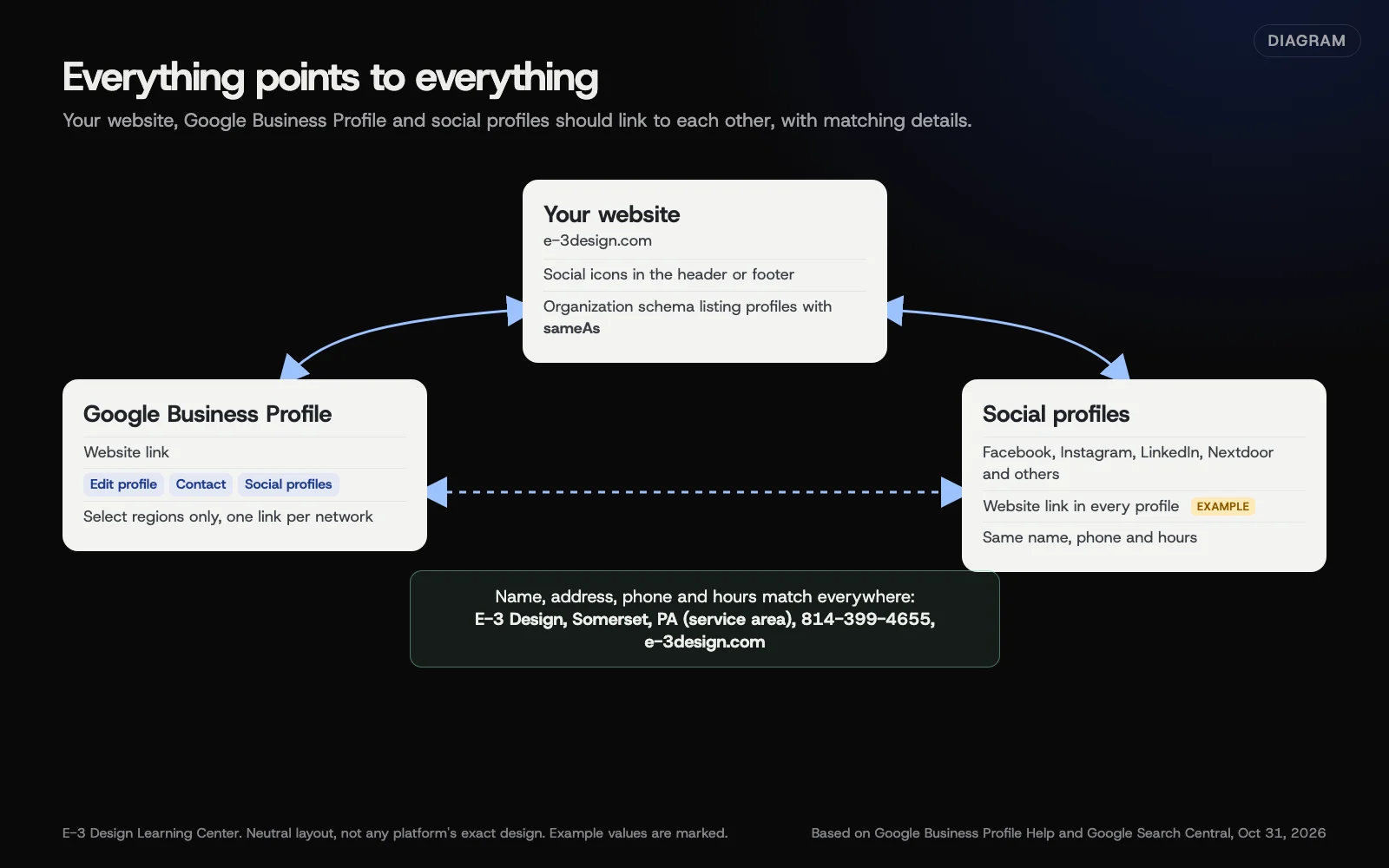 Diagram: how your website, Google Business Profile and social profiles should link to each other, using E-3 Design’s public details. Based on Google Business Profile Help and Google Search Central (October 2026).
Step 1: Put your website in every profile
Each network has a website field. Use it, and point it at the most useful page, not always your home page. A few notes:
- Instagram: add your website in Edit profile.
- TikTok: TikTok’s account types page says Verified Business Accounts can post a website link on their profile, while General accounts need at least 1,000 followers.
- Facebook, LinkedIn, Nextdoor, Pinterest and X: each has a website field in the profile or Page details.
Open each profile while logged out and click the link to check it works.
Step 2: Add social icons to your website
Put icons in your site’s header or footer so they appear on every page, linked to your real profiles. Our help article on adding social links and feeds has the WordPress steps and the common faults, like icons that look right but don’t link anywhere.
Only link profiles you keep active. An icon to an account that’s been quiet for years sends customers to a dead end.
Step 3: Add social links to your Google Business Profile
Google’s social links page says these are “currently available in select regions” and may not be available on your profile. If they are:
- Go to your Business Profile.
- Select Edit profile, then Contact.
- Next to Social profiles, select the Edit pencil.
- In the Social profile dropdown, choose the network.
- Enter the address in Web address. To add another, select Add social profile.
- Select Save.
Google supports Facebook, Instagram, LinkedIn, Pinterest, TikTok, X and YouTube, with one link per network. It lists the address formats it expects, such as facebook.com/yourname, linkedin.com/company/yourname or youtube.com/@yourname. If a link won’t save, check it isn’t broken, duplicated or pointing to an unsupported site.
Google notes some profiles show social links automatically. If Google added one you don’t want, its help page suggests contacting Google support. Google also says it “does not currently provide performance metrics or click tracking for social media links.”
For the rest of your profile’s contact details, see our guide to business name, description, contact details and attributes.
Step 4: List your profiles in your website’s schema
Schema markup is code that describes your business to search engines. Google’s Organization structured data guide describes a sameAs property for “a URL to your organization’s profile page on a social media or review site,” and says you can list several. Google recommends putting Organization markup on your home page or an about page. It has no required properties, and adding it doesn’t guarantee any special display in search.
A trimmed example, with example profile addresses:
{
  "@context": "https://schema.org",
  "@type": "Organization",
  "name": "E-3 Design",
  "url": "https://www.e-3design.com/",
  "telephone": "+1-814-399-4655",
  "sameAs": [
    "https://www.facebook.com/example",
    "https://www.linkedin.com/company/example"
  ]
}
The profile addresses above are placeholders. Many local businesses use the LocalBusiness type, which works the same way. Our answer on schema markup explains what it is.
Step 5: Make the details match
Your name, address, phone number and hours should be identical on your website, Google profile and every social profile. Mismatches confuse customers and the tools that read your details. Our answer on NAP consistency explains why.
Why connect them?
Links in both directions help people and machines agree that these profiles all belong to one business. A customer who finds you on Facebook can get to your website. One who finds your website can check your recent posts. And search engines and AI tools, which pull your details from many places, get a consistent picture. See our answer on how AI search finds businesses.
What are the common mistakes and edge cases?
- Links to a personal profile instead of the business Page.
- Admin links. A link copied while logged in can point to an edit screen visitors can’t open.
- An old website address in a profile after a redesign or domain change.
- Two Facebook Pages for one business, with the website linking one and Google showing the other.
- Schema that lists a profile you’ve deleted. Update
sameAswhen profiles change.
What if this didn’t work?
- There’s no Social profiles option on Google. Google says it’s only in select regions. Make sure your website links to your profiles, and check again later.
- Google rejects the link. Use the address format Google lists, with no tracking codes on the end.
- The wrong social link appears on Google. If you didn’t add it, contact Google support, as its help page suggests.
How much does it cost, and how long does it take?
The platform features are free; a developer, a paid plugin or recovering an old account can cost money. How long it takes depends on how many profiles you have and whether you can sign in to all of them. Schema takes longer if you’re not used to editing your site’s code.
How does E-3 handle this?
This is core to our SEO and AI search service. We add social icons to your site, add your profiles to your Google Business Profile where Google allows it, and list them in your site’s schema. A person at E-3 checks that each link opens the right profile.
Related questions
Next step
- Next: Measure what works on social media: insights and UTM linksThe next guide in Social media.
- Free website checkPublic checks on your own site, then an action plan of what to fix first.
Still stuck? Ask E-3 for an answer from our help guides.
Rather we handled social media for you?
It’s part of what we do every week for small businesses, as part of seo and ai search. Start with a free check of your site and profile, or call and ask.