
Microsoft 365 for small business: the complete guide
Microsoft 365 gives a small business email at its own domain, Outlook, Teams, OneDrive and SharePoint under one account. Pick the Business plan each person needs, create every mailbox before you change your MX record, keep two-step sign-in on for everyone, store shared files in SharePoint, and follow a set order when someone leaves.
The short version
- Choose a plan per person: Basic for browser and phone users, Standard for the desktop apps, Premium for device management and stronger security.
- Create every mailbox and copy old mail before you change the MX record.
- Keep security defaults on, so everyone uses two-step sign-in.
- Use shared mailboxes, groups and aliases instead of shared passwords.
- Keep business files in SharePoint, and follow Microsoft’s order when someone leaves.
How do I set up and run Microsoft 365?
Microsoft 365 is a bundle: email (Exchange Online), Outlook, Teams, OneDrive, SharePoint and the Office apps, all signed in with one work account per person. Everything below was checked against Microsoft Learn and Microsoft Support on October 31, 2026. Microsoft changes screens and plans often, so each guide lists its sources.
1. Choose the right plan for each person
Microsoft’s plan options list three Business plans for organizations of up to 300 users.
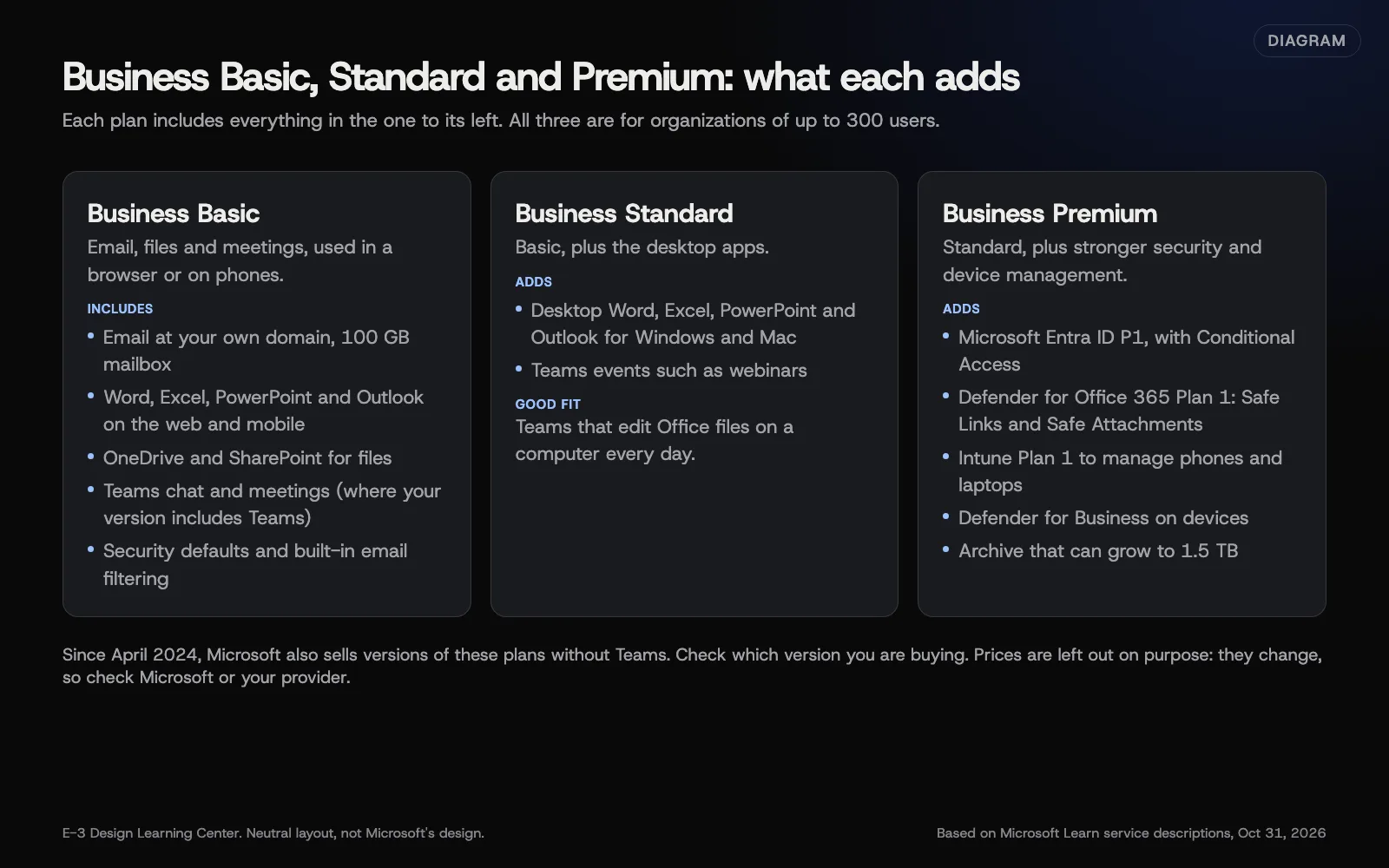 Diagram: what each Microsoft 365 Business plan adds, based on Microsoft Learn service descriptions (October 2026). Prices left out on purpose.
- Business Basic covers email, Teams, OneDrive and SharePoint, with the web and phone versions of Word, Excel, PowerPoint and Outlook.
- Business Standard adds the desktop apps.
- Business Premium adds Conditional Access, Safe Links and Safe Attachments, Intune device management and Defender for Business, per Microsoft’s security overview.
All three include business email. Microsoft’s Exchange Online limits show mailboxes of up to 100 GB on Business plans; Microsoft raised Business plans from 50 GB in 2026. You can mix plans in one account. Our guide to choosing a Business plan walks through the decision, and licenses and billing explains how you pay, including Microsoft’s seven-day window for reducing licenses.
If you’re still deciding between Microsoft and Google, start with our answer on Microsoft 365 or Google Workspace.
2. Put the account in the business’s name
The person who signs up becomes a Global Administrator automatically. Make sure that’s the owner or someone the business trusts, on a business email address, and add one backup Global Administrator. Everyone else gets a smaller role. Our guide to who should be an admin lists the roles that fit a small office. The same rule applies to every other account your business depends on; see owning your digital assets.
3. Move your email in the right order
Your email address doesn’t change, because it belongs to your domain, and your website stays where it is: Microsoft says Microsoft 365 doesn’t include a public website. What changes is where mail is stored, plus a few DNS records. A safe move always runs in this order:
- Add and verify your domain with a TXT record.
- Create a mailbox for every person, and decide what happens to shared addresses.
- Copy existing mail across.
- Change the MX record so new mail goes to Microsoft 365.
- Add Autodiscover, update SPF, then add DKIM.
- Set up Outlook and phones, and test sending and receiving.
Microsoft’s DNS guide is clear that users and mailboxes should exist before the MX record changes. Our guide to the DNS records that change on moving day lists every record and what to leave alone. For the client side of a move, including what you do the morning after, see can you move my email to Microsoft 365. The email authentication records have their own guides: SPF for Microsoft 365 and DKIM in Microsoft 365.
4. Set up Outlook and phones
Each person adds their account once on each device. Our help pages cover Outlook and Apple Mail and iPhone and Android. On Windows, there are now two Outlooks. Microsoft’s migration stages page says new Outlook is still in its opt-in stage and that classic Outlook stays supported until at least 2029. Our guide to new Outlook or classic Outlook explains who should wait.
5. Give shared addresses the right home
There are four ways to give people more than one address:
- An alias for a second address one person reads. Free, up to 400 per person.
- A shared mailbox for info@ or office@ answered by a team.
- A distribution list to send one message to many people.
- A Microsoft 365 group when a team also shares files and a calendar.
Microsoft’s compare groups page sets out the differences. Our guides cover shared mailbox, distribution list or group and aliases and extra domains. For adding a new person, see a new email address for a new employee.
6. Turn on two-step sign-in for everyone
Microsoft’s security defaults are free and switched on by default for business accounts. They require every person to register the Microsoft Authenticator app and block old sign-in methods that can’t do two-step sign-in. Leave them on unless you have Business Premium and replace them with Conditional Access on purpose. Our guide to security defaults and two-step sign-in shows how to check the setting.
7. Set up Teams and decide where files live
Start with one team for the office and a few channels by topic. See how a small office should set up Teams.
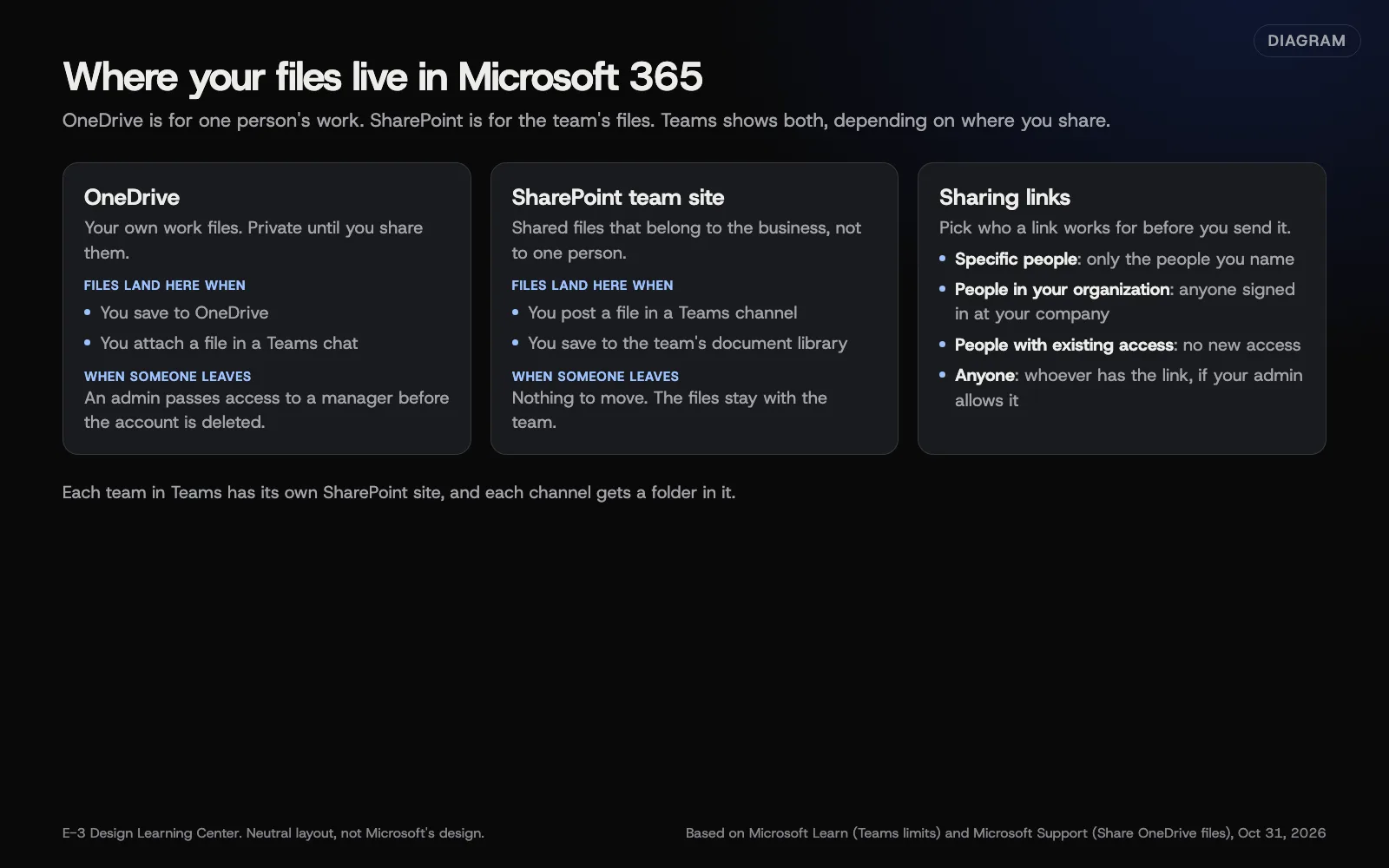 Diagram: where files live in Microsoft 365 and the four sharing link types, based on Microsoft Learn and Microsoft Support (October 2026).
The rule of thumb: OneDrive is for one person’s work in progress, SharePoint is for files the business keeps. Files posted in a Teams channel go to SharePoint; files attached in a chat go to the sender’s OneDrive. Our guide to OneDrive, SharePoint and Teams files covers sharing links and storage.
8. Handle staff changes properly
When someone joins, add a user and a license. When someone leaves, follow Microsoft’s former employee steps: reset the password and sign them out, block sign-in, keep their mail, hand their OneDrive to a manager, then remove the license and the account. Microsoft keeps a deleted user’s mail and OneDrive for 30 days by default. Our guide to offboarding an employee explains the catches, and our help page on removing an email account covers the mailbox itself.
A simple routine
Every month: check for people who have left but still have a license, and look at Microsoft’s message center for changes.
Before each renewal: count licenses against people, and decide on changes inside Microsoft’s seven-day window.
Every year: review who holds admin roles, check two-step sign-in is still on, and clean out old sharing links.
Why does Microsoft 365 matter for a small business?
Email is still how most customers, suppliers and banks reach you, and the email account is the key that resets almost every other password. Microsoft 365 puts that account, your files and your team chat behind one sign-in with two-step protection built in. It also separates the business from any one person: shared mailboxes, SharePoint and admin roles mean the business keeps its history when staff change.
It isn’t the only good choice. Google Workspace does the same jobs well, and the setup matters more than the brand. But if your team already lives in Outlook, Word and Excel, Microsoft 365 is usually the natural home.
What are the most common mistakes?
- Changing the MX record before mailboxes exist. New mail bounces or lands in empty inboxes.
- Two SPF records. Edit the one you have; never add a second.
- One Global Administrator. If they’re locked out or gone, nobody can fix it quickly.
- Shared passwords for info@. Use a shared mailbox so each person signs in as themselves.
- Turning security defaults off to make an old printer or app work, and never turning them back on.
- Business files in one person’s OneDrive. They’re at risk the day that person leaves.
- Deleting a leaver straight away. That starts Microsoft’s 30-day deletion clock on their mail and files.
- Paying for licenses nobody uses. Freeing a license doesn’t lower the bill until you reduce the count.
What has changed recently?
These are the changes that matter to a small office, checked on October 31, 2026.
- Bigger mailboxes. Microsoft raised Business plans from 50 GB in 2026, to mailboxes of up to 100 GB.
- Plans with or without Teams. Since April 1, 2024, Microsoft has sold Business plans both with and without Teams outside the European Economic Area and Switzerland, according to its licensing announcement.
- New Outlook for Windows. Still opt-in, with at least 12 months’ notice promised before the next stage, per Microsoft. Reports in March 2026 said the enterprise opt-out stage moved to March 2027.
- No more 14-day grace period for registering two-step sign-in, from July 29, 2024, per Microsoft’s security defaults page.
- Mandatory two-step sign-in for admin centers. Microsoft’s mandatory MFA page says it began for the Microsoft 365 admin center in February 2025, with no opt-out.
- Teams live events retired on June 30, 2026, replaced by Teams events, per Microsoft’s Teams service description.
What if something goes wrong?
- Mail stopped after a move. Check the MX record first, then Junk and quarantine. See moving-day DNS records and why am I not receiving email.
- Outlook keeps asking for a password. See why Outlook keeps asking.
- Someone’s locked out of two-step sign-in. An admin can help them register again. Never share codes.
- Nobody can sign in as an admin. See who should be an admin.
- Someone sending mail as you. See what to do if someone is sending email as you.
Never send a password, sign-in code or recovery code to anyone by email, text or form, including your IT provider.
How much does it cost, and how long does it take?
Microsoft charges per person per month, and the price depends on the plan, your country, the billing term and who you buy from. We don’t list prices because they change; compare Microsoft’s current prices for your whole team over a year. Shared mailboxes, aliases, groups and security defaults cost nothing extra.
Setting up a small office takes a day or two of work spread over a week: plan, create accounts, copy mail, switch DNS in the evening, then set up devices. How long copying takes depends on how much mail there is.
How does E-3 handle this?
Email is the biggest part of our support history. “Email setup and passwords” accounts for roughly 1,470 requests in our records since 2019, and a new address for a new employee is the single most common email request, at over 340. “Can you move my email to Microsoft 365?” comes up dozens of times.
E-3 still runs its own SmarterMail email server (webmail at mail.e3webmail.com) for many clients. It doesn’t currently offer two-factor sign-in, which Microsoft 365 does. When a client moves, we save their existing DNS records first, create the Microsoft 365 account in the client’s name with E-3 added as a user, copy their mail, and switch the MX record in the evening. We never ask for passwords or sign-in codes. If you’d rather we handle it, see our hosting service or send a message.
Every guide in this hub
- Which Microsoft 365 Business plan does my team need? Basic, Standard and Premium compared, and how to mix them.
- Which DNS records change when email moves to Microsoft 365? The TXT, MX, Autodiscover, SPF and DKIM records, in order.
- Should we use new Outlook or classic Outlook? The gaps, the timeline, and who should wait.
- Shared mailbox, distribution list or Microsoft 365 group? Which one fits info@, all-staff@ or a project.
- Can I use more than one domain or address? Extra domains, aliases and replying from an alias.
- How should a small office set up Teams? Teams, channels, chats, meetings and guests.
- Where should our files live? OneDrive, SharePoint, Teams files and safe sharing links.
- How do I turn on two-step sign-in? Security defaults, the Authenticator app and recent changes.
- What happens to a leaver’s account, files and license? Microsoft’s order, and the 30-day trap.
- How do licenses and billing work? Assigning, reducing and cancelling, and the seven-day window.
- Who should be an admin? Global Administrator and the smaller roles.
Related questions
Sources
- Microsoft 365 and Office 365 plan options (Microsoft Learn)
- Exchange Online limits (Microsoft Learn)
- Connect your domain by adding DNS records (Microsoft Learn)
- Stages of migration to new Outlook for Windows (Microsoft Learn)
- Compare types of groups in Microsoft 365 (Microsoft Learn)
- Configure security defaults for Microsoft Entra ID (Microsoft Learn)
- Plan for mandatory Microsoft Entra multifactor authentication (Microsoft Learn)
- Remove a former employee: overview (Microsoft Learn)
- Microsoft Teams service description (Microsoft Learn)
- Microsoft 365 and Office 365 suites with and without Teams (Microsoft Licensing)
- Microsoft 365 for business security overview (Microsoft Learn)
Every Microsoft 365 for small business guide
- Which Microsoft 365 Business plan does my team need?Pick Business Basic if your team works in a browser and on phones, Business Standard if people need the desktop Word, Excel and Outlook apps, and Business Premium if you need to manage laptops and phones or want Microsoft's stronger email and sign-in protection. All three include business email and suit up to 300 users.
- Which DNS records change when email moves to Microsoft 365?Moving email to Microsoft 365 touches five kinds of DNS record: a TXT record to prove you own the domain, the MX record that sends new mail to Microsoft, an Autodiscover CNAME for automatic setup, your SPF record, and two DKIM CNAMEs. Change MX last, after every mailbox exists and old mail is copied. Website records stay as they are.
- Should we use new Outlook or classic Outlook?Most small offices can use new Outlook for everyday mail and calendars. Stay on classic Outlook for now if you rely on COM add-ins, heavy PST archives or full offline use. Microsoft says new Outlook is still in its opt-in stage, admins get at least 12 months' notice before each change, and classic Outlook stays supported until at least 2029.
- Shared mailbox, distribution list or Microsoft 365 group?Use a shared mailbox when a team answers one address like info@ and replies should come from it. Use a distribution list to send one message to many people, like all-staff@. Use a Microsoft 365 group when a team also needs shared files, a calendar or a team in Teams. None of them needs its own license.
- Can I use more than one domain or address in Microsoft 365?Yes. You can add more domains to one Microsoft 365 account, then give each person extra addresses, called aliases, on any of them. Microsoft allows up to 400 aliases per user at no extra cost. Mail to an alias lands in the person's normal inbox. Replying from the alias needs a setting in Outlook on the web.
- How should a small office set up Microsoft Teams?Start with one team for the whole office and a few channels by topic, such as jobs, admin and scheduling. Use chats for quick one-to-one questions and channels for anything the team should be able to find later. Files posted in a channel are stored in the team's SharePoint site. Business plans allow meetings of up to 300 people.
- Where should our files live: OneDrive, SharePoint or Teams?Keep each person's drafts and working files in OneDrive, and keep files the business needs to keep in SharePoint, usually through a team in Teams. When you share, choose Specific people unless you have a reason not to. Business plans include 1 TB of SharePoint storage per organization plus 10 GB per license.
- How do I turn on two-step sign-in for Microsoft 365?For most small businesses, leave Microsoft's security defaults turned on. They make every person register for two-step sign-in with the Microsoft Authenticator app, require it for admins every time, and block old sign-in methods. Check the setting in the Entra admin center under Entra ID, Overview, Properties, then Manage security defaults. Business Premium can use Conditional Access instead.
- What happens to a leaver's Microsoft 365 account and files?When someone leaves, reset their password and sign them out of all sessions first, then block sign-in. Give a manager their OneDrive and mailbox before deleting anything, because Microsoft keeps a deleted user's mail and OneDrive for only 30 days by default. Remove the license to reuse it, and reduce the license count if you won't.
- How do Microsoft 365 licenses and billing work?You pay for a subscription that holds a number of licenses, and each person needs one license assigned. Freeing a license doesn't lower the bill; reducing the license count does. On many subscriptions Microsoft only lets you reduce licenses or cancel for a refund within seven days of buying or renewing, so plan changes before renewal.
- Who should be an admin in our Microsoft 365 account?Keep the Global Administrator role to two trusted people, ideally the owner and one backup, both with two-step sign-in. Give everyone else the smallest role that does their job, such as Billing, User or Helpdesk Administrator. Outside helpers should have their own accounts or a partner relationship, never the owner's login.
Common questions
- Will my email address change if we move to Microsoft 365?
- No. Your address belongs to your domain. Moving to Microsoft 365 changes where the mail is stored and a few DNS records, not the address itself.
- Does Microsoft 365 include a website?
- No. Microsoft says Microsoft 365 doesn't include a public website. Your website stays with its own host, and its DNS records don't change when email moves.
- How big is a Microsoft 365 mailbox?
- Business Basic, Standard and Premium include mailboxes of up to 100 GB. Microsoft raised Business plans from 50 GB in 2026.
Next step
- Start here: Which Microsoft 365 Business plan does my team need?The first guide in Microsoft 365 for small business.
- Free website checkPublic checks on your own site, then an action plan of what to fix first.
Still stuck? Ask E-3 for an answer from our help guides.
Rather we handled microsoft 365 for small business for you?
It’s part of what we do every week for small businesses, as part of managed wordpress hosting. Start with a free check of your site and profile, or call and ask.