
Shared mailbox, distribution list or Microsoft 365 group?
Use a shared mailbox when a team answers one address like info@ and replies should come from it. Use a distribution list to send one message to many people, like all-staff@. Use a Microsoft 365 group when a team also needs shared files, a calendar or a team in Teams. None of them needs its own license.
The short version
- Shared mailbox: a team answers one address together, and replies come from it.
- Distribution list: one address that copies a message to several people’s own inboxes.
- Microsoft 365 group: an address plus shared files, a calendar and a planner, and it can become a team in Teams.
- Shared mailboxes top out at 25 users; past that, Microsoft suggests a group.
- People outside your company can’t use a shared mailbox.
Which one fits which job?
Our answer on what a shared mailbox is explains that option on its own. This page is about choosing between the three. Microsoft’s compare groups page is the source for the differences below.
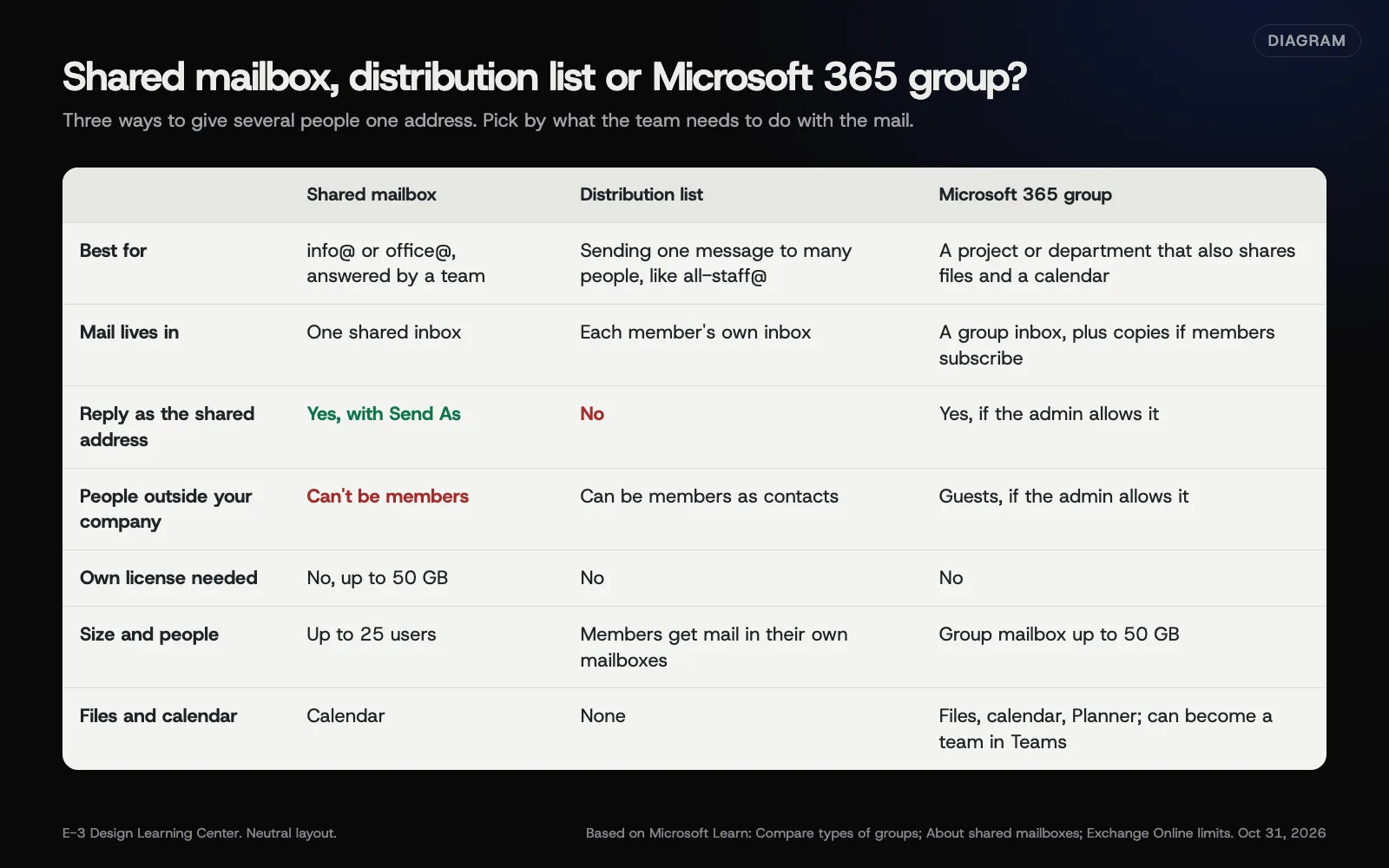 Diagram: shared mailbox, distribution list and Microsoft 365 group compared, based on Microsoft Learn (October 2026).
| You want | Pick |
|---|---|
| info@ or office@, answered by whoever is free, with replies from info@ | Shared mailbox |
| One address that reaches the whole staff, the board or the crew leads | Distribution list |
| A team that also shares documents, a calendar and tasks | Microsoft 365 group |
| A second address that only one person reads | An alias, not any of these. See aliases and extra domains |
Shared mailbox
One inbox that several people open with their own logins. With Send As permission, replies go out from the shared address. Microsoft’s shared mailbox page says:
- It holds up to 50 GB without its own license.
- Each person who opens it needs their own licensed mailbox.
- It supports a maximum of 25 users. More can cause connection failures.
- You can’t give people outside your business access to it.
- You can’t stop members deleting messages. If that matters, Microsoft suggests a group.
- Sign-in to the mailbox itself should stay blocked.
Distribution list
Microsoft calls these distribution groups. Mail sent to the address is copied to every member’s own inbox. Nobody replies “as” the list; they reply as themselves. Microsoft says they’re best for broadcasting, like “everyone at the company.” An admin can let it receive mail from outside, and outside contacts can be members.
Microsoft 365 group
A group gets its own email address, a shared inbox, a calendar, a file library in SharePoint and a Planner. Members can reply as the group if the admin allows it. Guests from outside can be added if the admin has turned that on. Every team in Teams is built on a Microsoft 365 group. Microsoft’s Exchange limits list group mailboxes at 50 GB.
How do I set one up?
In the Microsoft 365 admin center, go to Teams & groups. From there:
- Shared mailbox: select Shared mailboxes, then Add a shared mailbox. Our help page on a new email address walks through it.
- Distribution list or Microsoft 365 group: select Active teams & groups, then add a group and choose the type.
After creating any of them, send a test from an outside address, such as a personal Gmail, and check it arrives. Outside mail can be blocked until an admin allows it.
Why does the choice matter?
Each one behaves differently when people come and go. A shared mailbox keeps every customer conversation in one place even when staff change. A distribution list leaves copies scattered across personal inboxes, so history leaves with the person. A group sits in between and adds files. Picking the right one up front saves a messy move later; Microsoft says a shared mailbox can’t be migrated to a group.
What are the common mistakes?
- A shared password instead of a shared mailbox. Everyone signs in as info@, nobody has their own two-step sign-in, and you can’t tell who sent what.
- A distribution list for customer mail. Two people reply to the same customer, and nobody sees the other’s answer.
- A shared mailbox for a big team. Over 25 users, Microsoft says to use a group.
- Expecting outsiders to join a shared mailbox. They can’t. Use a group with guests, or a forward.
- Forgetting the outside-mail setting. The address works internally but bounces mail from customers.
What if it isn’t working?
- The shared mailbox doesn’t show up in Outlook. Close and reopen Outlook, or check access in Outlook on the web.
- “You do not have the permission to send.” Microsoft says this can happen right after setup and clears in about an hour.
- Outside senders get a bounce. Check the group’s setting that allows mail from outside the organization.
How much does it cost, and how long does it take?
None of the three needs its own license in normal use. A shared mailbox over 50 GB, or on litigation hold, needs an extra license, per Microsoft. Setting one up takes an admin a few minutes, plus up to an hour for permissions to settle.
How does E-3 handle this?
When we move a business to Microsoft 365, we list every address first: people, shared addresses like info@, lists and forwards. Then we pick the right type for each before anything is created. New-address requests are the single most common email job in our records, at over 340 requests.
Related questions
Next step
- Next: Can I use more than one domain or address in Microsoft 365?The next guide in Microsoft 365 for small business.
- Free website checkPublic checks on your own site, then an action plan of what to fix first.
Still stuck? Ask E-3 for an answer from our help guides.
Rather we handled microsoft 365 for small business for you?
It’s part of what we do every week for small businesses, as part of managed wordpress hosting. Start with a free check of your site and profile, or call and ask.