
Which DNS records change when email moves to Microsoft 365?
Moving email to Microsoft 365 touches five kinds of DNS record: a TXT record to prove you own the domain, the MX record that sends new mail to Microsoft, an Autodiscover CNAME for automatic setup, your SPF record, and two DKIM CNAMEs. Change MX last, after every mailbox exists and old mail is copied. Website records stay as they are.
The short version
- Add the TXT verification record first. It proves ownership and changes nothing else.
- Create every mailbox and copy old mail before the MX change.
- Change MX last. That’s the moment new mail starts landing in Microsoft 365.
- Add Autodiscover, update your one SPF record, then add the two DKIM records.
- Leave website records alone, and save a copy of every record before you start.
What changes, and in what order?
Microsoft’s guide to connecting your domain lists the records. The values for your domain are shown in the Microsoft 365 admin center under Settings, Domains, your domain, then DNS records. Always copy them from there.
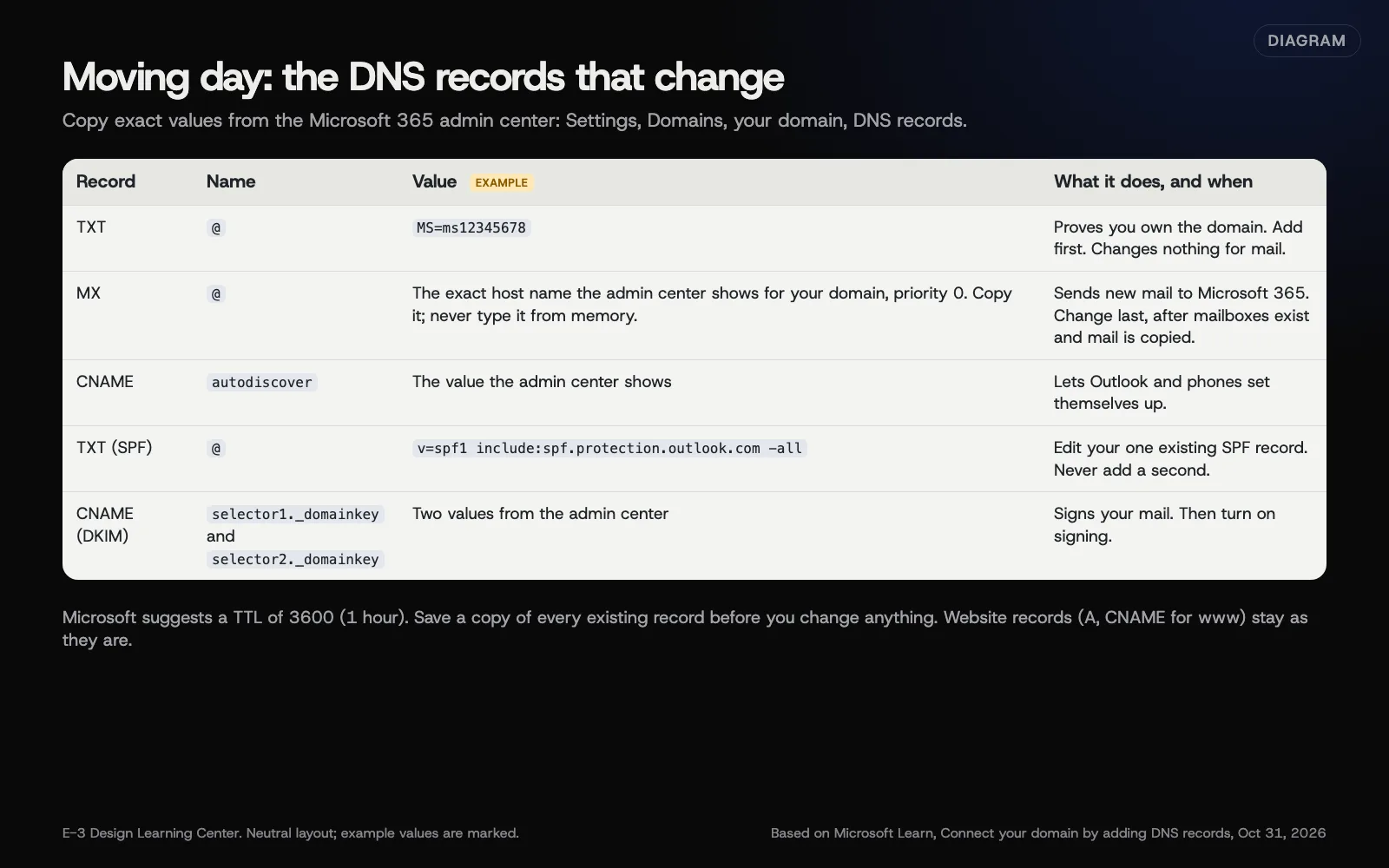 Diagram: the DNS records that change on moving day and when, based on Microsoft Learn (October 2026). Example values are marked; copy real values from your admin center.
1. Days before: the TXT verification record
When you add your domain, Microsoft asks for a TXT record to prove you own it. It has no effect on mail or your website, so it can go in early. Microsoft also says to add your domain before you add users, so you don’t have to set users up twice.
2. Before the switch: mailboxes and copied mail
Microsoft is blunt about this: add users and set up mailboxes for everyone on the domain before you update the MX record. Then copy old mail across. Microsoft’s IMAP migration notes say this kind of move copies mail folders only, not contacts, calendars or tasks, so plan for those separately.
3. Switch: the MX record
The MX record tells other mail servers where to deliver your mail. Microsoft’s settings are:
| Field | Value |
|---|---|
| Type | MX |
| Host name | @ |
| Points to | The value shown in your admin center |
| Priority | The highest available, usually 0 |
| TTL | 3600 (1 hour) |
Then either remove the old MX record or give it a lower priority. In MX records, a lower number means higher priority. Microsoft adds that Exchange Online only supports TTL values under 6 hours.
4. Same day: Autodiscover and SPF
- Autodiscover CNAME (host name
autodiscover). Microsoft calls it optional but highly recommended. It lets Outlook and phones find the right settings when someone types their address. - SPF TXT record. Microsoft’s value is
v=spf1 include:spf.protection.outlook.com -all. If you already have an SPF record, add Microsoft’s part to it. Microsoft says there must be a single SPF record. Our guide to the SPF record for Microsoft 365 shows how to merge it with other senders.
5. After the switch: DKIM, then DMARC
Two CNAME records, selector1._domainkey and selector2._domainkey, let Microsoft sign your mail. Publish them, then switch on signing. Our DKIM guide has the steps. A DMARC record comes after that; see rolling out a DMARC policy.
What should stay the same?
- Your website records. The A and CNAME records for your website don’t move. Microsoft’s domains FAQ notes that Microsoft 365 doesn’t include a public website.
- Your registrar. Microsoft says the domain stays registered where you bought it.
- Records for other services. Booking tools, marketing email and form plugins may have their own records. Leave them.
Why does the order matter?
Once the MX record changes, all new mail for the domain goes to Microsoft 365. If a person’s mailbox doesn’t exist yet, their mail bounces. If old mail hasn’t been copied, people open an empty inbox and assume mail is lost. Doing the MX change last, often in the evening, avoids both.
What are the common mistakes?
- Two SPF records. Adding a second TXT record that starts with
v=spf1breaks both. Edit the one you have. - Editing the wrong DNS. Records must change wherever your DNS is actually hosted, which may not be your registrar. See how to change DNS without breaking email.
- Leaving the old MX at the same priority. Mail then splits between old and new servers.
- Typing the MX value from another guide. Each domain’s value is shown in its own admin center. Copy it.
- Forgetting forms and printers. Website forms or scanners that send through the old server need new settings.
What if mail isn’t arriving after the switch?
- Check the MX record with a free lookup tool. It should show only Microsoft’s value.
- Wait an hour or two. Microsoft’s recommended TTL is one hour, but some servers hold old answers longer. See how long DNS changes take.
- Check the person’s Junk folder and Microsoft 365 quarantine.
- Confirm the mailbox has a license and the address is spelled right.
- Still stuck? Read why am I not receiving email. Don’t change other records to “try something.”
How long does it take?
Adding the records takes minutes. The wait is DNS: with a one-hour TTL, most senders follow the new MX within hours. Copying old mail takes longer, depending on how much there is. Microsoft says an IMAP move copies up to 500,000 items per mailbox, newest first.
How does E-3 handle this?
E-3 still runs a SmarterMail server (mail.e3webmail.com) for many clients, and moves to Microsoft 365 are a regular request. Before we change anything, we save your existing DNS records so every change can be reversed. We create the mailboxes, copy mail, then switch MX in the evening, and check mail flows both ways. You should never be asked to email a password or sign-in code for any of this. For the client-side steps, see can you move my email to Microsoft 365.
Related questions
Next step
- Next: Should we use new Outlook or classic Outlook?The next guide in Microsoft 365 for small business.
- Free website checkPublic checks on your own site, then an action plan of what to fix first.
Still stuck? Ask E-3 for an answer from our help guides.
Rather we handled microsoft 365 for small business for you?
It’s part of what we do every week for small businesses, as part of managed wordpress hosting. Start with a free check of your site and profile, or call and ask.