
Events and registration: the complete small-business guide
Put your events on a calendar your website controls, give each event one clear way to sign up, and let a payment provider handle any money. Set a cap before you open registration, send a confirmation with the date, place and what to bring, then use one list for reminders, changes and check-in.
The short version
- Pick one home for your events: a calendar on your own site is best for most small businesses.
- Give every event its own page with the date, time, place, price and one sign-up button.
- Let Stripe, PayPal or Square take the money. Card details should never touch your form.
- Set the cap, the closing date and the confirmation email before you share the link.
- Keep one attendee list. Use it for reminders, changes, refunds and check-in on the day.
How do I run events and registration from my website?
Events bring two kinds of work. There’s the listing (what’s on, when and where) and the sign-up (who’s coming, what they paid, and what they need to know). This guide walks through both, in the order you’ll meet them. Each step links to a deeper guide. We checked the steps against The Events Calendar, Gravity Forms, Google Calendar and Eventbrite documentation on October 31, 2026.
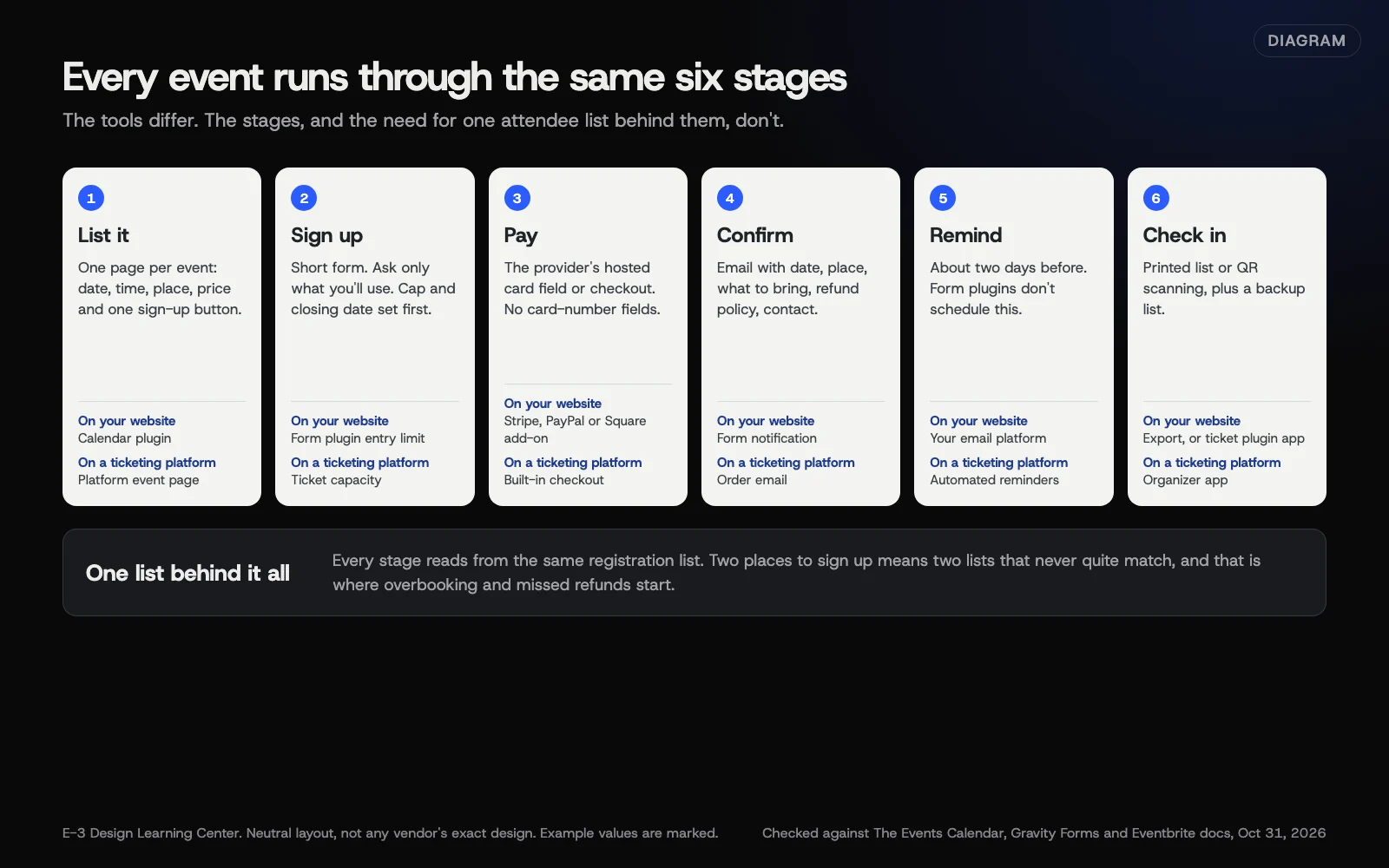 Diagram: the six stages of an event, from listing to check-in, and the tool that usually handles each one. Based on The Events Calendar, Gravity Forms and Eventbrite documentation (October 2026).
1. Choose where your events live
You have three realistic options:
- A calendar plugin on your WordPress site, such as The Events Calendar. Each event gets its own page, which suits search engines and sharing.
- An embedded Google Calendar. Quick to set up and easy for staff who already use Google Calendar. Events don’t get their own pages on your site, and the calendar has to be public.
- A ticketing platform’s listing, such as Eventbrite. It handles sign-ups and check-in, but the event page lives on someone else’s site.
Many businesses mix them: a calendar on their own site, with a link to a ticketing page for the big events. Our guide on which events calendar your website should use compares the three side by side.
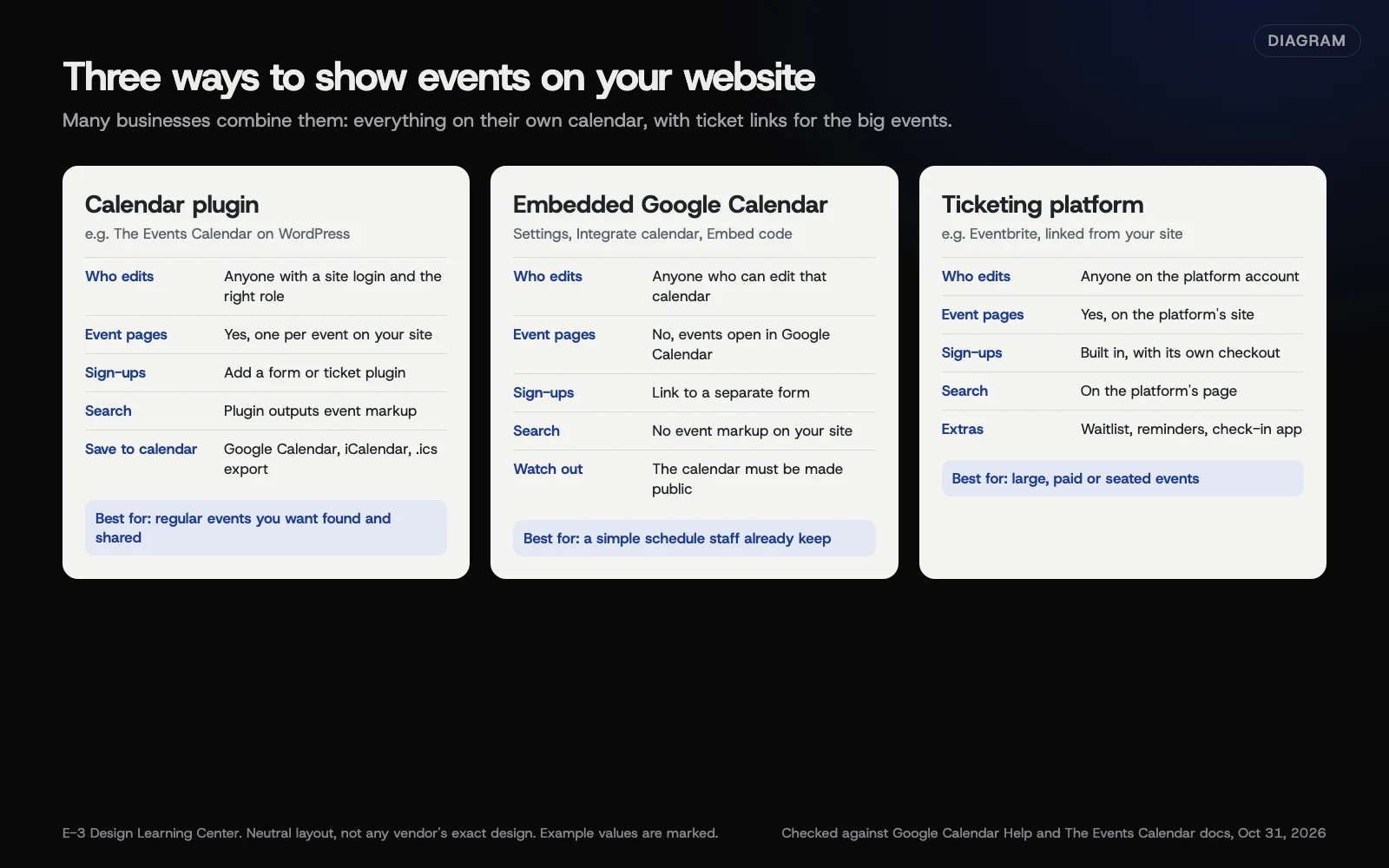 Diagram: three ways to show events on a small-business website, and what each is good at. Based on Google Calendar Help and The Events Calendar documentation (October 2026).
2. Add events, and handle the ones that repeat
Adding a one-off event is covered in our help article on how to update events or the calendar on your site. Repeating events are where most calendars trip people up. In The Events Calendar, recurring events are an Events Calendar Pro feature. The free plugin’s WordPress.org page lists month, list and day views, Google Calendar and iCal export, and structured data. Pro adds recurring events, more views and event series. Our guide to setting up recurring events covers weekly classes, monthly meetings, skipped dates and changing a single date without breaking the rest.
3. Decide how people sign up
A sign-up form on your own website keeps your branding, your list and your data with you. A ticketing platform brings ready-made tools: a check-in app, waitlists, reminder emails and seat maps, as vendors describe them. Neither is always right. Our guide on a registration form or a ticketing platform lists the questions that decide it.
If you’d like E-3 to build the sign-up for you, our help article can you set up online registration for my event? explains what we need and how the preview and approval work.
4. Take payments the safe way
For paid events, connect a payment provider rather than collecting card numbers yourself. Gravity Forms’ Stripe guide says its Stripe field is hosted on Stripe’s servers and shown on your form in an iframe, so card details aren’t stored with your form entries. Event Tickets’ free version includes Tickets Commerce with PayPal, Stripe and Square, according to its setup guide. Our guide to taking payment for event registrations covers prices, options, test mode and refunds.
If you only need a deposit or one fixed price, a payment link may be enough. See the simplest way to take payments online. For a full shop with products and shipping, see our online stores guide.
5. Set the cap, the closing date and the waitlist
Set limits before the link goes out. In Gravity Forms, the entry limit setting closes the form when it reaches a number you choose, and Schedule form opens and closes it on set dates. Ticketing tools set a capacity per ticket, and some offer a waitlist that offers freed-up places to the next person. Our guide to capping registrations and running a waitlist shows where each setting lives and what counts toward the limit.
6. Confirm and remind
The confirmation email does more work than people expect. It should repeat the date, time, address, what to bring, and how to cancel. Gravity Forms’ notifications guide shows how to send one to the person who signed up, using the email field from your form. Reminders are a separate job: a form plugin sends at the moment of sign-up, while ticketing platforms list automated reminders among their features. Our guide to confirmation and reminder emails covers both, plus add-to-calendar links.
7. Check people in on the day
You can check people in from a printed list, a spreadsheet on a tablet, or a scanning app. Event Tickets Plus and Eventbrite both offer apps that scan QR codes, according to their own documentation. Our guide on checking people in at your event covers each option, plus a backup plan for when the Wi-Fi drops.
8. Handle changes and cancellations
Weather, illness and venues all change plans. Edit the existing event rather than deleting it, mark it canceled or postponed, and tell everyone who registered the same day. Our guide on canceling or rescheduling an event covers the message, refunds and keeping the event page right for search.
9. Bigger events: competitions and conventions
Multi-day events with many entries per person, such as dance competitions and conventions, need more than a sign-up form. You’re tracking entrants, age groups, routines, music files, schedules and consent forms for minors. Our worked example on registration for competitions and conventions shows how to plan the data before you choose a tool.
Why does good event registration matter?
People decide fast. If the date is buried, the form is long or payment fails, they leave and may not come back. A clear event page and a short form turn interest into names on a list.
The list matters too. Every registration gives you a name and email address of someone who wanted what you offer, which is worth more than a like on social media. Keep it on systems you control, follow your privacy policy, and ask before you add people to a newsletter.
There’s a quieter benefit. A good confirmation email cuts down the “what time does it start?” calls and emails in the week before the event.
How events show up in Google
Google’s event structured data guide says events must be held at a physical location and be bookable by the general public to be eligible for its event results. Each event needs its own page. Most WordPress calendar plugins add the markup for you. Our schema guide on getting your events into Google with event markup covers the details, including the June 2025 change that dropped online-only events.
You can also post an event to your Google Business Profile. See posts, offers and events.
What are the most common mistakes?
These are the problems we’re most often asked to untangle:
- Two places to sign up. A Facebook event, a form and an email address all collecting names, with no single list.
- No cap. A popular class overbooks before anyone notices.
- A confirmation that says nothing. “Thanks for your submission” with no date, place or contact.
- Old events left showing as if they’re coming up, or new ones added under the wrong category so they don’t appear on the home page.
- Test mode left on after setting up payments, so real cards fail.
- Deleting a canceled event, so people who saved the link get a “page not found.”
- Asking for more than you need, such as dates of birth or medical details for a one-hour workshop.
- No plan B at the door, when the check-in app needs Wi-Fi the venue doesn’t have.
Which features have changed lately?
As of October 31, 2026:
- Google event results are in-person only. On June 5, 2025, Google changed its event guide so events must be “bookable by the general public and held at a physical location,” and removed the properties for online events. See our event markup guide.
- The Events Calendar’s documentation has moved. Knowledgebase links on theeventscalendar.com now redirect to docs.nexcess.com, and product pages redirect to liquidweb.com. The plugin itself is still on WordPress.org, at version 6.18.3, last updated October 29, 2026.
- Event Tickets now takes payments in its free version. Its setup guide says the free plugin includes Tickets Commerce with PayPal, Stripe and Square. Event Tickets Plus adds attendee registration forms, QR check-in and WooCommerce ticketing.
- Gravity Forms’ Credit Card field is deprecated for Stripe. Gravity Forms’ Stripe guide warns that it puts card handling on you and isn’t SCA capable. Use the Stripe field or Stripe Checkout instead.
What if something goes wrong?
- People say they never got a confirmation. Check the form’s saved entries first, then the email setup. See why form emails go to spam or go missing.
- Payments fail. Look up the attempt in your payment provider’s dashboard. See why online payment or checkout isn’t working.
- The event is on the calendar but in the wrong place or day. Check the time zone in WordPress under Settings, General, and the event’s category.
- The form closed too early. Check what counts toward the entry limit. In Gravity Forms, failed and refunded payment entries still count.
- You need to cancel. Follow our cancel or reschedule guide before you delete anything.
How much does it cost, and how long does it take?
The free versions of The Events Calendar and Event Tickets cover a basic calendar and simple ticket sales. Pro add-ons, form plugins such as Gravity Forms, and ticketing platforms have their own prices, which change, so check each vendor’s pricing page. Eventbrite’s pricing page says publishing free events costs nothing, and that ticket fees on paid tickets are paid by buyers by default. Payment providers charge a fee per transaction; see their pricing pages.
A simple form with a cap and a confirmation email is an afternoon’s work, including a test. Recurring classes, payments with options, or a multi-day competition take longer, mostly in planning the questions and testing.
How does E-3 handle this?
Calendars and sign-ups come up often in our support records. “How do I update events or the calendar on my site?” is one of the most common questions clients ask, with about 273 requests since 2019, and “Can you set up online registration for my event?” has come up about 168 times. We build registration forms and calendars as part of website care. Each one is built and tested on a staging copy first, with the payment provider’s test mode where money is involved.
Related questions
Sources
- The Events Calendar (WordPress.org plugin page)
- Recurring Events (The Events Calendar knowledgebase, Nexcess docs)
- Setting up Event Tickets (Nexcess docs)
- Embed Google Calendar on your website (Google Calendar Help)
- Understanding Entry Limits in Gravity Forms (Gravity Forms docs)
- Configuring Notifications in Gravity Forms (Gravity Forms docs)
- Stripe Payment Collection Methods (Gravity Forms docs)
- Eventbrite pricing (Eventbrite)
- Event structured data (Google Search Central)
Every Events and registration guide
- Which events calendar should my website use?For most small businesses, a calendar plugin on your own WordPress site is the best fit, because every event gets its own page that people can share and search engines can read. An embedded Google Calendar suits a simple schedule your staff already keep. A ticketing platform suits large, paid or seated events.
- How do I set up recurring events on my calendar?In The Events Calendar, recurring events need Events Calendar Pro. Set the first date and time, choose Schedule multiple events or Repeat this Event, pick a pattern under Happens, set when it Ends, and add exceptions for dates you skip. To change one date, edit that instance from its series and choose This event.
- Registration form on my site, or a ticketing platform?Use a registration form on your own website when the event is small or regular, the questions are your own, and you want the list and branding to stay with you. Use a ticketing platform when you need seat maps, a waitlist, a scanning app or public discovery, and you accept its fees and its page.
- How do I take payment for event registrations?Add pricing fields to your registration form, connect it to Stripe, PayPal or Square through the form plugin's add-on, and let the provider collect the card details. Test in the provider's test mode, switch to live, then place one real payment. Issue refunds from the form entry or the provider's dashboard.
- How do I cap event registrations and run a waitlist?Set the cap before you share the link. In Gravity Forms, turn on Enable entry limit under the form's Restrictions settings and add Schedule Form for a closing date. Ticket tools set a capacity per ticket. For a waitlist, use Event Tickets Plus or a ticketing platform, since a plain form just closes when full.
- How do I send confirmation and reminder emails for my event?Send a confirmation the moment someone registers, from your form's notification to the email they entered. Include the date, time, address, what to bring, how to cancel and who to contact. Form plugins send at sign-up only, so schedule reminders separately: in your email platform, your ticketing platform, or by hand two days before.
- How do I check people in at my event?For small events, export your registration list the day before and tick names off on paper or a tablet. For larger or ticketed events, a scanning app reads the QR code on each ticket: Event Tickets Plus has one for WordPress sites, and Eventbrite offers a free organizer app. Always print a backup list.
- How do I cancel or reschedule an event people signed up for?Tell everyone who registered the same day, in one clear email with the new date or the refund plan. Then mark the event Canceled or Postponed on your calendar instead of deleting it, close or update the sign-up form, and process refunds from one place, such as the Stripe Dashboard, so nobody is refunded twice.
- How should competition or convention registration work?Plan the data before you pick a tool. A competition registers a studio or team, its dancers, and many entries per dancer, each with a division, a music file and a fee. Collect only what judging and safety need, get a parent's consent for minors, close entries before you build the schedule, and send each studio one confirmed summary.
Common questions
- Do I need a ticketing platform like Eventbrite to take sign-ups?
- No. A form on your own website can take sign-ups and payments through Stripe, PayPal or Square. A ticketing platform suits large, seated or public events where its app, waitlist and discovery features help. Many small events run well on a website form.
- Can my events show up in Google?
- Public, in-person events with their own page and Event markup can be eligible for Google's event results. Google changed the rules on June 5, 2025, so online-only events no longer qualify. Valid markup makes an event eligible, not guaranteed.
- Can I limit how many people sign up?
- Yes. Most form and ticketing tools let you set a cap. In Gravity Forms it's Enable entry limit under the form's Restrictions settings, and Event Tickets sets a capacity on each ticket. Set the cap before you share the link.
Next step
- Start here: Which events calendar should my website use?The first guide in Events and registration.
- Free website checkPublic checks on your own site, then an action plan of what to fix first.
Still stuck? Ask E-3 for an answer from our help guides.
Rather we handled events and registration for you?
It’s part of what we do every week for small businesses, as part of website care. Start with a free check of your site and profile, or call and ask.