
Online stores: the small-business guide to selling online
A small online store runs on a few routines done well: products set up once with their options and stock, a payment provider connected in the business's name, clear shipping and tax rules, prompt refunds, and careful updates tested with a real order. WooCommerce and Shopify both handle this. The habits matter more than the platform.
The short version
- Set products up properly once: options, prices and stock for each size and color.
- Connect one card provider, plus PayPal if your customers expect it, in accounts the business owns.
- Write simple shipping rules and get your accountant’s answer on sales tax before you sell across state lines.
- Refund from the order, answer disputes before the deadline, and watch for bursts of failed orders.
- Update carefully: back up, test on a staging copy, and finish every update with a real test order.
How do I run an online store well?
Most small stores we see don’t fail because of the platform. They fail at the edges: a checkout that broke after an update and nobody noticed, a refund pressed as “manual” so the customer never got paid, free shipping that cost more than the order made. This guide walks through the whole store in the order a customer meets it, and links to a step-by-step guide for each part. Every step was checked against WooCommerce, Shopify, Stripe and other official documentation on October 31, 2026.
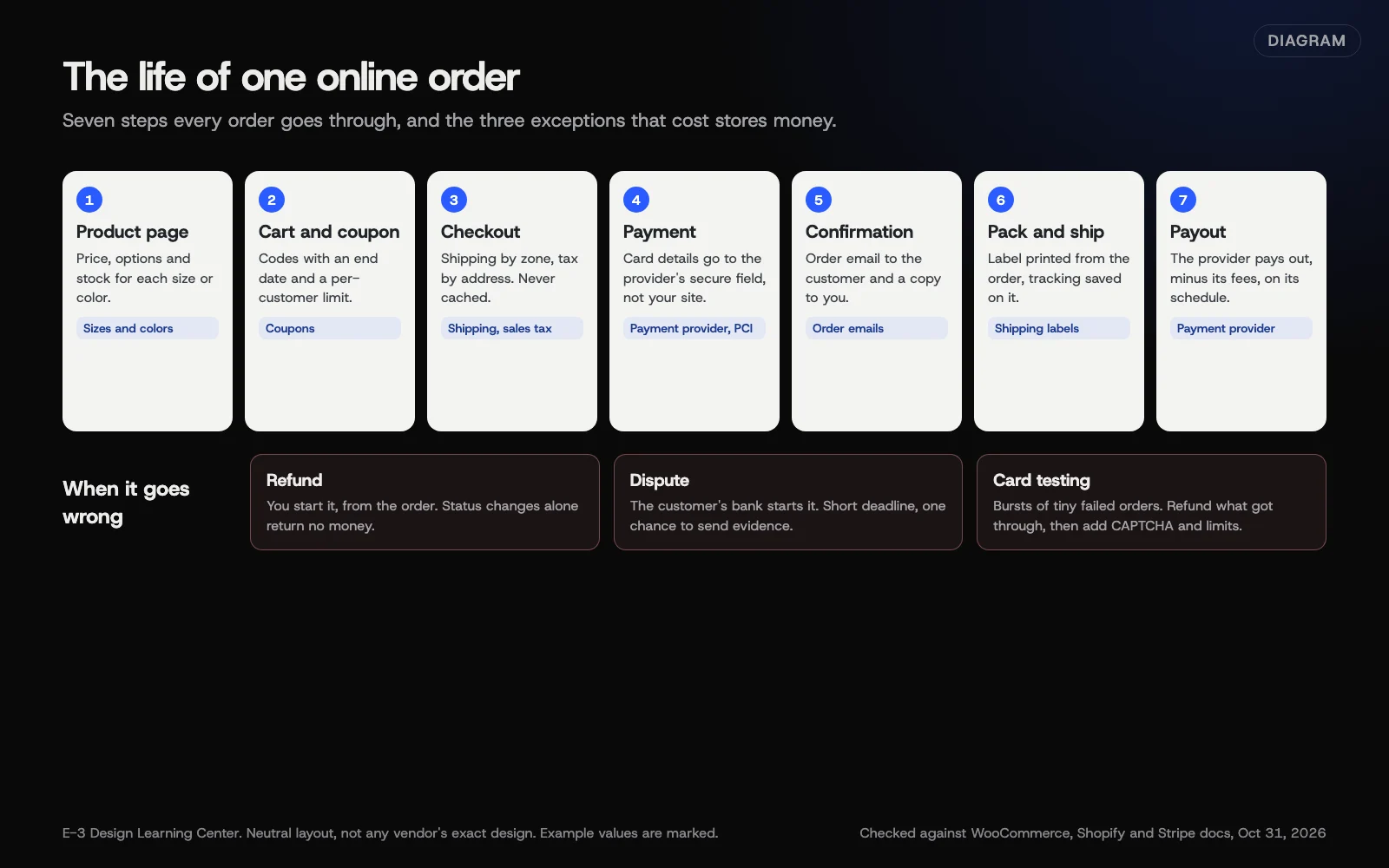 Diagram: the life of one online order, from product page to payout, and which guide covers each step. Based on WooCommerce, Shopify and Stripe documentation (October 2026).
If you haven’t chosen a platform yet, start with our answer on WooCommerce or Shopify. If you only sell a handful of things, you may not need a store at all; see the simplest way to take payments online.
1. Products
Everything starts with a clean product list. Day-to-day adding and editing is covered in our help article on adding or updating products, the single most common store question in our records. Two things deserve more care:
- Sizes, colors and other options. Make one product with variations, not a separate product per size. Each variation gets its own price, SKU and stock. Our guide to selling a product in sizes and colors covers WooCommerce and Shopify, including Shopify’s limit of three options per product.
- Stock. Decide whether you track stock for the whole product or each variation, and stick to it. When a sold-out item still shows as available, our help article on products showing in stock when sold out has the fix.
2. Payments
Your payment provider moves the money and handles most of the card security. The choice comes down to fees, payouts, where you sell, and whether you also sell in person. Our guide to choosing a payment provider compares how Stripe, PayPal, Square, WooPayments and Shopify Payments describe themselves, without rankings or fee claims that go stale.
Set up the account in the business’s name, connect it in test mode, place a test order, then go live and try one small real order and refund.
Card security is shared between you and the provider. Using the provider’s hosted card field or checkout page keeps card numbers off your site and keeps your paperwork short. Our guide to PCI compliance and store security explains the yearly questionnaire and what changed for it in 2025.
3. Shipping
Pick the simplest approach that covers your costs: a flat rate, free shipping over an order amount, live carrier rates for mixed sizes and weights, and local pickup if customers are nearby. Our guide on the best way to charge for shipping helps you choose and explains label printing. The settings screens themselves are in our help article on changing shipping rates or sales tax.
4. Sales tax
Sales tax is set state by state. Since the Supreme Court’s 2018 Wayfair decision, states can require out-of-state sellers to collect once their sales into that state pass its threshold. Our guide to sales tax on online sales explains how to build a list for your accountant and where to find each state’s own rules. It isn’t tax advice, and we don’t quote thresholds, because they differ and change.
5. Discounts
Coupons bring customers back, and careless ones get shared everywhere. Always set an end date and a per-customer limit, and stop codes stacking unless you mean them to. See creating a coupon or discount code.
6. Orders and emails
Orders are where you see what sold and who bought it. Our help article on seeing or exporting orders and customers covers reports and downloads. Order confirmation emails are part of the product: if customers say they never got one, the cause is usually the sending setup, as our help article on order confirmation emails explains.
7. When things go wrong
- Refunds. Always refund from the order, so your store, stock and provider agree. Changing the status to Refunded doesn’t send money back. See how to refund an order.
- Disputes. A chargeback means the bank has already taken the money back. You have a short deadline and one chance to send evidence. See what to do when a customer disputes a charge.
- Card testing. A sudden burst of tiny failed orders with odd names usually means criminals are testing stolen cards through your checkout. See why you’re getting lots of small failed orders.
- Checkout not working. Our help article on why payment or checkout isn’t working has the full checklist.
8. Updates
A store has more moving parts than an ordinary website: payment, shipping and tax extensions, theme templates and a database that holds your orders. Our guide to updating WooCommerce without breaking checkout covers compatibility checks, outdated templates, the database update and the test order that proves it worked.
9. Changing platforms
Moving between WooCommerce and Shopify is a project: products, then customers, then orders, plus redirects for every old address. See moving your store between platforms.
Before you launch, or relaunch
Run through this list on a new store, and again after any big change:
- Place a real order with a real card, then refund it. Check both emails arrive, and that the refund shows in the provider’s dashboard.
- Check shipping costs with a test address in each zone you ship to.
- Check the tax line with an address in each state where you collect.
- Try a coupon, including one that should be refused.
- Buy a product with sizes or colors, and check the stock count goes down for the right one.
- Read your refund, return and shipping policies, and make sure checkout links to them.
- Confirm the payment account, the store’s admin account and the domain are in the business’s name.
- Check that cart, checkout and account pages are excluded from any caching plugin.
If any step fails, fix it before you announce the store. A launch-day problem costs far more than a day’s delay.
A simple routine
Every day you sell: check new orders, answer customer emails, and ship on time.
Every week: look for failed and pending orders, check for any open disputes in your provider’s dashboard, and glance at stock on your best sellers.
Every month: apply tested updates, place a test order, check the confirmation email arrives, and review coupon codes that should have ended.
Every year: renew extension licences, complete your PCI questionnaire, review who has access to the store and the payment account, and ask your accountant whether your sales tax list has changed.
Why does running the store well matter?
An online store is the one part of your website that takes money while you sleep, and the one part that can stop taking it without telling you. Customers rarely report a broken checkout; they buy somewhere else. Shipping surprises lose sales at the last step, and slow refunds turn into disputes with fees attached.
It also shapes how customers see you. A tidy product page with the right sizes, a fair shipping rule, a clear confirmation email and a quick refund when something goes wrong do more for repeat business than any campaign.
What are the most common mistakes?
These are the problems we see most often, roughly in the order they cost money:
- Nobody tests checkout after an update. The home page looks fine, so it’s assumed the store is fine.
- Accounts in the wrong name. The payment account or the store belongs to a former employee or an old agency.
- Manual refunds pressed by mistake, so the store says refunded and the customer is still waiting.
- Test mode left on after setup, so real cards fail.
- Free shipping that loses money, or a coupon that drops an order under the free-shipping line.
- Sales tax guessed rather than checked with an accountant.
- Codes with no end date still working years later.
- Expired extension licences that stop updates or live shipping rates.
- One size missing because its variation has no price.
What has changed recently?
Things that older tutorials may not reflect, as of October 31, 2026:
- WooCommerce is now on version 11. The WordPress.org plugin page listed 11.2.1 on October 31, 2026. Recent releases added features owners notice, such as creating new variations through the CSV importer from version 11.1, per WooCommerce’s importer guide.
- Checkout rate limiting. WooCommerce added a setting, Rate limiting Checkout block and Store API, to slow card-testing scripts. WooCommerce’s rate limiting documentation says it’s off by default.
- Checkout block and CAPTCHA. WooCommerce warned in December 2024 that some CAPTCHA plugins didn’t protect the newer Checkout block. See card testing attacks.
- PCI SAQ A. In January 2025 the PCI Security Standards Council updated SAQ A, adding an eligibility check that your site isn’t open to script attacks that could affect the checkout.
- Shopify shipping. Shopify’s shipping rates page says shipping profiles and rates are gradually moving to “shipping options by market.”
What if something goes wrong?
- Customers can’t pay. Look the payment up in your provider’s dashboard first; see why checkout isn’t working.
- A flood of tiny failed orders. Refund any that succeeded, then follow the card testing steps.
- A dispute email arrives. Note the deadline today; see disputes and chargebacks.
- The site shows an error after an update. See critical error or blank white screen, and restore from backup if checkout is down.
- A customer says they were charged but there’s no order. Don’t charge again. Confirm the payment in the provider’s dashboard and complete the order by hand.
How much does it cost, and how long does it take?
The core features in this guide, including variations, coupons, refunds and basic shipping and tax settings, are built into both WooCommerce and Shopify. Costs come from payment processing, platform plans, paid extensions or apps, and services such as automated tax filing. Read each provider’s own pricing page, because fees change. Once a store is set up, the routine above takes a few minutes a day plus an hour or two a month.
How does E-3 handle this?
Store questions are a big share of what E-3’s clients ask. Our support records since 2019 include about 337 requests to add or update products, 180 to see or export orders, 175 about payments or checkout not working, 80 about shipping or sales tax, and 58 about missing order emails. That history is why these guides focus on the edges where stores break.
Stores in our website care get tested updates, daily backups and monitoring that tracks the PHP version, waiting updates, known plugin vulnerabilities, disk and database space, and domain and plugin-license renewals. The store, payment and shipping accounts we set up belong to you: they’re registered in your business’s name, and E-3 is added as a user.
Related questions
Sources
- Managing products (WooCommerce documentation)
- Order statuses (WooCommerce documentation)
- WooCommerce refunds (WooCommerce documentation)
- Payment gateway extensions: how to choose (WooCommerce documentation)
- How to update WooCommerce (WooCommerce documentation)
- Shipping rates (Shopify Help Center)
- Refunding orders (Shopify Help Center)
- Respond to disputes (Stripe documentation)
- Protect yourself from card testing (Stripe documentation)
- Merchant resources (PCI Security Standards Council)
- Important updates announced for merchants validating to Self-Assessment Questionnaire A (PCI SSC blog)
- Streamlined Sales Tax Governing Board
- WooCommerce plugin page (WordPress.org)
- Product CSV Importer and Exporter (WooCommerce documentation)
- Rate limiting for the Store API (WooCommerce developer documentation)
Every Online stores guide
- How do I sell a product in sizes and colors?Make it one product with options, not a separate product for each size. In WooCommerce, choose Variable product, add attributes such as Size and Color, then generate variations and give each one a price and stock. In Shopify, add options in the Variants section. Each combination then tracks its own stock.
- How do I refund an order in my online store?Refund from the order itself, not just the payment dashboard. In WooCommerce, open the order, select Refund, enter the items and amount, then refund through the payment gateway. In Shopify, open the order and select Refund. Changing an order's status to Refunded doesn't return any money, and card fees usually aren't returned.
- Which payment provider should my online store use?Pick the provider that fits how you sell, not the one with the loudest ad. On Shopify, Shopify Payments is the default, and other providers add transaction fees. On WooCommerce, compare WooPayments, Stripe, PayPal and Square on fees, payouts, in-person selling and support. Many stores run one card provider plus PayPal.
- What do I do when a customer disputes a charge?Act before the deadline in your payment dashboard. A dispute, or chargeback, means the customer's bank has already taken the money back, usually with a fee. Read the reason, contact the customer if it's a misunderstanding, then accept it or submit your evidence once. Missing the deadline loses the dispute automatically.
- Why am I getting lots of small failed orders?A sudden pile of small orders, mostly failed, with odd names and emails, is usually card testing: criminals checking stolen card numbers through your checkout. Refund any that succeeded, before they become disputes. Then add a checkout CAPTCHA that covers your checkout type, turn on rate limiting, and tighten fraud rules in your payment provider.
- Do I have to charge sales tax on online sales?Probably in your own state, and possibly in others. Since the Supreme Court's 2018 Wayfair decision, states can require out-of-state sellers to collect sales tax once they pass that state's own sales threshold. Rules, thresholds and taxable items differ by state, so check each state's revenue department and ask an accountant before you change your store.
- What's the best way to charge for shipping?Start with the simplest option that covers your real costs: a flat rate, free shipping over an order amount, or both, plus local pickup if customers are nearby. Use live carrier rates only when your products vary a lot in weight or size. Then print labels from your store so tracking reaches the customer automatically.
- How do I create a coupon or discount code?In WooCommerce, turn on coupons under Settings, General, then go to Marketing, Coupons, and Add new coupon. Set the code, discount type and amount, an expiry date, and usage limits. In Shopify, use the Discounts page. Always add an end date and a per-customer limit, then test the code at checkout.
- Do I need to be PCI compliant to sell online?Yes. PCI DSS applies to every business that accepts cards, whatever its size. For a small store, the practical answer is to keep card numbers off your website by using your payment provider's hosted card field or checkout page, then complete the yearly self-assessment your provider or bank asks for, and keep the site secure.
- How do I update WooCommerce without breaking checkout?Back up first, then update on a staging copy before the live store. Check that your payment, shipping and other extensions are tested with the new WooCommerce version, and look for outdated template overrides under WooCommerce, Status. Run the database update when asked, then place a test order and check the confirmation email before calling it done.
- How do I move my store between WooCommerce and Shopify?Plan it as a project, not a weekend. Export products, customers and orders, import them in that order, and rebuild what doesn't transfer, such as theme, apps and settings. Map every old product and page address to its new one with redirects before you switch the domain. Then test checkout, emails and tax before launch.
Next step
- Start here: How do I sell a product in sizes and colors?The first guide in Online stores.
- Free website checkPublic checks on your own site, then an action plan of what to fix first.
Still stuck? Ask E-3 for an answer from our help guides.
Rather we handled online stores for you?
It’s part of what we do every week for small businesses, as part of website care. Start with a free check of your site and profile, or call and ask.