
How do I set up recurring events on my calendar?
In The Events Calendar, recurring events need Events Calendar Pro. Set the first date and time, choose Schedule multiple events or Repeat this Event, pick a pattern under Happens, set when it Ends, and add exceptions for dates you skip. To change one date, edit that instance from its series and choose This event.
The short version
- In The Events Calendar, repeating events are an Events Calendar Pro feature. The free plugin doesn’t repeat events.
- Set the first date and time, then choose a pattern: daily, weekly, monthly or yearly.
- Set an end: on a date, or after a number of times. “Never” stops at 60 months.
- Skip holidays with Add Exception. Change one date by editing that instance and choosing This event.
- Standard tickets can’t go on recurring events. Use a series pass or separate events.
How do I create a recurring event?
These steps follow The Events Calendar’s recurring events guide. You need Events Calendar Pro installed. The free plugin’s WordPress.org page lists recurring events among the things Pro adds.
- Go to Events, then Add New, and fill in the title, description and venue as usual.
- Set the date and time of the first one. This also decides which pattern choices you’ll see.
- Turn on repeating. In the classic editor, select Schedule multiple events below the start and end fields. In the block editor, select Repeat this Event.
- Pick the pattern in the Happens list: Daily, Weekly, Monthly or Yearly. More fields appear for the detail, such as every Tuesday and Thursday, or the first Friday of each month. Choose Once to add a single extra date that doesn’t fit the pattern.
- Set when it ends. Never repeats for up to 60 months from the start. On a given date sets the last date. After a number of occurrences stops after that many.
- Skip dates. Select Add Exception. You can add one pattern-based exception, like every fifth week, and as many single dates as you need.
- Select Save or Publish. The plugin creates every date and puts them in a series with the same name.
Expected result: each date shows on the calendar, and each has its own page.
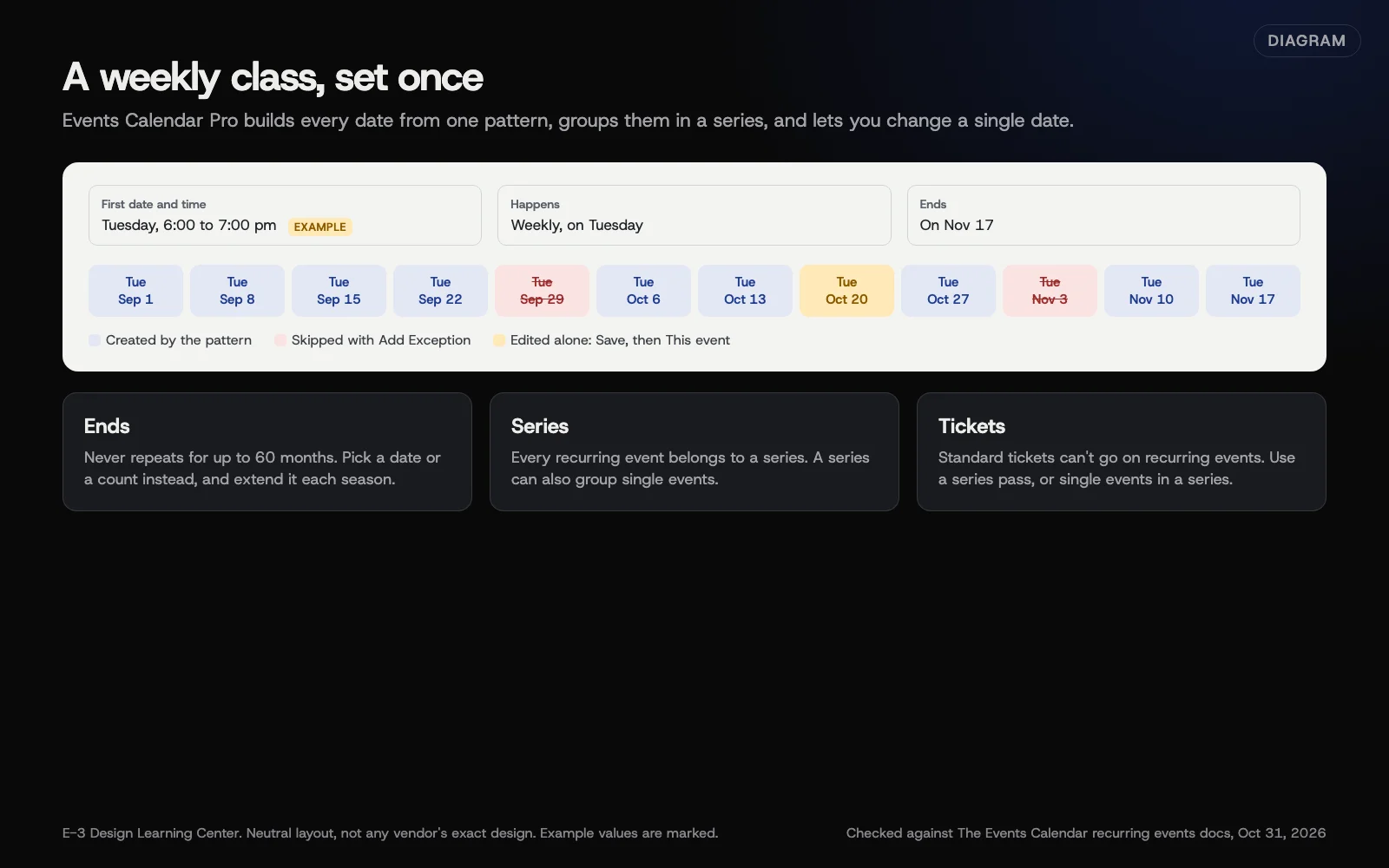 Diagram: how a recurring event works in Events Calendar Pro, from the first date to the pattern, end rule, exceptions and a one-off change. Based on The Events Calendar’s recurring events documentation (October 2026).
How do I change just one date?
The guide says you can’t edit a single date from Events, All Events. Instead:
- Open the recurring event and select the link to its series.
- Under Events in this Series, find the date and select Edit.
- Make your change, such as a new room or time, and select Save.
- When asked, choose This event so only that date changes.
That date then becomes a single event inside the series. To cancel one date, use the same route and see how to cancel or reschedule an event.
What’s the difference between a series and a recurring event?
The event series guide explains that a recurring event always belongs to a series. A series can also group single events and other recurring events. Recurring dates must share the same title, description, venue and organizer. A series doesn’t have that limit.
Use a series when the dates are related but not identical. A course that meets in two different rooms is a good example: make two recurring events, one per room, and group them in one series.
What if I sell tickets or take sign-ups for each date?
The recurring guide says standard tickets, which are tied to one date and time, can’t be added to recurring events. You have two choices:
- A series pass, which the series pass guide describes as a pass that grants access to a whole series of events. It’s built for Event Tickets with Events Calendar Pro, and capacity is counted across the series. Good for a course people sign up to as a whole.
- Separate single events in a series, each with its own ticket. Good for drop-in classes where people pick dates.
If you use a website form instead of tickets, one form with a date choice works for drop-ins. Set a cap for each date; see capping registrations and running a waitlist.
Why does this matter?
Weekly classes and monthly meetings are the backbone of many calendars. Entering each date by hand is slow and error-prone, and one missed week looks like a cancellation. A pattern with exceptions is set once and stays right.
What are the common mistakes and edge cases?
- Setting “Never” for a weekly class. It creates five years of dates. The guide warns that many recurring events with far-off end dates can slow the site. Pick an end date and extend it each season.
- Editing the whole series to fix one date. Choose This event in the save dialog.
- Forgetting holidays. Add them as exceptions when you set up the season.
- A cluttered list view. Under Events, Settings, General, the “Recurring event instances” setting can show only the next upcoming date of each series.
- Daylight saving time. Check a date on each side of the change to confirm the time shows correctly.
What if this didn’t work?
- There’s no repeat option. Events Calendar Pro isn’t active, or its license has lapsed.
- Dates show “page not found.” Go to Settings, Permalinks, select a pretty permalink option (not “plain”), and select Save Changes.
- Dates or times look wrong after an update. Check Events, Settings, Display, Date & Time for format changes, then test for a plugin or theme conflict on a staging copy.
How much does it cost, and how long does it take?
Recurring events need a paid Events Calendar Pro license; check the vendor’s current price. Setting up a season of weekly classes with exceptions takes about 15 minutes once you have the dates.
How does E-3 handle this?
Calendar updates are one of the most common requests we get, with about 273 in our support records since 2019, and repeating events are a regular part of that. As part of website care, we set up the pattern and the season’s exceptions from the dates you send, and a person checks the calendar afterwards.
Related questions
Next step
- Next: Registration form on my site, or a ticketing platform?The next guide in Events and registration.
- Free website checkPublic checks on your own site, then an action plan of what to fix first.
Still stuck? Ask E-3 for an answer from our help guides.
Rather we handled events and registration for you?
It’s part of what we do every week for small businesses, as part of website care. Start with a free check of your site and profile, or call and ask.