
Which events calendar should my website use?
For most small businesses, a calendar plugin on your own WordPress site is the best fit, because every event gets its own page that people can share and search engines can read. An embedded Google Calendar suits a simple schedule your staff already keep. A ticketing platform suits large, paid or seated events.
The short version
- Your own calendar plugin gives every event a page on your site. Best for most businesses that run regular events.
- An embedded Google Calendar is fastest to set up, but the calendar must be public and events don’t get their own pages.
- A ticketing platform brings sign-ups, check-in and reminders, but the event page lives on its site.
- You can combine them: list everything on your calendar, and link out to tickets for the big ones.
How do the three options compare?
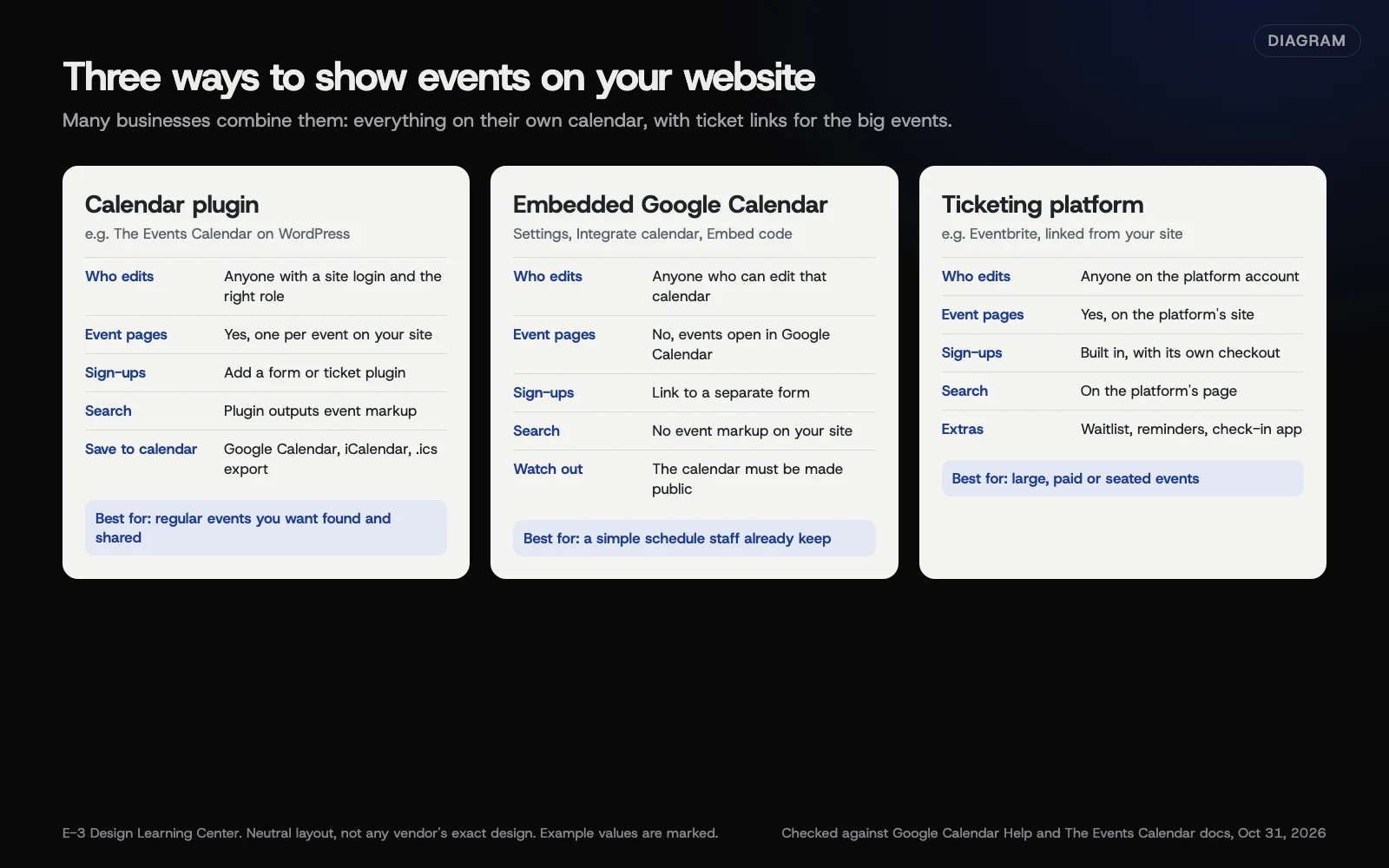 Diagram: three ways to show events on a small-business website, and what each is good at. Based on Google Calendar Help and The Events Calendar documentation (October 2026).
| Calendar plugin (e.g. The Events Calendar) | Embedded Google Calendar | Ticketing platform listing | |
|---|---|---|---|
| Who updates it | Anyone with a website login and the right role | Anyone who can edit that Google Calendar | Anyone on the platform account |
| A page per event on your site | Yes | No, events open in Google Calendar | No, the page is on the platform |
| Sign-ups | Add a form or ticket plugin | Link to a form | Built in |
| Google event results | Plugin adds the markup for you | No markup on your site | On the platform’s page |
| Visitors can add to their own calendar | Yes, export links | Yes | Varies |
How do I set up each option?
A calendar plugin on WordPress
The Events Calendar is one widely used plugin. Its WordPress.org page lists 600,000+ active installs and these free features: month, list and day views, Google Calendar and iCal export, block editor support, and structured data for search. Events Calendar Pro adds recurring events, more views, event series and custom event fields.
- In WordPress, go to Plugins, then Add Plugin, and search for “The Events Calendar.”
- Install and activate it. An Events menu appears.
- Under Events, then Settings, check the default view and the date and time formats.
- Check the site’s time zone in Settings, then General. The calendar uses it.
- Add your first event. Our help article on updating events or the calendar has the steps.
According to The Events Calendar’s subscribe and export guide, the calendar page shows Google Calendar, iCalendar and Export .ics file options, so visitors can save events to their own calendars.
Install plugins on a staging copy first if your site is busy.
An embedded Google Calendar
These steps come from Google’s embed guide. They only work on a computer.
- Open Google Calendar in a web browser.
- Select Settings (the gear icon), then Settings.
- On the left, select the calendar you want to show.
- Select Integrate calendar.
- Under “Embed code,” select Customize, choose your display options, and keep the width and height at 500 or more.
- Select Copy to clipboard next to the embed code, and paste it into a Custom HTML block on your page.
Google says a calendar is only visible to people you share it with. To show it on your site, you have to make it public: in the calendar’s settings, under Access permissions for events, tick Make available to public. Google’s sharing page warns that a public calendar can be found in search results and subscribed to by anyone. Use a separate calendar for public events. Never make your office calendar public.
A ticketing platform
You create the event on the platform, then link to it from your site, or embed its checkout if the platform offers that. Eventbrite’s pricing page lists waitlists, automated reminders, reserved seating and a check-in app among its features. Read our guide to a registration form or a ticketing platform before you commit.
Why does the choice matter?
Each event page on your own site is something people can find, share and link to. Google’s event guide says each event needs its own page to be eligible for event results, which an embedded Google Calendar can’t give you. Our guide to event markup covers that side.
Who edits it matters as much. If the person who runs your classes lives in Google Calendar, an embed may be the calendar that actually stays current.
What are the common mistakes?
- Making a working calendar public. Private appointments and staff names end up on your website.
- Running two calendars that disagree, such as a plugin calendar and a Facebook events list.
- Wrong time zone. Events show an hour off. Check WordPress’s time zone and the Google Calendar’s own time zone.
- Picking a plugin for features you’ll never use, then paying for it every year.
- Changing plugins without moving old events. Old event links break. Plan redirects first.
What if my calendar isn’t showing events?
- Embedded Google Calendar shows nothing. The calendar probably isn’t public. Google says turning off public sharing can take up to 4 hours to take effect, so changes may lag.
- Plugin calendar shows a “page not found.” Go to Settings, then Permalinks, and select Save Changes without changing anything. The Events Calendar’s documentation suggests this, with a “pretty” permalink setting rather than “plain.”
- Events show on the wrong day. Check the time zones as above.
How much does it cost, and how long does it take?
The Events Calendar and Google Calendar are free. Events Calendar Pro and ticketing platforms charge; prices change, so check each vendor’s page. A plugin calendar takes about an afternoon to set up and style. An embed takes about 15 minutes.
How does E-3 handle this?
We set up and look after calendars as part of website care. We look at who will add events and how often, then suggest the simplest setup that will stay current. Plugin changes are tested on a staging copy first.
Related questions
Sources
- The Events Calendar (WordPress.org plugin page)
- Subscribing to and Exporting Events (Nexcess docs for The Events Calendar)
- Embed Google Calendar on your website (Google Calendar Help)
- Share your calendar with others / make it public (Google Calendar Help)
- Event structured data (Google Search Central)
- Eventbrite pricing (Eventbrite)
Next step
- Next: How do I set up recurring events on my calendar?The next guide in Events and registration.
- Free website checkPublic checks on your own site, then an action plan of what to fix first.
Still stuck? Ask E-3 for an answer from our help guides.
Rather we handled events and registration for you?
It’s part of what we do every week for small businesses, as part of website care. Start with a free check of your site and profile, or call and ask.