
How do I check a page and request indexing in Search Console?
Paste the page's full address into the search bar at the top of Search Console. The result says whether the URL is on Google. Select Test live URL to check the current version, then Request indexing if it's new or changed. Google says a request doesn't guarantee indexing, and indexing usually takes a day or more.
The short version
- Paste the full page address into the Inspect bar at the top of Search Console.
- Read the headline: URL is on Google, URL is on Google, but has issues, or URL is not on Google.
- Select Test live URL to see the page as it is right now, not as Google last stored it.
- If the live test passes, select Request indexing. Do it once per page.
- For many pages at once, use your sitemap instead.
How do I inspect a page?
These steps follow Google’s URL Inspection page.
- Open Search Console and choose the property the page belongs to.
- Paste the page’s full address, including
https://, into the search bar at the top of the screen. Press Enter. - Wait a few seconds while Google looks up its records.
- Read the headline result.
You can also inspect a page from inside most reports. Hover over an address in a table and select the Inspect icon.
What does the result mean?
| Headline | What it means |
|---|---|
| URL is on Google | The page is indexed and can appear in results. Google notes it’s eligible, not guaranteed to show |
| URL is on Google, but has issues | Indexed, with a problem in something like structured data |
| URL is not on Google | Not indexed. The Page indexing section gives the reason |
| URL is an alternate version | Google treats another address as the main one |
Expand Page indexing to see how Google found the page, when it last crawled it, whether crawling and indexing are allowed, and which address Google picked as the canonical, meaning the main version.
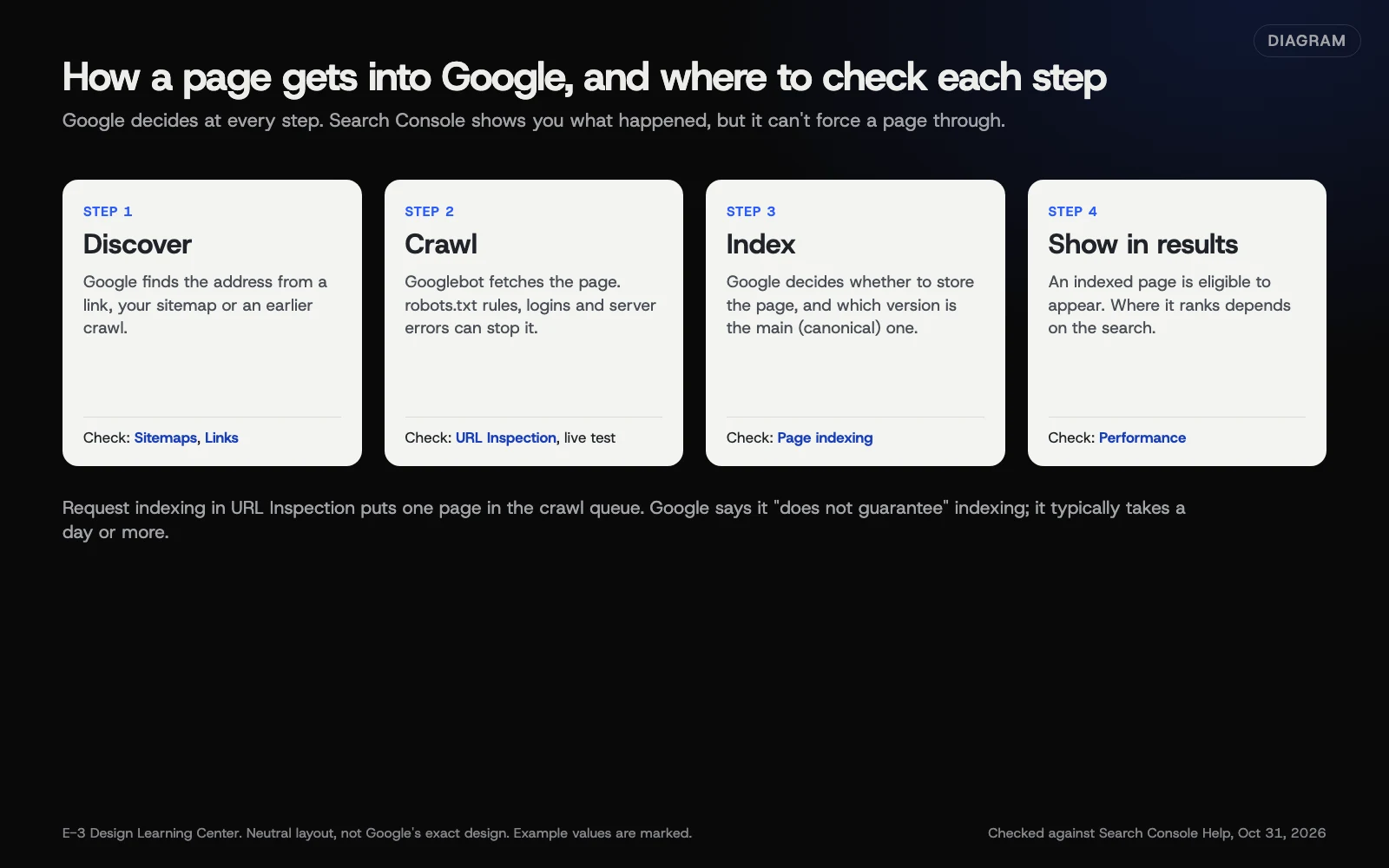 Diagram: the path a page takes from discovery to search results, and where Search Console reports on each step. Based on Search Console Help (October 2026).
How do I test the live page and request indexing?
The first result shows the version Google last stored, which may be weeks old. To check today’s page:
- Select Test live URL. The page must load without a login.
- Read the result. It tells you whether Google can reach and read the page right now. Google’s URL Inspection page says a pass isn’t a guarantee of indexing: the live test doesn’t check sitemaps, duplicate or canonical choices, manual actions, removals, or quality and security issues.
- Select View tested page to see a screenshot, the page code and server details.
- If the test passes, select Request indexing.
Google runs a quick check, then adds the page to its crawl queue. You can’t request indexing if the live test shows the page can’t be indexed, such as when it carries a noindex tag. Fix that first.
Use the toggle between Google Index and Live Test to compare the stored and current versions.
When should I request indexing?
- A new page you want found soon, such as a new service page.
- An important page you changed, such as new prices or hours on your contact page.
- A page you fixed after Search Console flagged a problem.
For many pages at once, Google recommends a sitemap with accurate last-changed dates. See how to submit a sitemap.
Why does this matter?
URL Inspection is the fastest way to answer “Is this page on Google?” for one address. Searching Google yourself isn’t reliable, because results change with location and device. Inspection also shows problems you can’t see in a browser, such as a page Google thinks is a duplicate of another.
What are the common mistakes?
- Requesting again and again. Google’s page says the request “does not guarantee that the page will appear in the Google Index,” and a second request doesn’t help. There’s also a daily limit per property.
- Inspecting the wrong address.
http://,wwwand a trailing slash can make a different URL. Copy the address from your browser bar. - Inspecting a page outside the property. A URL-prefix property for
https://www.can’t inspecthttps://without www. A Domain property avoids this. - Reading old data as current. The headline shows Google’s stored version. After a fix, run Test live URL before you worry.
- Expecting a ranking. Being indexed means the page can appear. Where it appears depends on how well it answers the search.
What if the page still isn’t indexed?
Google says indexing “typically takes only a day or so” but can take much longer. Give it a week or two, then work through these:
- Check the reason in the Page indexing section. Our guide to Page indexing statuses explains each one.
- Look for a noindex setting. On WordPress, check Settings, then Reading, for a ticked box that discourages search engines. WordPress’s Reading settings page explains it.
- Check the canonical. If Google picked another page as the main version, the two pages may be too similar. Make each page clearly different, or redirect one to the other.
- Link to it. Add links from your home page or a related page. Pages nobody links to are slower to be found.
- Make it worth indexing. Thin pages with a few lines of text are often crawled and then left out. Add the detail a customer actually needs.
If you need a page out of Google quickly instead, see removing a page from Google.
How much does it cost, and how long does it take?
The tool is free. An inspection takes seconds and a request takes a minute. Indexing itself is up to Google, usually from a day to a couple of weeks.
How does E-3 handle this?
Since E-3 sets up Search Console for its managed sites and is added as a user, key pages can be inspected after a launch or a big change. URL checks like these belong to our SEO and AI search service.
Related questions
Next step
- Next: What do the Page indexing statuses in Search Console mean?The next guide in Google Search Console.
- Free website checkPublic checks on your own site, then an action plan of what to fix first.
Still stuck? Ask E-3 for an answer from our help guides.
Rather we handled google search console for you?
It’s part of what we do every week for small businesses, as part of seo and ai search. Start with a free check of your site and profile, or call and ask.