
How to test your schema markup
Paste the page address into Google's Rich Results Test to see which Google features the markup qualifies for and any errors. Then run the Schema Markup Validator to check all schema.org types, including ones Google doesn't use for a feature. After publishing, watch Search Console's Enhancements reports and use URL Inspection to confirm what Google indexed.
The short version
- Rich Results Test: which Google features this page can get, and what’s blocking them.
- Schema Markup Validator: whether all your schema.org markup is valid, Google feature or not.
- Search Console: problems across the whole site, after Google recrawls.
- Errors block a feature. Warnings usually don’t.
- Valid markup means eligible, not guaranteed.
How do I test a page?
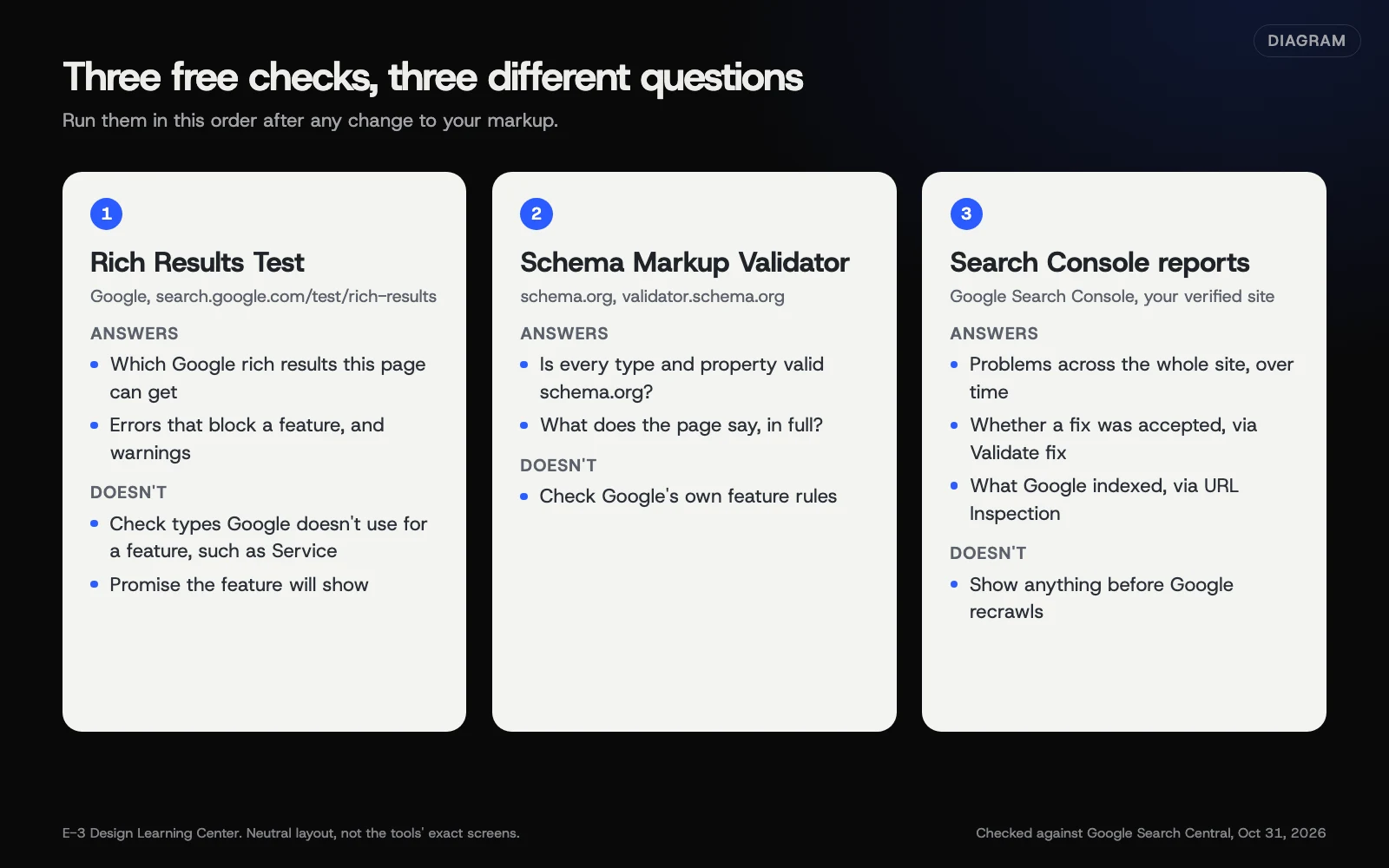 Diagram: the three free checks for structured data and what each can and can’t tell you. Checked against Google Search Central, October 31, 2026.
1. Rich Results Test
Google says to “start with the Rich Results Test,” in its structured data documentation.
- Go to the Rich Results Test.
- Paste the page’s address, or paste code if the page isn’t live yet.
- Wait for the test to fetch and read the page.
- Read the summary: it lists each rich result type it found, such as “Breadcrumbs,” “Events” or “Product snippets,” marked valid or with issues.
- Open each item to see errors (which block that feature) and warnings (missing recommended properties).
- Use the preview to see roughly how the result could look.
It only reports types Google uses for a search feature. A Service block, for example, won’t show up here at all, and that doesn’t mean it’s wrong.
2. Schema Markup Validator
Google says to use the Schema Markup Validator “to test all types of schema.org markup, without Google-specific validation.”
- Paste the same address or code.
- Read the list of every type found, such as LocalBusiness, Service, Organization or BreadcrumbList.
- Click each to see its properties and any errors or warnings.
This is where you check Service markup, Organization details and anything else Google has no rich result for. It’s also the quickest way to spot duplicates: two LocalBusiness blocks from two plugins will both appear.
3. Search Console
After the page is live and Google has recrawled it:
- Enhancements reports. Google’s rich result report page says these sit under Enhancements in Search Console (product reports are under Shopping). They chart valid and invalid items over time and list the issues. Counts are items, not pages.
- Validate fix. After you correct an issue, start validation from the issue’s page so Google rechecks the affected URLs.
- URL Inspection. Shows what Google indexed for one page, including detected structured data. See how to check a page in Search Console.
Search Console only shows reports for supported rich result types, and only once Google finds that markup on your site.
Why test at all?
Markup is invisible to visitors, so mistakes sit unnoticed for months. A plugin update can change it, a theme can add a second copy, or someone updates hours on the page but not in the settings that feed the markup. Testing catches all of that. Google’s general guidelines also say not to block structured data pages from Googlebot with robots.txt or noindex; a test that can’t fetch the page will tell you.
What are the common mistakes when testing?
- Testing only the home page. Check one of each page type: home, a service page, a blog post, a product.
- Treating warnings as failures. A missing recommended property is worth fixing if you have the fact, and harmless if you don’t.
- Adding facts you don’t have just to clear a warning, like an invented price range.
- Testing a staging site and assuming live matches it.
- Expecting a rich result straight after a clean test. Google decides what to show and when.
What if the test shows errors?
Read the property named in the error and fix the source: the plugin setting, the template or the code. Then retest. If you can’t find where the markup comes from, view the page source and search for application/ld+json; many plugins leave their name in a comment nearby. Our guide to common schema mistakes lists the frequent ones, and adding schema in WordPress covers plugin settings.
If the Rich Results Test can’t fetch the page at all, check that it’s public and not blocked by robots.txt or a firewall.
How much does it cost, and how long does it take?
All three tools are free. Testing a page takes a couple of minutes. Search Console reports update as Google recrawls, which can take days.
How does E-3 handle this?
The Enhancements reports live in Search Console, which E-3 sets up for its managed sites with E-3 added as a user. Schema testing is part of our SEO and AI search service, and markup fixes are tried on a staging copy before the live site.
Related questions
Next step
- Next: How to add schema in WordPress with Yoast or Rank MathThe next guide in Schema for owners.
- Free website checkPublic checks on your own site, then an action plan of what to fix first.
Still stuck? Ask E-3 for an answer from our help guides.
Rather we handled schema for owners for you?
It’s part of what we do every week for small businesses, as part of seo and ai search. Start with a free check of your site and profile, or call and ask.