
How do I refund an order in my online store?
Refund from the order itself, not just the payment dashboard. In WooCommerce, open the order, select Refund, enter the items and amount, then refund through the payment gateway. In Shopify, open the order and select Refund. Changing an order's status to Refunded doesn't return any money, and card fees usually aren't returned.
The short version
- Refund from the order screen, so the store, the stock count and the payment provider all agree.
- Changing an order’s status to Refunded or Cancelled by hand doesn’t send any money back.
- You can refund part of an order: one item, or just the shipping.
- Tick the restock option if the item is back on your shelf.
- Card processing fees usually aren’t returned to you, and the customer sees the money in days, not minutes.
How do I refund an order in WooCommerce?
These steps follow WooCommerce’s refunds guide, checked on October 31, 2026.
- Go to WooCommerce, then Orders, and open the order.
- Below the items, select Refund.
- Enter the quantity to refund next to each item. The refund total updates. To refund shipping, enter an amount on the shipping line.
- Tick Restock refunded items if the goods are coming back into stock.
- Add a reason in Reason for refund (optional). It helps if the customer later asks what happened.
- Select Refund $X via [your payment gateway]. This sends the money back through Stripe, PayPal or whichever gateway took the payment.
- Check the Order notes for a “Successfully refunded” message, and check the payment in your gateway’s dashboard.
Expected result: the order note confirms the refund, the customer gets a refund email, and a full refund changes the order status to Refunded.
What’s a manual refund?
WooCommerce also shows Refund $X manually. That only records the refund in your store. No money moves. It’s meant for payments taken offline, such as check or cash on delivery, where you return the money yourself. Pressing it for a card payment is a common mistake: the store says “refunded,” and the customer is still waiting.
Refunding part of an order
If you refund less than the whole order, the status stays as it was, and the customer’s email calls it a partial refund. WooCommerce’s guide has a neat trick for part of one item: type a fraction in the quantity box, such as 4/15 to refund $4 of a $15 item, then press Tab so tax is worked out for you.
How do I refund an order in Shopify?
From Shopify’s refunding orders page:
- In your Shopify admin, go to Orders and open the order.
- Select Refund.
- Enter the quantity to refund for each item.
- Leave Restock items ticked to put them back in stock, or untick it. It only appears for items you track inventory for.
- To refund shipping, select Shipping under Refund shipping and enter the amount.
- Add a Reason for refund if you like. The customer doesn’t see it.
- Check the Refund amount in the Summary.
- Leave Send a notification to the customer ticked, unless you’ve already told them.
- Select Refund.
Shopify says a refund can’t be cancelled or reversed once you start it from your admin. Check the amount twice.
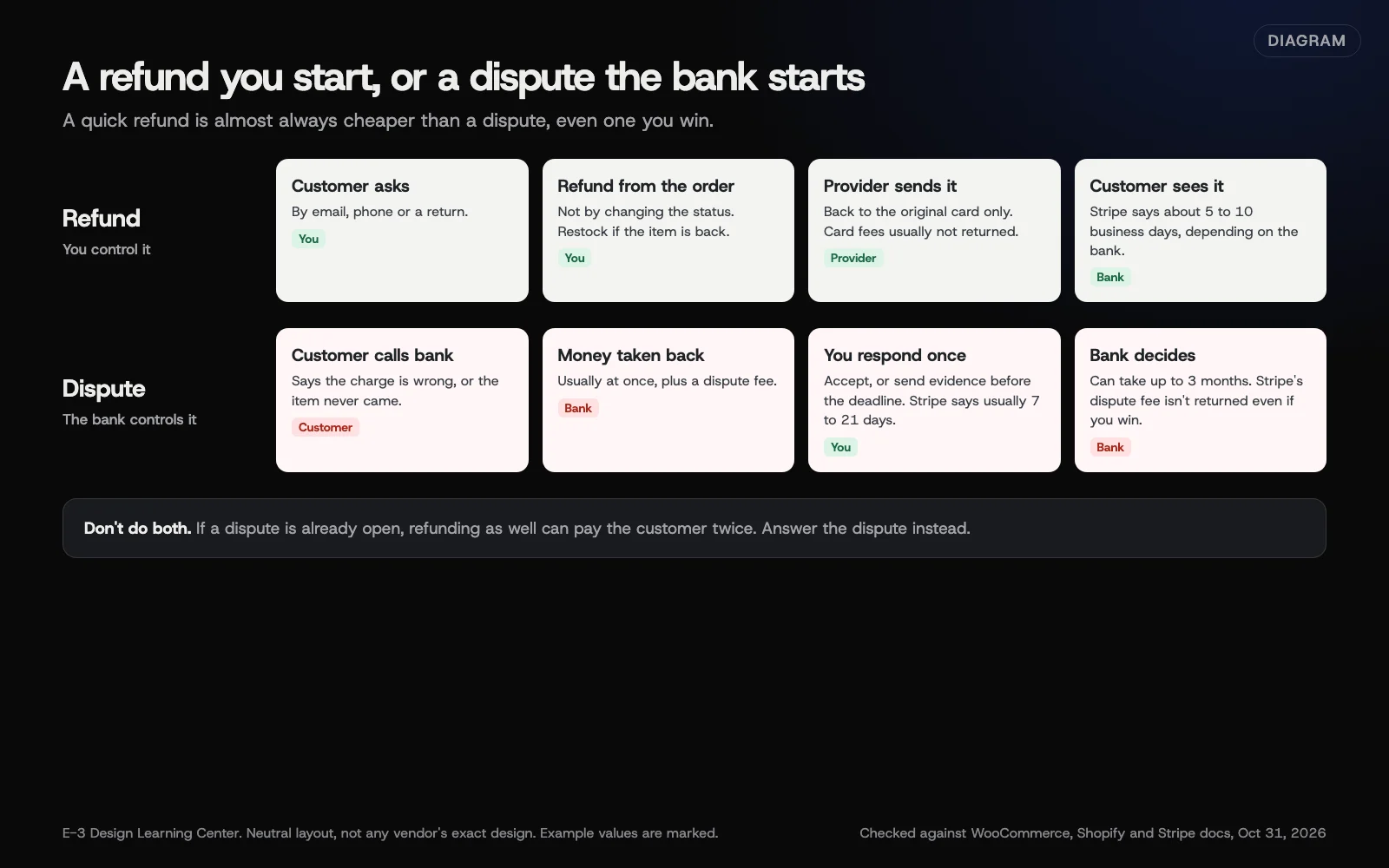 Diagram: a refund you start versus a dispute the customer’s bank starts, and who controls each step. Based on WooCommerce, Shopify and Stripe documentation (October 2026).
Why does it matter?
A fast, clean refund is the cheapest way to end a problem. A customer who can’t get a refund from you may ask their bank instead, and a bank dispute costs you a fee and paperwork even if you win. Our guide to disputes and chargebacks explains that side.
Refunding from the order also keeps your records straight. Sales reports, stock counts and tax totals all come from the orders, so a refund made only in the payment dashboard leaves your store showing a sale that never happened.
What are the common mistakes and edge cases?
- Changing the status instead of refunding. WooCommerce says plainly that setting an order to Cancelled or Refunded “will not automatically refund your customer.”
- Refunding twice. Once in the gateway dashboard, then again from the order. Pick one place, ideally the order.
- Expecting the fee back. Stripe’s refunds page says its processing fees from the original payment aren’t returned. Shopify says card fees on Shopify Payments aren’t refunded either.
- Not enough balance. Stripe takes refunds from your available balance. If it’s short, a card refund waits as pending until the balance covers it.
- Refunding to a different card. Stripe only refunds to the original payment method. If the card has expired, the customer’s bank normally passes it to the replacement card.
- Refunding while a dispute is open. If the customer has already disputed the charge, Stripe suggests answering the dispute instead, so the customer isn’t paid twice.
What if this didn’t work?
- The refund button only offers “manually.” The gateway doesn’t support automatic refunds, or it’s lost its connection. Refund in the gateway’s dashboard, then record a manual refund in the order so both match.
- The customer says they haven’t got it. Stripe says customers usually see a card refund about 5 to 10 business days later, depending on their bank. A refund made soon after the sale may show as the charge disappearing instead of a separate credit. Stripe can often give you a reference number for the customer to quote to their bank.
- The refund failed. Banks occasionally return a refund, for example to a closed account. The money comes back to your Stripe balance, and you’ll need another way to repay the customer.
How much does it cost, and how long does it take?
Refunding takes a minute or two. The real cost is the processing fee you don’t get back, which depends on your provider’s pricing. Check your own provider’s pricing page rather than relying on figures you read elsewhere.
How does E-3 handle this?
Refunds are usually something owners do themselves, and we’re glad to show you once. If a refund won’t go through, or the store and the payment dashboard disagree, send us the order number and what you expected to happen. Please don’t send card details. A person at E-3 checks the order notes and the gateway connection and tells you what we find. Stores in our website care also get tested updates, which keeps the gateway plugin that does the refunding current. Call 814-399-4655 or email support@e3help.me.
Related questions
Next step
- Next: Which payment provider should my online store use?The next guide in Online stores.
- Free website checkPublic checks on your own site, then an action plan of what to fix first.
Still stuck? Ask E-3 for an answer from our help guides.
Rather we handled online stores for you?
It’s part of what we do every week for small businesses, as part of website care. Start with a free check of your site and profile, or call and ask.