
How do I sell a product in sizes and colors?
Make it one product with options, not a separate product for each size. In WooCommerce, choose Variable product, add attributes such as Size and Color, then generate variations and give each one a price and stock. In Shopify, add options in the Variants section. Each combination then tracks its own stock.
The short version
- One product, several options. Don’t make “Shirt Small” and “Shirt Large” as separate products.
- Options are called attributes in WooCommerce and options in Shopify. Each combination is a variation or variant.
- Every variation needs its own price. In WooCommerce, a variation with no price doesn’t show in the store.
- Turn on stock tracking per variation if sizes sell out at different rates.
- Set a default choice so the product page doesn’t open on an empty dropdown.
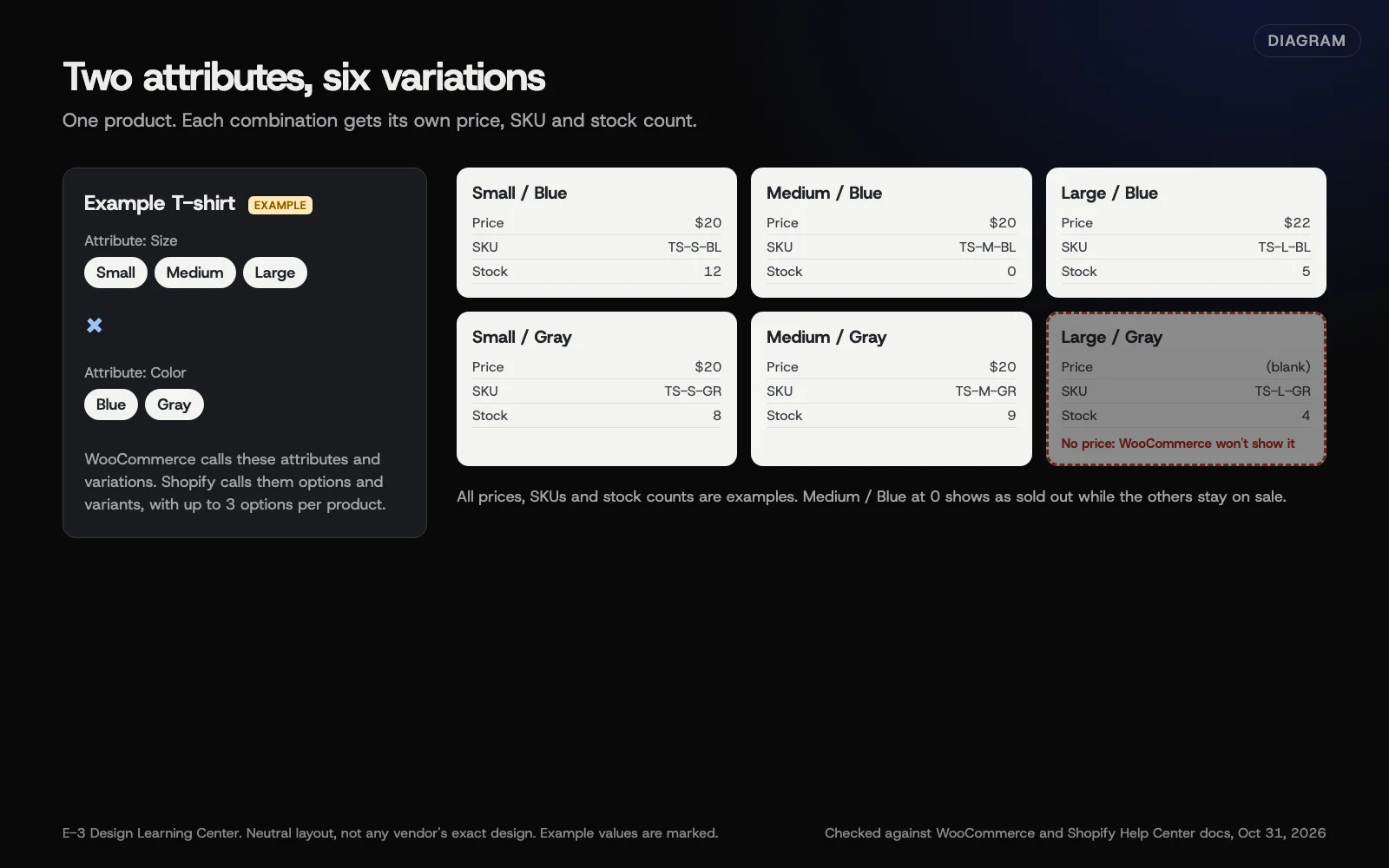 Diagram: how two attributes become six variations, each with its own price, SKU and stock. Example values are marked. Based on WooCommerce and Shopify Help Center docs (October 2026).
How do I set up a variable product in WooCommerce?
These steps follow WooCommerce’s guide to the variable product, checked on October 31, 2026. You need the Administrator or Shop Manager role.
- Go to Products, then Add New Product, and enter the name. To convert an existing product, open it instead.
- In the Product data box, change the dropdown to Variable product.
- Open the Attributes tab. Pick a store-wide attribute you’ve already made, or select Add new to make one just for this product. For a new one, type the name, such as Size, and the values separated by a pipe:
Small | Medium | Large. - Select Save attributes. Repeat for a second attribute, such as Color.
- Open the Variations tab and select Generate variations to create every combination, or Add manually to create only the ones you sell.
- Expand each variation and fill in Regular price, plus SKU, an image, weight and stock if you track it. Tick Manage stock? to enter a Stock quantity for that size or color.
- Set the default form values at the top of the variations list, so one choice is selected when the page loads.
- Select Save changes, then Update or Publish.
Expected result: the product page shows a dropdown for each attribute, and the price and stock change as the customer picks.
Changing many variations at once
The Bulk actions dropdown on the Variations tab changes every variation in one go: set or raise prices, set sale prices and dates, turn stock management on, or set weights and sizes. WooCommerce’s guide warns that bulk changes save straight away, so check the result before you move on.
How do I add variants in Shopify?
From Shopify’s adding variants page:
- In your Shopify admin, go to Products and open the product.
- In the Variants section, select Add options like size or color.
- Enter an Option name, such as Size, and its Option values.
- To add a second or third option, select Add another option.
- Select Done, then Save.
- Open each variant to set its price, SKU and inventory.
Shopify allows up to three options and up to 2,048 variants per product. The same page warns that some themes, apps and sales channels may not handle more than 100 variants, so check before you build a huge product.
Why does it matter?
One product with variations keeps all the reviews, photos and search history in one place. Customers see every size and color without hunting through near-identical listings. Stock is also more accurate. When Medium Blue sells out, only that choice goes grey, and the rest stay for sale.
It’s also kinder to Google. Ten near-copies of the same shirt compete with each other in search, while one strong product page doesn’t.
What are the common mistakes and edge cases?
- A variation with no price. WooCommerce says a variation without a Regular price won’t appear in the store. This is the most common reason a size “disappears.”
- Generating every combination when you don’t sell them all. If there’s no Large in Gray, don’t generate it, or untick Enabled on it.
- Stock set at the wrong level. Stock can be tracked for the whole product or for each variation. Mixing the two is a classic cause of a sold-out size still showing. Our help article on products that show in stock when sold out walks through the fix.
- Too many variations for the page. WooCommerce’s guide says the front-end dropdowns stop filtering live once a product has more than 30 variations. Customers can then choose a combination that doesn’t exist and see a “no products matched” message.
- Images left on the parent only. Add an image to each color variation, so the photo changes when the customer picks a color.
- Fixing prices one by one. Use Bulk actions, or a CSV update for big catalogs.
Can I update variations with a spreadsheet?
Yes. WooCommerce’s product CSV importer can update existing products and, since WooCommerce 11.1, create new variations for an existing variable product. Each variation row needs its Type set to variation and a Parent that points to the main product. Export first, edit the copy and import it back with Update existing products ticked. Try it on a staging copy of the store before the live one.
What if this didn’t work?
- A size is missing from the dropdown. Check that the variation has a price, is enabled, and isn’t out of stock with out-of-stock items hidden.
- The price shows as a range like “$20–$30” until a choice is made. That’s normal for variable products. Set a default choice if you’d rather show one price.
- The variations tab is empty after saving attributes. Make sure each attribute was saved for use in variations, then generate them again.
- Your theme shows swatches or buttons instead of dropdowns. That’s a theme or plugin feature. Check its settings, not WooCommerce’s.
How much does it cost, and how long does it take?
Variations are built into both WooCommerce and Shopify at no extra cost. Swatch-style pickers often need a theme feature or a plugin. A product with six variations takes about 15 minutes the first time. After that, copying a similar product is faster.
How does E-3 handle this?
“How do I add or update products in my online store?” is the most-asked store question in E-3’s support records, with about 337 requests since 2019. Our help article on adding or updating products covers simple products. For stores in our website care, we set up new variable products or bulk price changes when asked, check them on the live shop, and show you anything bigger as a preview to approve first.
Related questions
Next step
- Next: How do I refund an order in my online store?The next guide in Online stores.
- Free website checkPublic checks on your own site, then an action plan of what to fix first.
Still stuck? Ask E-3 for an answer from our help guides.
Rather we handled online stores for you?
It’s part of what we do every week for small businesses, as part of website care. Start with a free check of your site and profile, or call and ask.