
How do I read an SSL Labs report for my website?
Enter your domain at SSL Labs' free SSL Server Test and wait a couple of minutes. An A or A+ means the secure connection is set up well. T means the certificate isn't trusted, M means it doesn't match the name, and anything below A lists the setting holding it back, usually one your host changes.
The short version
- Go to the SSL Server Test, enter your domain, and tick Do not show the results on the boards if you’d rather it wasn’t listed.
- A or A+ is a good result. B or lower means an old setting is still switched on.
- T means visitors’ browsers won’t trust the certificate. M means it’s for a different name. Both need fixing now.
- Check the certificate’s expiry date in the report.
- Send anything below A to your host with the report link. Don’t change server settings yourself.
How do I run the test?
- Open the SSL Labs SSL Server Test. Qualys describes it as a “free online service” that analyzes “any SSL web server on the public Internet.”
- Type your domain, such as example.com.
- Tick Do not show the results on the boards if you don’t want your domain to appear in the site’s recent results lists.
- Select Submit and wait. A full test takes a minute or two.
- If your site has more than one server address, you’ll see one result per address. Open each.
Test the www version too if your site uses it. A certificate can cover one name and not the other.
What does the grade mean?
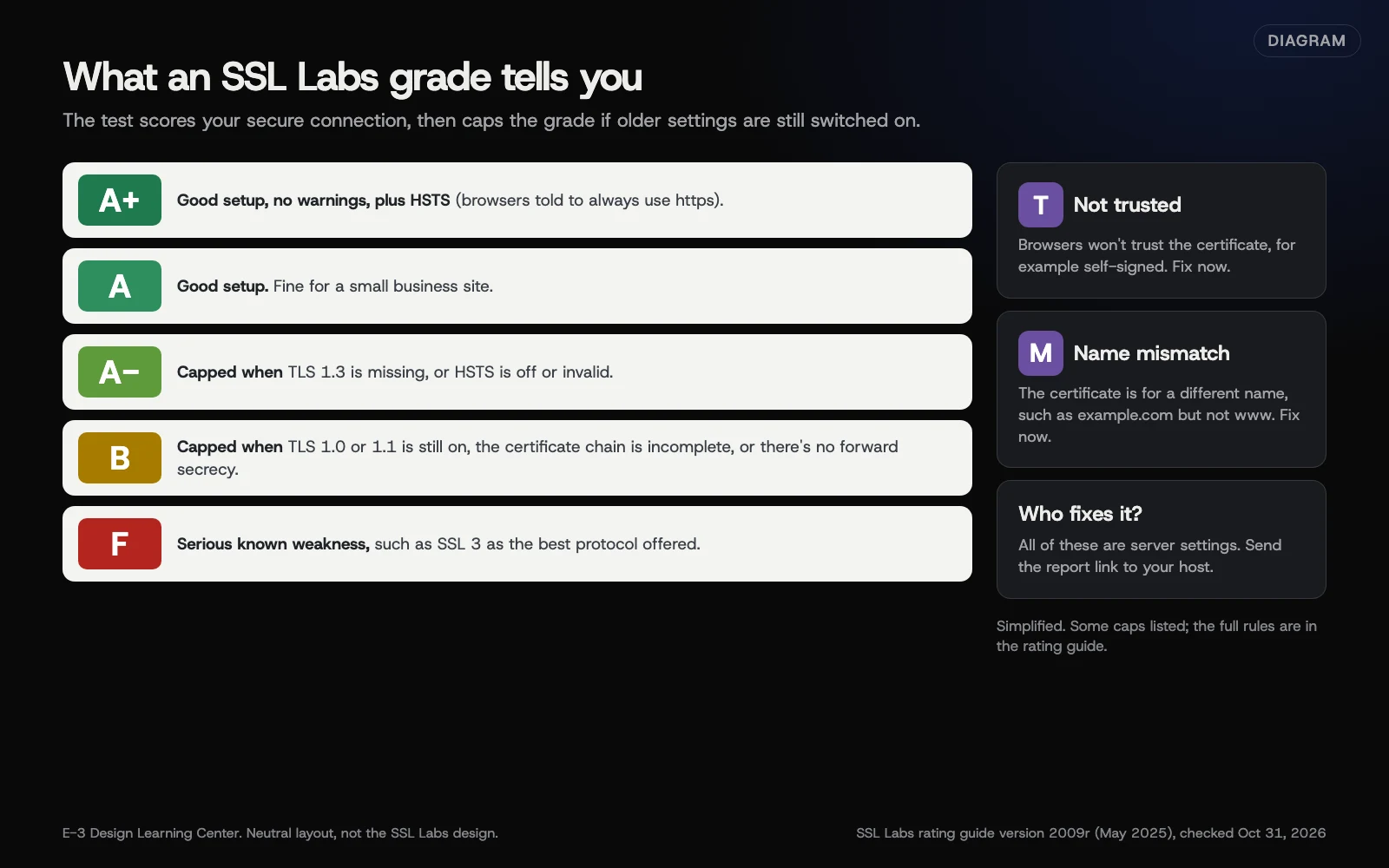 Diagram: how SSL Labs grades a site, and some of the settings that cap the grade. Simplified from the SSL Labs rating guide, version 2009r (May 2025).
The SSL Server Rating Guide scores three things (protocol support, key exchange and cipher strength) and then applies rules that cap the grade. In the current version, 2009r from May 2025:
- A+ needs a good setup with no warnings, plus HSTS, a setting that tells browsers to always use https, with a long enough duration.
- A- is the cap when TLS 1.3 is missing or HSTS is turned off or invalid.
- B is the cap for older settings still switched on, such as TLS 1.0 or 1.1, an incomplete certificate chain, or no forward secrecy.
- F covers serious known weaknesses, such as servers still offering SSL 3 as their best protocol.
- T means the certificate isn’t trusted, for example self-signed or from an untrusted issuer.
- M means the certificate doesn’t match the name you tested.
The guide itself says it “has not been fully updated” with every change, so treat the report’s own warnings as the final word.
What else in the report matters to a small business?
- Certificate validity dates. The “Valid until” line is when it expires. Most hosts renew automatically; a date that’s close and hasn’t moved is worth a call. Our domain and SSL expiry checker shows this at a glance. Certificates are getting shorter lives: a CA/Browser Forum ballot passed in April 2025 cuts the maximum from 398 days to 47 days in steps from March 2026 to March 2029. Automatic renewal matters more every year.
- Alternative names. The certificate should list both example.com and www.example.com if you use both.
- Chain issues: Incomplete. Some phones and older devices will show a warning even though your computer doesn’t.
- Protocols. TLS 1.2 and 1.3 should say Yes. TLS 1.0 and 1.1 should say No.
You can skip the long cipher lists and the handshake simulation tables. They’re for whoever configures the server.
Why does it matter?
A browser warning stops most customers cold, and an expired certificate breaks the site for everyone at once. SSL Labs shows problems your own browser hides, like a missing chain file that only affects some phones. A good grade is also a quick check that your host keeps its servers current.
What are the common mistakes?
- Testing only one name. example.com and www.example.com can have different results.
- Chasing A+ for its own sake. A is fine for a small business site. HSTS can lock out visitors if https ever breaks, so let your host decide.
- Confusing this with “Not Secure”. A good grade can still go with a page that loads images over http. See why a site says “Not Secure”.
- Clicking past a browser warning to “check the site works.” Fix the certificate instead.
What if this didn’t work?
- “Unable to connect to the server”: the site may be down, or your host blocks the test. Check with an uptime monitor.
- The test uses an old result: select the Clear cache link on the report to run a fresh one.
- The grade is behind a firewall or CDN: SSL Labs tests the server that answers publicly. If you use Cloudflare or another CDN, the grade reflects its settings, and your host and CDN may both need to be involved.
- You don’t know who hosts the site: see who owns your domain and who to call.
How much does it cost, and how long does it take?
The test is free and takes a couple of minutes. Fixes are server settings, so the time depends on your host. On managed hosting, they’re usually part of the service.
How does E-3 handle this?
E-3’s monitoring for hosted sites in website care covers PHP version, waiting updates, known plugin vulnerabilities, disk and database space, and domain and plugin-license renewals. SSL is included with E-3’s hosting. If your site is hosted elsewhere, we can read the report with you and suggest what to ask your host. See hosting and website care.
Related questions
Next step
- Next: Free accessibility checkers: WAVE, Lighthouse and axeThe next guide in Free tools roundup.
- Free website checkPublic checks on your own site, then an action plan of what to fix first.
Still stuck? Ask E-3 for an answer from our help guides.
Rather we handled free tools roundup for you?
It’s part of what we do every week for small businesses, as part of website care. Start with a free check of your site and profile, or call and ask.