
Free accessibility checkers: WAVE, Lighthouse and axe
WAVE, Lighthouse and axe DevTools are free tools that scan a page for accessibility problems a machine can detect, such as missing alt text, low contrast and unlabeled form fields. Use one or two of them on your key pages, fix the errors, then test with a keyboard. A clean scan doesn't mean the site is accessible.
The short version
- WAVE marks problems right on the page. Use the website or the Chrome, Firefox or Edge extension.
- Lighthouse is built into Chrome. It gives an accessibility score along with speed and SEO checks.
- axe DevTools has a free extension that lists issues by impact, with how to fix each one.
- Fix the errors on your homepage, contact page and top service pages first.
- Then put the mouse away and try the page with a keyboard. No tool replaces that.
How do I run each checker?
WAVE
WebAIM’s WAVE help says you can enter a page address on the WAVE website, or use the browser extensions for Chrome, Firefox and Edge. Use the extension for pages behind a login, or pages that change as you click.
The results appear as icons on your page:
- Red icons are errors that likely need fixing.
- Yellow alerts point to things a person should check.
- Green icons are features that probably help, though you should still check them.
- Other icons show structure, like headings and landmarks, to help you review the page.
Lighthouse
Lighthouse is part of Chrome. Following Google’s Lighthouse overview:
- Open the page in Chrome. Right-click and choose Inspect.
- Open the Lighthouse tab.
- Keep Accessibility selected and choose Analyze page load.
- Wait 30 to 60 seconds for the report.
The accessibility score is a weighted average of pass-or-fail audits, as Google’s scoring page explains. A page gets no credit for an audit that fails even once. Manual checks are listed below the score but don’t count toward it.
You can also see the same audits in PageSpeed Insights without opening Chrome’s tools.
axe DevTools
Deque’s axe DevTools extension is free for Chrome, Firefox and Edge. After installing it, open Chrome’s Inspect panel, choose the axe DevTools tab and scan the page. Each issue shows where it is, how serious it is and how to fix it. The paid Pro version adds guided tests and saved reports; you don’t need it to start.
Google’s scoring page says Lighthouse weights its accessibility audits using axe’s impact ratings, so running both often gives overlapping results. WAVE uses its own checks and shows them visually, which many owners find easier to follow.
What can’t these tools tell me?
The W3C’s guide to selecting evaluation tools is blunt: “Web accessibility evaluation tools can not determine accessibility, they can only assist in doing so.” It adds that “human judgement is required” and that tools can “produce false or misleading results.” WAVE’s own help says, “Only a human can determine true accessibility.”
Deque says axe DevTools helps you “catch 57% of accessibility issues” with automated scans, per its extension page. That’s Deque’s own figure, and it means many problems still need a person.
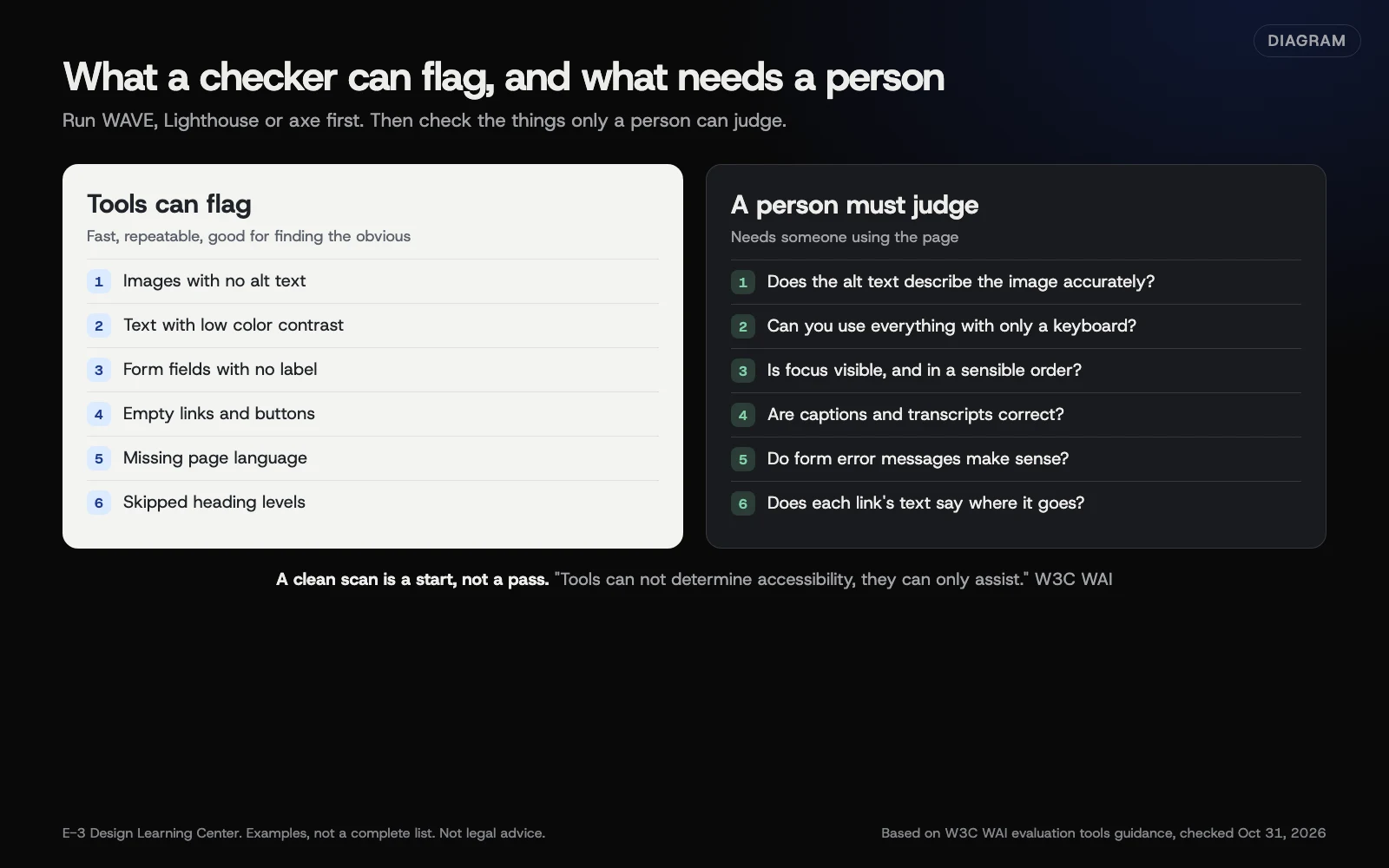 Diagram: the kinds of accessibility problems automated checkers can flag, and the ones that need a person. Based on W3C WAI guidance on evaluation tools (October 2026).
A tool can tell you an image has no alt text. It can’t tell you whether “image123.jpg” or “photo” describes it. It can find a form field without a label, but not whether the error message makes sense.
The keyboard test
After fixing what the tools find, try this on each key page:
- Click in the browser’s address bar, then press Tab repeatedly.
- Can you see where you are on the page at every step?
- Can you reach and use the menu, every link, the form and the submit button?
- Does the order make sense, top to bottom?
- Can you close any pop-up with Esc or a visible button?
If any step fails, keyboard and screen reader users are likely stuck too. Our article on a practical start to accessibility covers more checks like this.
Why does it matter?
People with low vision, color blindness, tremors or no mouse use your site every day. Forms are where it matters most: an unlabeled field or a hidden error message can stop an enquiry outright. Accessibility rules also apply to many businesses. This isn’t legal advice; our answer on ADA and website accessibility explains more.
What are the common mistakes?
- Chasing a perfect score. A score of 100 means the automated audits passed, not that people can use the page.
- Testing only the homepage. Forms, menus and booking pages cause the most trouble.
- Fixing the warning, not the problem. Adding alt=“image” removes the error and helps nobody.
- Installing an overlay widget instead of fixing the site. See what accessibility overlays can and can’t do.
- Ignoring contrast errors because the brand colors “look fine” to you.
What if this didn’t work?
- The tool shows errors you can’t find: most errors point to theme or plugin code. Note the page and the error, and send it to whoever maintains the site.
- Two tools disagree: they use different rules. Fix what both report first.
- The page won’t scan: use the browser extension instead of the website version, especially for pages behind a login.
- An error keeps coming back after updates: it’s in a template. Ask for the fix in the theme, not page by page.
How much does it cost, and how long does it take?
All three tools are free to use. A scan takes about a minute per page. Fixes range from minutes, like alt text, to theme work, like keyboard menus.
How does E-3 handle this?
We recommend fixing accessibility problems in the site itself rather than adding an overlay. Fixes to an existing site are tested on a staging copy first, as part of website care. We publish our own site’s results on our accessibility page. We can’t promise legal compliance.
Related questions
Next step
- Next: Free uptime monitors: how to choose and set one upThe next guide in Free tools roundup.
- Free website checkPublic checks on your own site, then an action plan of what to fix first.
Still stuck? Ask E-3 for an answer from our help guides.
Rather we handled free tools roundup for you?
It’s part of what we do every week for small businesses, as part of website care. Start with a free check of your site and profile, or call and ask.