
Business email that lands: the complete guide
Business email has its best chance at the inbox when receiving servers can confirm it came from you. Publish one SPF record naming every service that sends for you, turn on DKIM in each, then add DMARC and tighten it in stages as reports show your real mail passing. Include forms and newsletter tools. It's not an inbox guarantee.
Download the email deliverability checklist (PDF)6 pages, 384 KB, free to print. What's inside
The short version
- One SPF record on your domain that names every service that sends as you. Microsoft 365 and Google Workspace each publish the exact value.
- DKIM turned on in your mailbox provider and in every other tool that sends as your domain.
- A DMARC record, starting at
p=nonewith a reporting address, then tightened to quarantine and reject as the reports allow. - Website forms and newsletter tools send through authenticated services, never straight from the web server.
- Recheck whenever you add a tool, change providers or someone reports a missing email.
How does an inbox decide your email is real?
When your message arrives, the receiving server asks three questions. Is the server that sent it allowed to send for your domain? That’s SPF. Was the message signed by your domain, and is it unchanged? That’s DKIM. And does at least one of those checks pass for the same domain your customer sees in the From line? That’s DMARC, which also tells the server what to do when the answer is no.
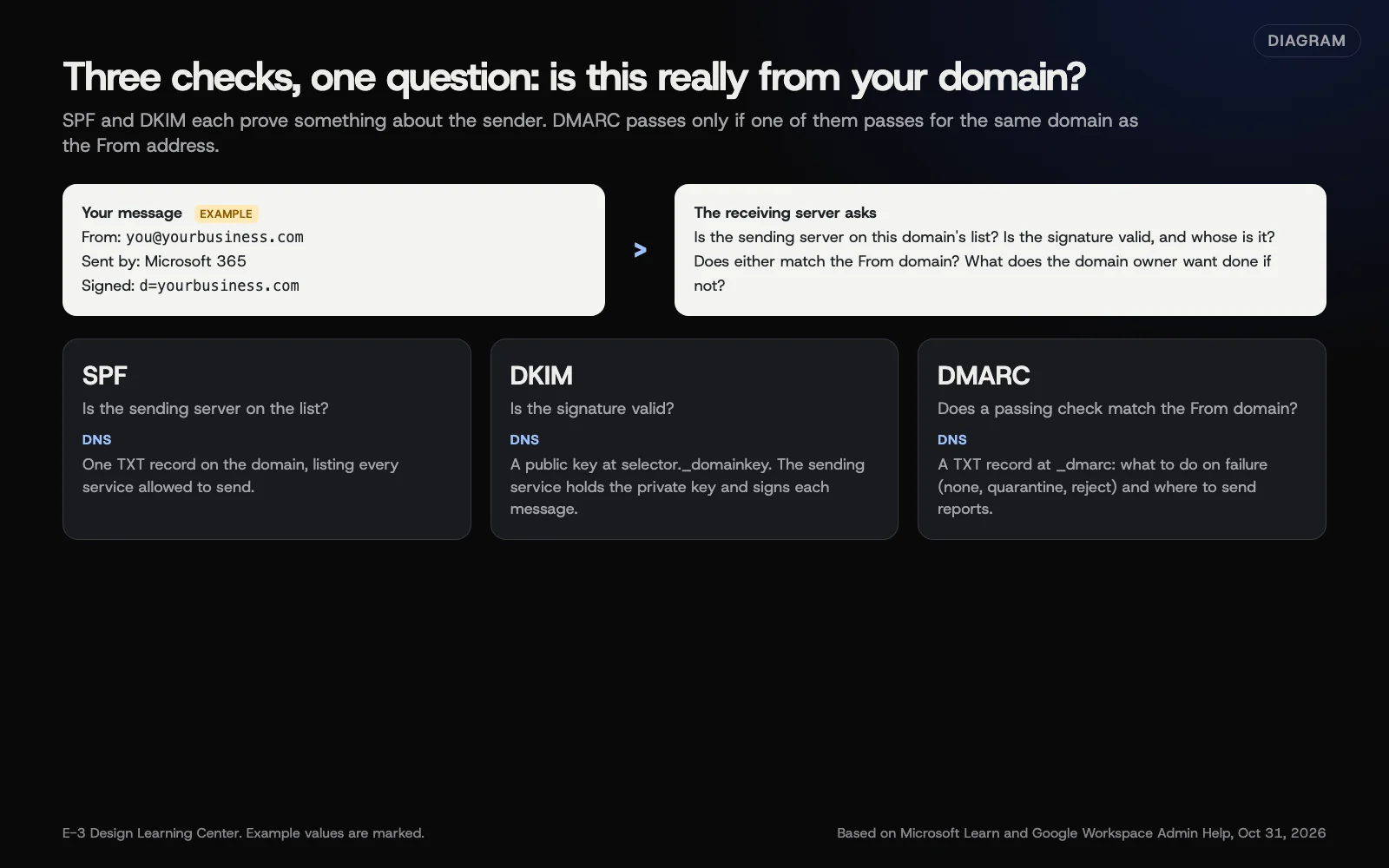 Diagram: the three checks a receiving server runs on your message, and the one question they answer together. Example values are marked. Based on Microsoft Learn and Google Workspace Admin Help (October 2026).
All three are DNS records on your domain, so they’re added wherever your domain’s DNS is managed, not inside your email account. If you’re not sure where that is, our help page on adding DNS records for a new service shows how to find out first. Our answer on what SPF, DKIM and DMARC are and our longer article on SPF, DKIM and DMARC explained cover the ideas. This guide is about doing it.
How do I set it up, step by step?
Work in this order. Each step depends on the one before.
1. List every service that sends as you
Your mailbox provider is the obvious one. The usual forgotten ones are the website’s contact form, a newsletter tool, invoicing or accounting software, a booking system, a CRM and the office scanner. Write them all down. Every later step uses this list.
2. Publish one correct SPF record
Microsoft’s SPF page gives v=spf1 include:spf.protection.outlook.com -all for a domain that sends only through Microsoft 365. Google’s SPF page gives v=spf1 include:_spf.google.com ~all for Google Workspace. Other senders on your list are added to that same record, never as a second one. Our guide to the SPF record for Microsoft 365 or Google Workspace explains the difference between -all and ~all and which to choose.
3. Turn on DKIM everywhere you can
DKIM is switched on inside each sending service, which then gives you records to publish. Microsoft 365 uses two CNAME records and a toggle in the Defender portal. Google Workspace generates a TXT record under Apps, then Google Workspace, then Gmail, then Authenticate email. Our guide to turning on DKIM in Microsoft 365 or Google Workspace has the clicks for both, including Microsoft’s newer record format for domains added since May 2025.
4. Add DMARC in monitoring mode
Google’s DMARC page says to let SPF and DKIM run for at least 48 hours first. Then add a TXT record at _dmarc with p=none and a reporting address. Nothing is blocked, and reports start to arrive, usually once a day from each large mailbox provider.
5. Read the reports, fix gaps, then tighten
The reports list every server sending as your domain and whether each passed. Fix any real sender that fails, then move to p=quarantine, and later p=reject. Our guides cover moving DMARC from none to reject and reading DMARC reports.
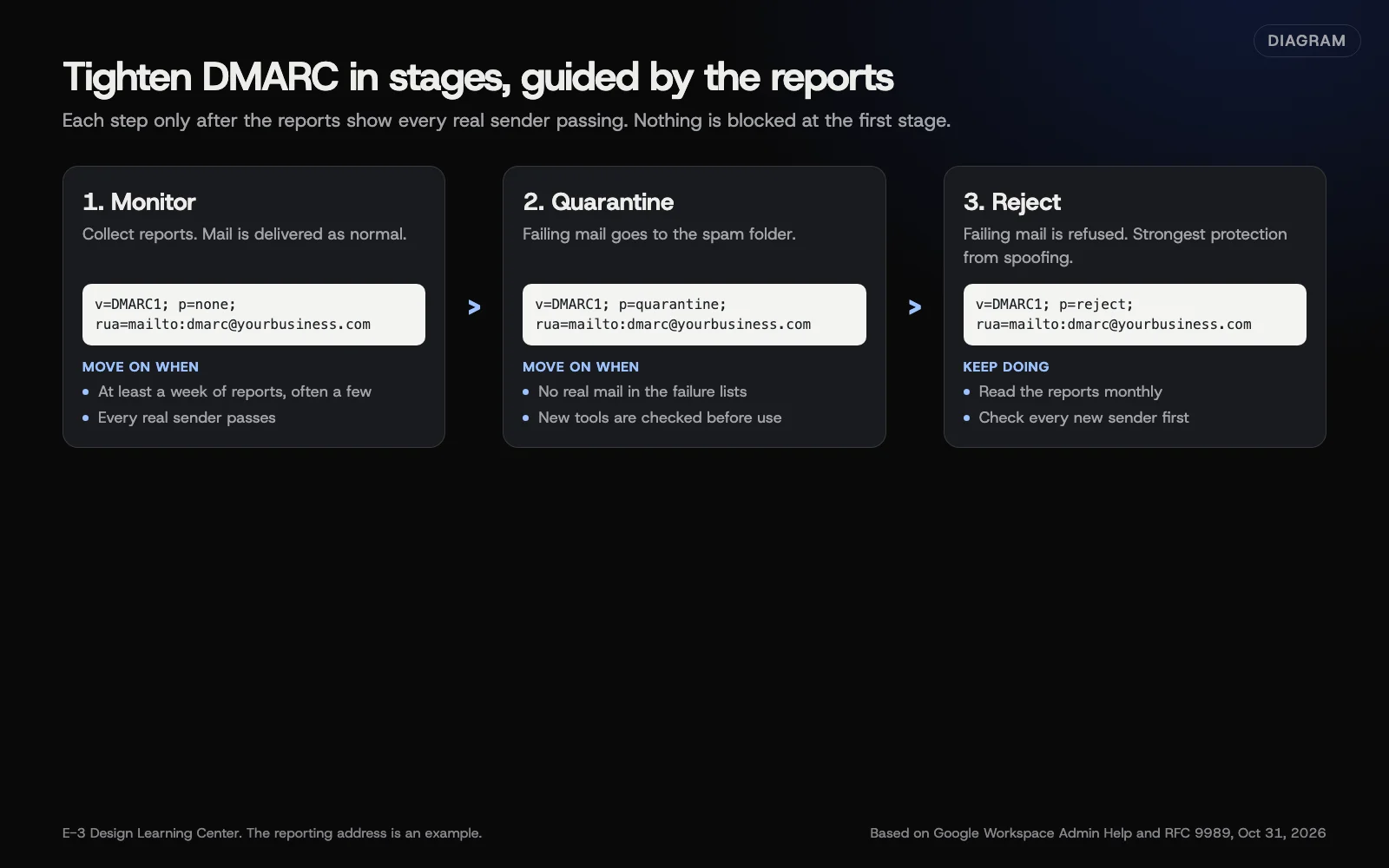 Diagram: the three DMARC stages, with example records and when to move on. The reporting address is an example. Based on Google Workspace Admin Help (October 2026).
6. Fix the senders people forget
- Website forms. A contact form that sends from the web server itself often fails SPF and DKIM for your domain, unless that server is listed in SPF and set up to sign for you. The dependable fix is to route it through your email provider or a sending service; see making your website send email properly.
- Newsletter and CRM tools. Each one has its own domain authentication steps. Adding several can push SPF past its limit of 10 DNS lookups. See adding sending tools without breaking SPF.
7. Recheck after every change
Run our free email deliverability checker after any change. It reads your public MX, SPF and DMARC records, looks for DKIM at common selector names, and explains what it finds in plain English.
Why does this matter so much now?
Two reasons: inboxes now enforce it, and scammers use unprotected domains.
Gmail’s sender guidelines have required SPF or DKIM from every sender to personal Gmail accounts since February 1, 2024, and SPF, DKIM and DMARC from anyone sending about 5,000 or more messages a day. Google’s sender FAQ says it began ramping up enforcement in November 2025, with temporary and permanent rejections for mail that doesn’t comply. Yahoo publishes a similar baseline, and Microsoft’s Outlook.com sender policy has applied the same three records to high-volume senders since May 5, 2025. Our guide to whether the bulk-sender rules apply to you sorts out who counts.
The second reason is fraud. Without DMARC at quarantine or reject, anyone can send a fake invoice that shows your exact address in the From line. If that’s already happening, our answer on someone sending fake emails as you covers the first steps.
What are the most common mistakes?
These are common problems in a small business’s email records.
- Two SPF records. A new tool’s setup page said “add this SPF record,” and someone did. Now SPF fails for everything. Merge them into one.
- Records added at the wrong company. The domain is registered at one company and its DNS is hosted at another. Records added at the registrar’s unused DNS do nothing.
- DKIM published but never switched on. The records exist, but the toggle in Microsoft 365 or the Start authentication button in Google was never clicked.
- DMARC stuck at
p=nonefor years, with reports going to an address nobody reads. It protects nothing until it moves on. - Jumping straight to
p=rejectand then wondering why invoices from the accounting software vanished. - The website still using built-in PHP mail. Form notifications land in junk or disappear.
- Too many includes. If checking your SPF record needs more than 10 DNS lookups, receivers return an error instead of a pass, and you won’t get a warning.
- Unused domains left open. A domain you own but don’t use for email can still be spoofed. Microsoft’s SPF page suggests
v=spf1 -allfor parked domains, which says no server may send for them.
What has changed recently?
As of October 31, 2026:
- DMARC is now a full internet standard. RFC 9989, published in May 2026, replaces the original RFC 7489. It removes the
pcttag that many older guides use to roll out a policy to a share of mail, and adds at(testing) tag. Google’s DMARC help still documentspct. Our rollout guide explains how to stage a policy without depending on it. - Microsoft 365 DKIM records look different for custom domains added since May 2025. They point to a name ending in
dkim.mail.microsoftinstead ofonmicrosoft.com. Both formats work; copy whatever your portal shows. - Password-only sending is ending. Google turned off “less secure apps” and SMTP sign-in with a normal account password on March 14, 2025 (app passwords are the stated exception), per its transition page. Microsoft’s Exchange team plans to switch off password-based SMTP AUTH by default at the end of December 2026, with a final removal date to follow in 2027. Website plugins and scanners that sign in with a plain password need moving to OAuth or a sending service.
- Google Admin help has moved to knowledge.workspace.google.com. Old support.google.com links usually redirect.
- Google retired the old Postmaster Tools interface. The current version includes a Compliance status dashboard that shows whether your mail meets Gmail’s sender rules.
What if mail still goes to spam?
Authentication gets you considered. It doesn’t guarantee the inbox. If all three records pass and messages still land in junk:
- Read the bounce or headers. A bounce code tells you a lot; our help page on bounced email explains the common ones. In a delivered message, the Authentication-Results header shows whether SPF, DKIM and DMARC passed.
- Check blocklists and sender reputation. See checking blocklists and your sending reputation.
- Look at what you send. Lists bought from someone else, missing unsubscribe links and heavy attachments from new contacts all hurt.
- Check the receiving side. If it’s one customer’s junk folder, they can mark you as safe; see good emails landing in junk. Our answer on why business emails go to spam lists other causes.
What about putting my logo in the inbox?
BIMI shows your logo beside your messages in Gmail and some other inboxes. It needs DMARC at quarantine or reject first, plus a logo file in a strict format and, for Gmail, a paid mark certificate. It’s a finishing touch, not a fix for spam. See whether BIMI is worth it.
How much does it cost, and how long does it take?
The records themselves are free. They’re part of your domain’s DNS. Setup for a domain with one mailbox provider and a website form usually fits in an afternoon, plus waiting time: Google says DNS changes can take up to 48 hours, and its rollout tutorial suggests at least a week of monitoring before any enforcement. Getting to p=reject safely often takes several weeks of reading reports. Paid extras are optional: a DMARC reporting service, a transactional sending service for your website, and a mark certificate for BIMI.
How does E-3 handle this?
DNS and email questions were the second most common type of request E-3 handled from January to October 2026, after content edits. When someone tells us their mail is bouncing, we usually start with the bounce code, then look at the domain’s MX, SPF, DKIM and DMARC records and ask what changed in DNS or hosting recently. Before we change DNS records, we save a copy of the existing ones. When website form mail goes missing, sending it through an authenticated sending service rather than the web server is usually what we recommend.
Related questions
Sources
- Set up SPF to identify valid email sources for your Microsoft 365 domain (Microsoft Learn)
- How to use DKIM for email in your custom domain (Microsoft Learn)
- Set up SPF (Google Workspace Admin Help)
- Set up DKIM (Google Workspace Admin Help)
- Set up DMARC (Google Workspace Admin Help)
- Email sender guidelines (Gmail Help)
- Email sender guidelines FAQ (Google Workspace Admin Help)
- Sender best practices (Yahoo Sender Hub)
- Policies, practices and guidelines for senders to Outlook.com (Microsoft)
- RFC 9989: Domain-based Message Authentication, Reporting, and Conformance (DMARC) (IETF, May 2026)
- Exchange Online to retire Basic auth for Client Submission (SMTP AUTH) (Microsoft Exchange Team Blog, updated January 27, 2026)
- Transition from less secure apps to OAuth (Google Workspace Admin Help)
- RFC 7208: Sender Policy Framework (SPF) (IETF)
Every Business email that lands guide
- The SPF record for Microsoft 365 or Google WorkspaceFor Microsoft 365, Microsoft's record is v=spf1 include:spf.protection.outlook.com -all. For Google Workspace, Google's is v=spf1 include:_spf.google.com ~all. Publish it as one TXT record at the root of your domain, add any other services that send as you to that same record, and never create a second SPF record.
- Turn on DKIM in Microsoft 365 or Google WorkspaceIn Microsoft 365, open the DKIM tab under Email authentication settings in the Defender portal, publish the two CNAME records it shows, then switch on signing. In Google Workspace, generate a 2048-bit key under Gmail's Authenticate email setting, publish it as a TXT record, then click Start authentication. Confirm with a test message.
- Move DMARC from none to reject without losing mailStart with v=DMARC1; p=none and a reporting address, so nothing is blocked while reports show who sends as you. When every legitimate sender passes for at least a week, change p=none to p=quarantine. When the reports stay clean at quarantine, change it to p=reject. Check reports before every step and whenever you add a tool.
- How to read DMARC reportsA DMARC aggregate report is a daily XML file from a mailbox provider listing the servers that sent mail as your domain, how many messages, and whether SPF and DKIM passed and matched your From domain. Fix sources you recognize that fail. Check unknown failing sources before tightening: most are spoofing, some are forwarding or a forgotten tool.
- Gmail, Yahoo and Microsoft bulk-sender rules: do they apply?Gmail's bulk-sender rules apply once your domain sends close to 5,000 or more messages to personal Gmail accounts in a day, and that status is permanent. Outlook.com uses the same 5,000-a-day line. Bulk senders need SPF, DKIM and DMARC, plus one-click unsubscribe at Gmail and Yahoo. Everyone else still needs SPF or DKIM, low spam complaints and valid DNS.
- Make your WordPress site send email properlyDon't rely on WordPress sending mail straight from the web server. Install an SMTP plugin and connect it to your email provider with OAuth, or to a sending service with an API key, then authenticate that service for your domain. Send from your own domain, put the visitor in Reply-To, and test. That helps, but nothing guarantees the inbox.
- Add newsletter and CRM tools without breaking SPFSPF returns an error instead of a pass when checking your record needs more than 10 DNS lookups. Every include, a, mx, exists or redirect it evaluates costs one, including nested includes. Before adding a tool to SPF, check whether it only needs DKIM. Remove services you no longer use, and give high-volume tools their own subdomain.
- Check blocklists and your email sending reputationStart with the bounce message: it usually names the blocklist or the reason. Look up your sending IP address and domain in Spamhaus's free reputation checker, use Microsoft's delist portal if a bounce says your IP is banned, and check Gmail's Postmaster Tools for your domain. Fix the cause before asking for removal.
- BIMI: can I show my logo next to my emails?BIMI can show your logo beside your email in Gmail and some other inboxes, but only with your DMARC policy at quarantine or reject. You also need your logo as an SVG Tiny PS file and, for Gmail, a paid mark certificate: a VMC for a trademarked logo, otherwise a CMC. It won't fix spam.
Common questions
- Do I need SPF, DKIM and DMARC if I only send a few emails a day?
- Yes. Gmail and Yahoo require SPF or DKIM from every sender, whatever the volume, and all three make it harder for someone to send fake email in your name.
- Can I have two SPF records?
- No. A domain or subdomain can have only one SPF record. Two records make SPF fail, so add each new service to the one record you already have.
- Will DMARC block my own email?
- Not at first. Start with p=none, which only collects reports. Move to quarantine and then reject only after the reports show every service you use is passing.
Next step
- Start here: The SPF record for Microsoft 365 or Google WorkspaceThe first guide in Business email that lands.
- Email deliverability checklistA free printable checklist (PDF).
Still stuck? Ask E-3 for an answer from our help guides.
Rather we handled business email that lands for you?
It’s part of what we do every week for small businesses, as part of website care. Start with a free check of your site and profile, or call and ask.