
Add newsletter and CRM tools without breaking SPF
SPF returns an error instead of a pass when checking your record needs more than 10 DNS lookups. Every include, a, mx, exists or redirect it evaluates costs one, including nested includes. Before adding a tool to SPF, check whether it only needs DKIM. Remove services you no longer use, and give high-volume tools their own subdomain.
The short version
- SPF allows at most 10 DNS lookups per check. If a check needs more, it returns a permanent error (“permerror”) instead of a pass.
include,a,mx,existsandredirecteach cost one. Includes inside includes cost more.ip4,ip6andallcost nothing.- Many sending tools prove themselves with DKIM and don’t need an SPF include at all. Check before you add one.
- Remove tools you’ve stopped using.
- Put tools you don’t control on a subdomain, such as
news.yourbusiness.com, which has its own SPF record and its own limit.
How do I count my lookups?
The limit comes from the SPF standard, RFC 7208. Microsoft’s SPF page explains it in plain terms:
- Counts one each:
include:,a,mx,exists,redirect(and the outdatedptr). - Counts nothing:
ip4:,ip6:,all. - Nested includes count too. If an include points to a record with three more includes, that’s four lookups, not one.
The limit counts these terms as a receiver evaluates them, not every DNS query a server happens to make. Counting tools add up the whole record, which is the worst case, and keeping that total at 10 or under is the safe target.
So you can’t count by eye. A record with five includes might need nine lookups once each provider’s own includes are followed. Use a checker that follows the whole chain. Our email deliverability checker reads your SPF record, and several free SPF tools report the full lookup total.
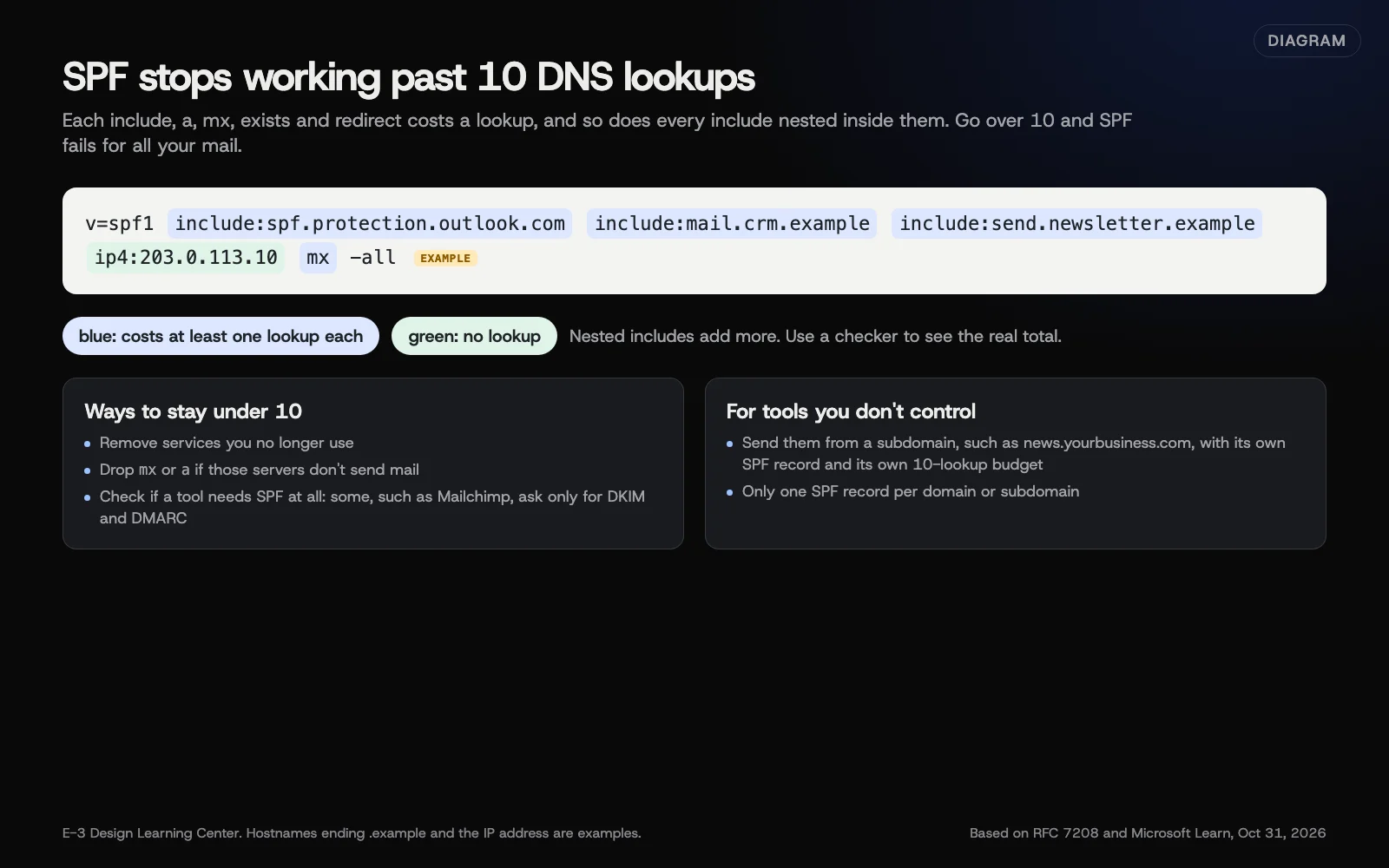 Diagram: which parts of an SPF record cost DNS lookups, and ways to stay under 10. Hostnames ending .example and the IP address are examples. Based on RFC 7208 and Microsoft Learn (October 2026).
The standard also caps “void” lookups, which return nothing, at two. An include for a service that no longer exists can push you over that smaller limit.
How do I add a new tool safely?
- Read the tool’s own domain authentication page. Look for words like “authenticate your domain” or “verify your sending domain.”
- Check what it actually asks for. Many tools ask only for DKIM records, often CNAMEs, and a DMARC record. Mailchimp’s current domain authentication steps, for example, ask for two DKIM CNAME records and a DMARC record, with no SPF change. If the tool doesn’t ask for an SPF include, don’t add one.
- If it does need SPF, count your current lookups first. Add the tool’s include to your existing record, before the
-allor~all. Never create a second SPF record. - Check again with a lookup counter. If you’re at 9 or 10, stop and use one of the options below instead.
- Send a test from the tool to a personal Gmail address and check Show original for DKIM and DMARC passes.
- Watch your DMARC reports for a week to confirm the tool passes for your domain.
What if I’m already over 10?
Work through these in order, from easiest to most involved.
- Remove what you don’t use. Old providers from before a migration are the usual culprits. If you moved from one mailbox provider to another, the old include often stays behind.
- Drop
aandmxif they don’t send. Many records includemxby habit. If your incoming mail servers don’t send your outgoing mail, it’s a wasted lookup. - Rely on DKIM for tools that support it. If a tool signs with your domain’s DKIM, its mail passes DMARC without SPF.
- Move bulk tools to a subdomain. Microsoft recommends sending mail from services you don’t control, like bulk email, from a subdomain. That keeps their reputation separate from your staff email, and the subdomain gets its own SPF record with its own 10-lookup budget.
- Replace a stable vendor’s include with its IP addresses, sometimes called flattening. Microsoft’s page says to do this only for vendors with documented, stable addresses, never for Microsoft 365 itself, and to review the list at least quarterly. Most small businesses never need this.
Why does this matter?
When SPF breaks from too many lookups, it doesn’t break only for the newest tool. Receivers read your record left to right and stop at the first match, so mail that matches early, within the budget, can still pass. Mail from any sender whose match comes after the 10th lookup gets an error instead, and that can include your everyday mail if your main provider’s include sits near the end. And nothing warns you. Mail just starts landing in spam. Microsoft notes the bounce may say the message “exceeded the hop count” or “required too many lookups.”
What are the common mistakes?
- Adding every tool’s include by default, even tools that authenticate with DKIM.
- A second SPF record for the new tool. Two records fail. Merge into one.
- Leaving includes for services you cancelled, which still cost lookups and still let that service send as you.
- Pasting from a document. Curly quotes and hidden characters can sneak into DNS. Type or paste plain text.
- Assuming the subdomain is covered. A subdomain needs its own SPF record if it sends mail.
How much does it cost, and how long does it take?
Cleaning up an SPF record is free and takes minutes once you know which senders are real. Finding them can take a week of DMARC reports. Setting up a subdomain for a newsletter tool means a few extra DNS records and changing the From address in that tool.
How does E-3 handle this?
When a client adds a sending tool, we look at what the tool actually needs before touching their SPF record, and we save a copy of the current DNS records before changing them. The SPF cleanups we do most often are removing a second record, removing an old provider after a move, and fixing characters that were pasted in by mistake.
Related questions
Next step
- Next: Check blocklists and your email sending reputationThe next guide in Business email that lands.
- Email deliverability checklistA free printable checklist (PDF).
Still stuck? Ask E-3 for an answer from our help guides.
Rather we handled business email that lands for you?
It’s part of what we do every week for small businesses, as part of website care. Start with a free check of your site and profile, or call and ask.