
Set up a welcome email for new subscribers
Set up one automatic email that goes out when someone joins your list: thank them, say what they will get and how often, and give one useful thing, like a tip, a guide or your booking link. In Mailchimp use a welcome flow under Automations; in Constant Contact, create and activate a welcome email. Test it first.
The short version
- One automatic email, sent the moment someone joins, is enough to start.
- Say thanks, say what they’ll get and how often, and give one useful thing.
- Mailchimp: Automations, then a flow with the Signs up for email trigger.
- Constant Contact: Campaigns, Create a campaign, Email automation, then Welcome email templates.
- Send yourself a test, then turn it on. Add a second and third email later if you want.
How do I set it up?
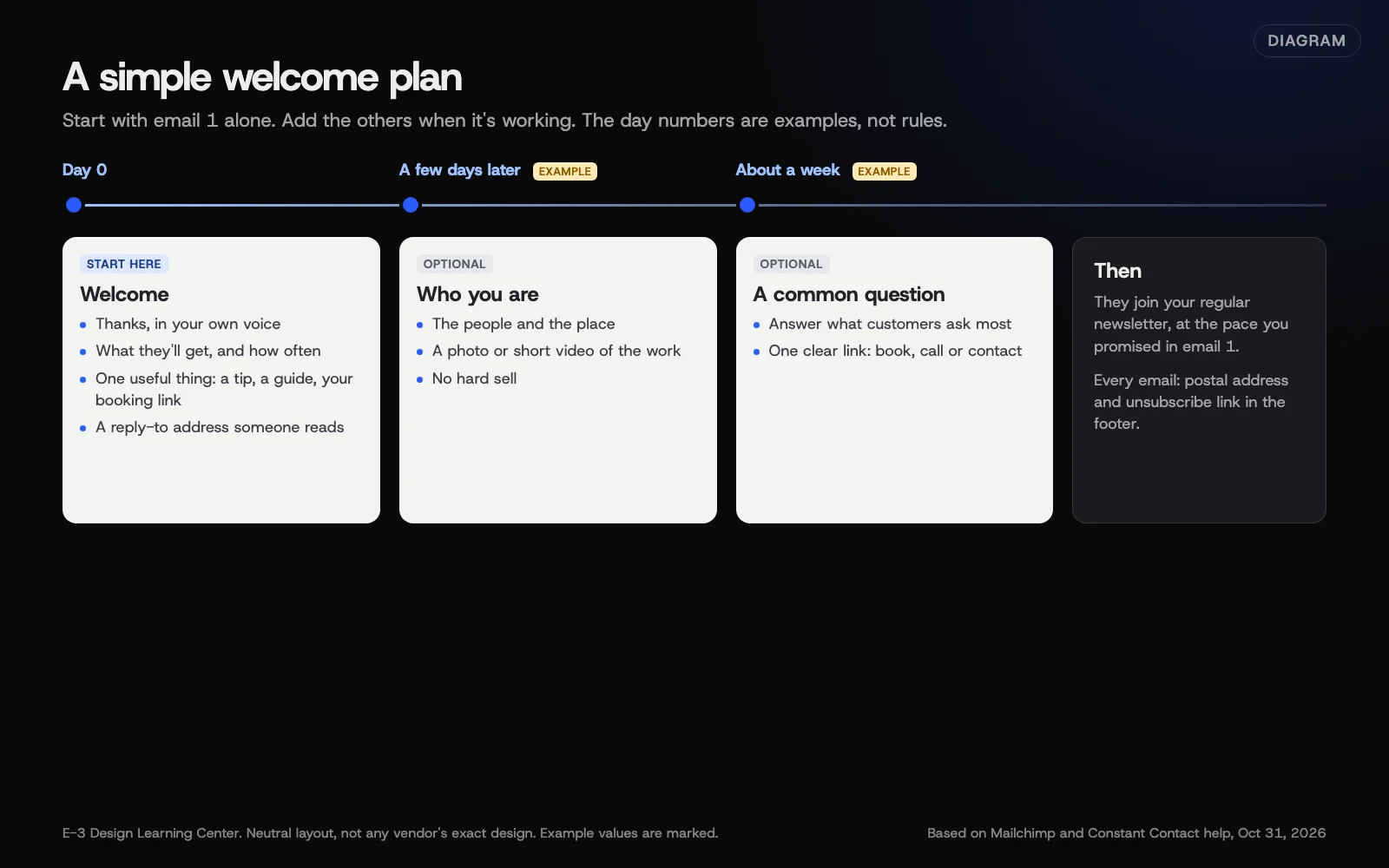 Diagram: a simple three-email welcome plan, starting with one email and adding the others later. Example timing, not a rule. Based on Mailchimp and Constant Contact help pages (October 2026).
In Mailchimp
These steps come from Mailchimp’s welcome flow guide. Mailchimp says that depending on your plan, you may not have every automation tool; its pricing page lists marketing automation flows as not included on the Free plan.
- Click the Automations icon, then Build from scratch.
- Enter a Name and choose your Audience.
- Click Choose a trigger and select Signs up for email.
- Decide whether to include imported contacts. Mailchimp says “Imported contacts are included by default.” Untick that option if you only want to welcome people who use your form.
- Click Save Trigger.
- Add a Send email action. Edit the sender details, subject line and design, then click Save.
- Click Send a test email, enter your address under Send a test to, pick the email and click Send test.
- When it looks right, click Continue, then Turn flow on.
In Constant Contact
These steps come from Constant Contact’s welcome email article, updated August 3, 2026. It notes that “A Welcome Email is not created by default.”
- Click Campaigns, then Create a campaign.
- Select Email automation, then Welcome email templates. (If you see Automations instead, the article points you to its Automation Path Builder method.)
- Name it and click Save.
- Choose the lists that trigger it: Any lists or Send to selected lists. Click Save.
- Choose Create New Email or Copy Existing Email, and write it.
- Click Activate, then Continue.
Constant Contact’s welcome email goes only to people who join through a sign-up tool. Contacts you add by hand don’t get it. If you use confirmed opt-in, it arrives after they confirm.
In other services
MailerLite’s free plan includes 3 active automations, per its pricing page. Brevo and HighLevel can also send a welcome email automatically. The idea is the same everywhere: a trigger (someone joins a list or submits a form), an email, and a switch to turn it on.
What should the welcome email say?
Keep it short. Four parts:
- Thanks, in your voice. One line.
- What they’ll get and how often. “A short email about once a month with seasonal tips and the occasional offer.” This is the promise you’ll keep.
- One useful thing. A tip, a checklist, a link to your most-read guide, your booking page, or a real welcome offer if you have one.
- How to reach you. Your phone number and a reply-to address someone reads.
Your postal address and unsubscribe link must be in the footer, just like every other marketing email; see CAN-SPAM basics.
Adding a second and third email
Once the first one is working, you can add more with a wait between each. A plan that suits most local businesses:
- Email 2, a few days later: who you are. The people, the place, the work, a photo or a short video.
- Email 3, about a week later: answer a question customers often ask, and link to booking or contact.
Those timings are examples. After the last one, subscribers simply get your regular newsletter.
Why does a welcome email matter?
It’s the email people are expecting. They just gave you their address, so it’s the best moment to set expectations and show you’re worth hearing from. It also confirms the sign-up worked. And when the first regular newsletter arrives weeks later, they’ll recognize your name instead of wondering who you are.
What are the common mistakes and edge cases?
- Never turning it on. The flow sits as a draft. Check its status after you finish.
- Welcoming your whole imported list. In Mailchimp, untick imported contacts if your old customers shouldn’t get a “thanks for signing up” email.
- A no-reply address. People reply to welcome emails. Let them.
- A long sales pitch. It’s a welcome, not a brochure.
- An offer with no end date that you later can’t honor. Put the terms in the email.
- Different promises in the form and the email. If the form says monthly, don’t say weekly here.
What if it isn’t sending?
- The flow is off or paused. Turn it on, then sign up with a test address.
- Your plan doesn’t include automation. Check the plan, or send a manual welcome to new sign-ups each week until you upgrade.
- New contacts are added by hand or an integration. Constant Contact says those don’t trigger its welcome email. Its automated email series can use other triggers; check which ones your plan offers.
- It lands in spam. Check your domain authentication; see business email that lands.
How much does it cost, and how long does it take?
Welcome emails need an automation feature, which some free plans include and some don’t. Writing and setting up one email takes about an hour. A three-email plan takes an afternoon.
How does E-3 handle this?
For clients on our leads and follow-up service, automatic follow-up after a form or sign-up can be set up in HighLevel. Read every message in the sequence yourself before it’s switched on.
Related questions
Next step
- Next: How do I write a newsletter people actually read?The next guide in Email campaigns.
- Free website checkPublic checks on your own site, then an action plan of what to fix first.
Still stuck? Ask E-3 for an answer from our help guides.
Rather we handled email campaigns for you?
It’s part of what we do every week for small businesses, as part of leads and highlevel. Start with a free check of your site and profile, or call and ask.