
How to set robots.txt rules for each AI crawler
Open yourdomain.com/robots.txt and add a group for each AI bot you want to treat differently, using the exact names each company publishes. Allow the search bots if you want to appear in answers. Disallow GPTBot or ClaudeBot only to opt out of training; Google-Extended also covers Gemini grounding. Repeat any default rules a new group still needs.
The short version
- Robots.txt lives at the root of your domain. One file per host.
- Each bot follows the group that names it most specifically, and ignores the rest.
- Search bots decide whether you can appear in answers. Training controls decide whether your content trains models; Google-Extended also covers Gemini grounding.
- Bots that fetch a page because a person asked may not follow robots.txt at all.
- Test the file after every change. One stray line can block Google.
If you haven’t decided yet whether to block anything, start with our answer on whether to block AI crawlers. This guide is the how-to once you’ve decided.
How do I write the rules?
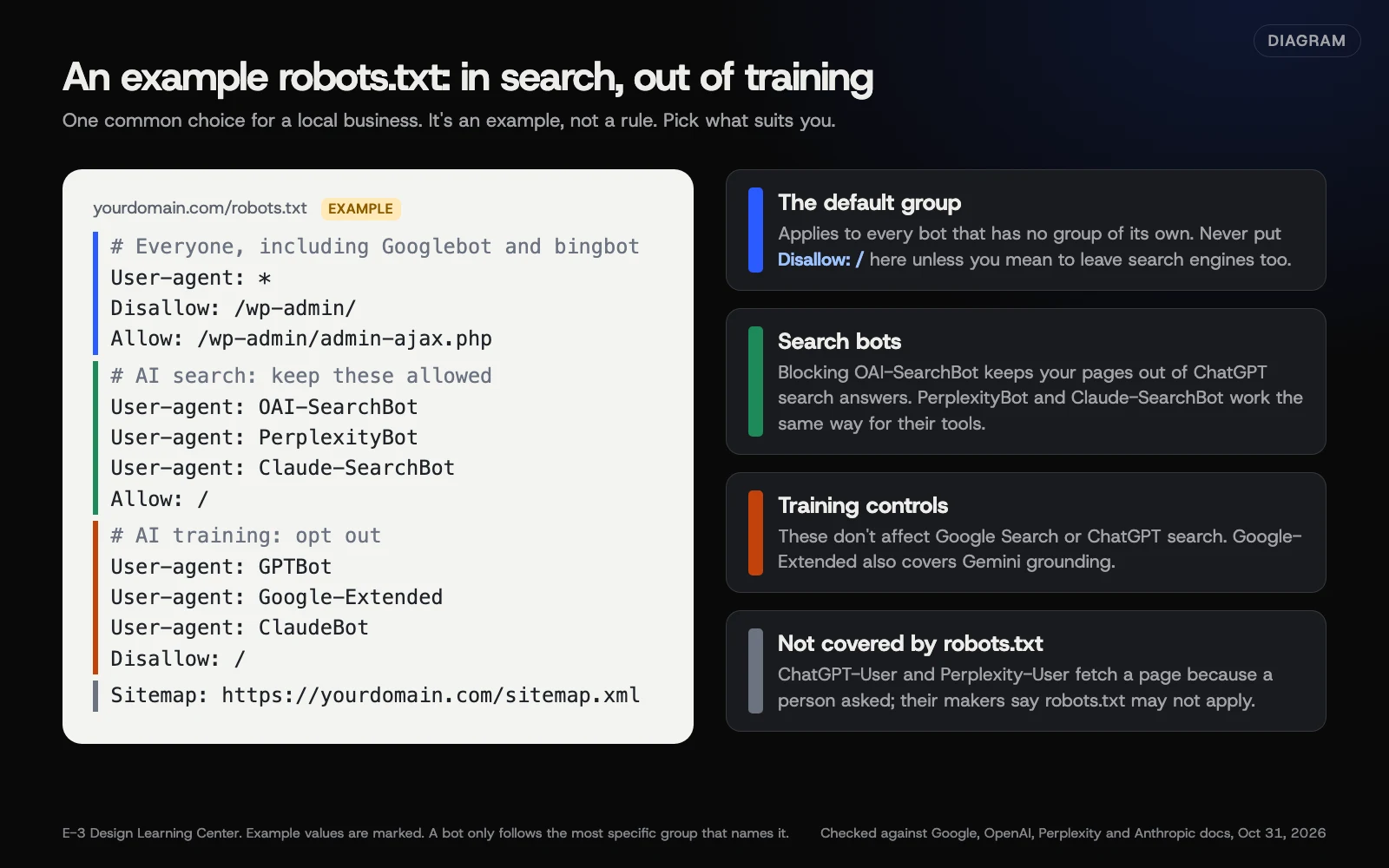 Diagram: an example robots.txt that keeps AI search bots allowed and opts out of three AI training controls (Google-Extended also covers Gemini grounding). Example values are marked. Checked against Google, OpenAI, Perplexity and Anthropic documentation, October 31, 2026.
- Open your current file. Visit
yourdomain.com/robots.txtin a private browser window. Copy what’s there before you change anything, so you can undo. - Find how it’s made. On WordPress, an SEO plugin often generates the file. On a hosted platform, there may be a settings screen. If there’s a real file on the server, you or your developer edit it directly.
- Keep the default group sensible. The
User-agent: *group applies to every bot without a group of its own. Google’s robots.txt guide says rules are case-sensitive and paths start with/. - Add a group for each bot you want to treat differently. Start each group with one or more
User-agent:lines, thenAllow:orDisallow:rules. Use the names exactly as published (see the table below). A bot with its own group ignores theUser-agent: *group completely. So repeat any default rule you still want it to follow, such asDisallow: /wp-admin/. In the example diagram, the AI search group would need that line too. - Add your sitemap with a
Sitemap:line and the full address. - Save, then check it loads at the same address in a private window.
- Check it in Search Console. The robots.txt report shows whether Google fetched and parsed the live file. See what Search Console is for.
The names to use, and what each does
| Name in robots.txt | Company | Job | If you disallow it |
|---|---|---|---|
| Googlebot | Google Search, including AI Overviews and AI Mode | Google stops crawling your pages for Search. URLs it already knows can still show, without a description, so this isn’t a way to remove pages | |
| Google-Extended | A control token for Gemini training and for grounding in Gemini Apps and Vertex AI | Google says it doesn’t affect inclusion or ranking in Google Search | |
| bingbot | Microsoft | Bing search, whose guidelines also cover Copilot answers | Bing can’t crawl or refresh your pages. That’s costly, and it isn’t a reliable way to remove them from results |
| OAI-SearchBot | OpenAI | ChatGPT search | OpenAI says you won’t be shown in ChatGPT search answers |
| GPTBot | OpenAI | Training | Your content shouldn’t be used to train OpenAI’s foundation models |
| PerplexityBot | Perplexity | Perplexity search results | Perplexity recommends allowing it to appear in results |
| Claude-SearchBot | Anthropic | Search for Claude | Anthropic says it stops your content being indexed for search |
| ClaudeBot | Anthropic | Training | Future content excluded from Anthropic’s training sets |
Sources: Google, OpenAI, Perplexity, Anthropic.
Google-Extended has no user agent of its own. Google’s page says crawling uses Google’s existing crawlers, and the token only acts as a control. You’ll never see “Google-Extended” in your server logs, and that’s normal.
Why do the details matter so much?
Robots.txt is short, so one wrong line has a big effect. A Disallow: / in the default group tells every bot without its own group to stay out, including Googlebot and bingbot. On the other side, a typo in a bot’s name means that bot ignores your group and follows the default instead.
Bing has its own controls for AI answers that work through page tags rather than robots.txt. Bing’s 2023 announcement introduced NOCACHE and NOARCHIVE meta tags for its chat answers, and said pages using them still appear in Bing search results. Most local businesses want the opposite of blocking, so they leave these off.
What are the common mistakes and edge cases?
- Expecting robots.txt to hide a page. Google’s robots.txt introduction says it isn’t a way to keep a page out of Google. Use noindex for a public page you just don’t want in results, and a password for anything private. Noindex doesn’t stop anyone with the link opening the page.
- Blocking user-triggered fetchers. OpenAI says “robots.txt rules may not apply” to ChatGPT-User, and Perplexity says Perplexity-User “generally ignores robots.txt rules.” Blocking them in robots.txt may do nothing.
- Forgetting subdomains. A shop at
shop.yourdomain.comneeds its own file. Google says rules apply only to the exact host and protocol. - Copying a giant “block all AI” list from a blog. Many of those lists include search bots. Check each name against its company’s page.
- Editing the file but not the firewall. Your host or CDN may block bots before they ever read robots.txt. See security settings that block AI tools.
What if my rules don’t seem to work?
- The bot still visits. Check the spelling and that the file is at the root. Then allow time: OpenAI says about 24 hours for its search systems, and Perplexity says up to 24 hours.
- Google shows an error. Open the robots.txt report in Search Console. It flags lines Google couldn’t parse.
- A bot ignores the file. Robots.txt is a request. Reputable crawlers follow it; others don’t. That needs a firewall rule from your host or CDN.
- You want out of Google’s AI features but not Google Search. Robots.txt can’t do that. Use the setting in our guide to Google’s AI controls.
How much does it cost, and how long does it take?
Free. Writing the rules takes a few minutes; testing takes a few more. Each crawler rereads the file on its own schedule, so expect a day or more before behavior changes.
How does E-3 handle this?
Robots.txt changes are small but risky. We can draft the edit, check every line against the companies’ published names, and keep a copy of the old file so it can be put back. You decide whether it goes live. This sits within our SEO and AI search service.
Related questions
Sources
- How to write and submit a robots.txt file (Google Search Central)
- Introduction to robots.txt (Google Search Central)
- Google's common crawlers (Google Search Central)
- Overview of OpenAI crawlers (OpenAI)
- Perplexity crawlers (Perplexity docs)
- Does Anthropic crawl data from the web? (Claude Help Center)
- Announcing new options for webmasters to control usage of their content in Bing Chat (Bing Webmaster Blog, September 2023)
- Bing Webmaster Guidelines (Microsoft Bing)
Next step
- Next: How to control Google's AI features for your siteThe next guide in AI visibility.
- Free website checkPublic checks on your own site, then an action plan of what to fix first.
Still stuck? Ask E-3 for an answer from our help guides.
Rather we handled ai visibility for you?
It’s part of what we do every week for small businesses, as part of seo and ai search. Start with a free check of your site and profile, or call and ask.