
Test your site with a keyboard and a screen reader
Put the mouse away and press Tab through your key pages: every link, menu and form should work, with a visible outline showing where you are. Then turn on VoiceOver (Command-F5 on a Mac) or the free NVDA on Windows and listen. Headings, links, buttons and form fields should all announce clear names.
The short version
- Test your home page, your main service page, and your contact or booking form.
- Keyboard: Tab and Shift+Tab to move, Enter and Space to act, Escape to close. You should always see where you are.
- Mac: press Command-F5 to start VoiceOver. Open the rotor with Control-Option-U to hear the page’s headings and links.
- Windows: install the free NVDA, start it with Control-Alt-N, then press H for headings, K for links and F for form fields.
- Write down what failed, with the page and the step. That list is your fix plan.
How do I test with a keyboard?
This is the single most useful accessibility test, and it takes ten minutes. DOJ’s web guidance names mouse-only navigation as one of the common barriers on business sites.
- Open the page and click once in the browser’s address bar, then put the mouse aside.
- Press Tab repeatedly. Focus should move from the top of the page down, in a sensible order: skip link (if there is one), logo, menu, main content, footer.
- Watch the outline. At every stop you should see a clear outline or highlight. If focus disappears, you’ve found a problem.
- Open the menu. Use Enter or Space on a menu button, then Tab or the arrow keys through the items. Press Escape to close it.
- Use the form. Tab into each field and type. Tick boxes with Space. Choose from drop-downs with the arrow keys. Leave a required field empty and submit with Enter.
- Check pop-ups. Any pop-up, cookie banner or chat window should take focus when it opens, close with Escape or a reachable button, and return you to where you were.
- Press Shift+Tab to go back up. Nothing should trap you.
On a Mac, Safari’s Tab key skips links by default. Apple’s Safari settings guide says to choose Safari > Settings, click Advanced, and turn on Press Tab to highlight each item on a webpage. Or test in Chrome or Firefox.
What counts as a failure?
- You can’t reach something you can click with a mouse.
- You can’t see where focus is.
- Focus jumps around the page in a confusing order.
- You get stuck in a pop-up or widget.
- The form error appears but doesn’t say which field or why.
How do I test with VoiceOver on a Mac?
VoiceOver is built into every Mac. These steps follow Apple’s VoiceOver User Guide:
- Turn it on with Command-F5. On a Mac with Touch ID, you can also hold Command and quickly press Touch ID three times. Or go to the Apple menu, System Settings, Accessibility, VoiceOver.
- Learn the VO keys. Apple calls the VoiceOver modifier “VO.” By default it’s Control and Option pressed together, or Caps Lock.
- Read the page. Press VO with the Right Arrow to move to the next item, and listen.
- Open the rotor with VO-U. Apple’s rotor guide says Left and Right Arrow switch between lists, such as Headings and Links, and Up and Down Arrow move through the items. Press Return to jump to one, or Escape to close.
- Turn it off with Command-F5 again.
On an iPhone, Apple’s VoiceOver guide for iPhone puts it under Settings > Accessibility > VoiceOver, with a VoiceOver Practice option to try the gestures first. Swipe to move to the next item, and double-tap to activate it. Normal taps work differently while it’s on, so practice before you open your site.
How do I test with NVDA on Windows?
NVDA is a free screen reader for Windows. Its user guide (version 2026.3) says it’s “completely free for anyone to use.” Download it only from NV Access’s own website.
- Start it with Control-Alt-N.
- Know the NVDA key. By default it’s Insert. You can also set it to Caps Lock.
- Stop the talking any time by pressing Control.
- Jump around the page in browse mode: H for the next heading, 1 to 6 for headings at that level, K for the next link, F for the next form field, D for the next landmark.
- List everything with NVDA+F7. The Elements List shows the page’s links, headings and landmarks.
- Read from here with NVDA+Down Arrow.
- Quit with NVDA+Q, then Enter.
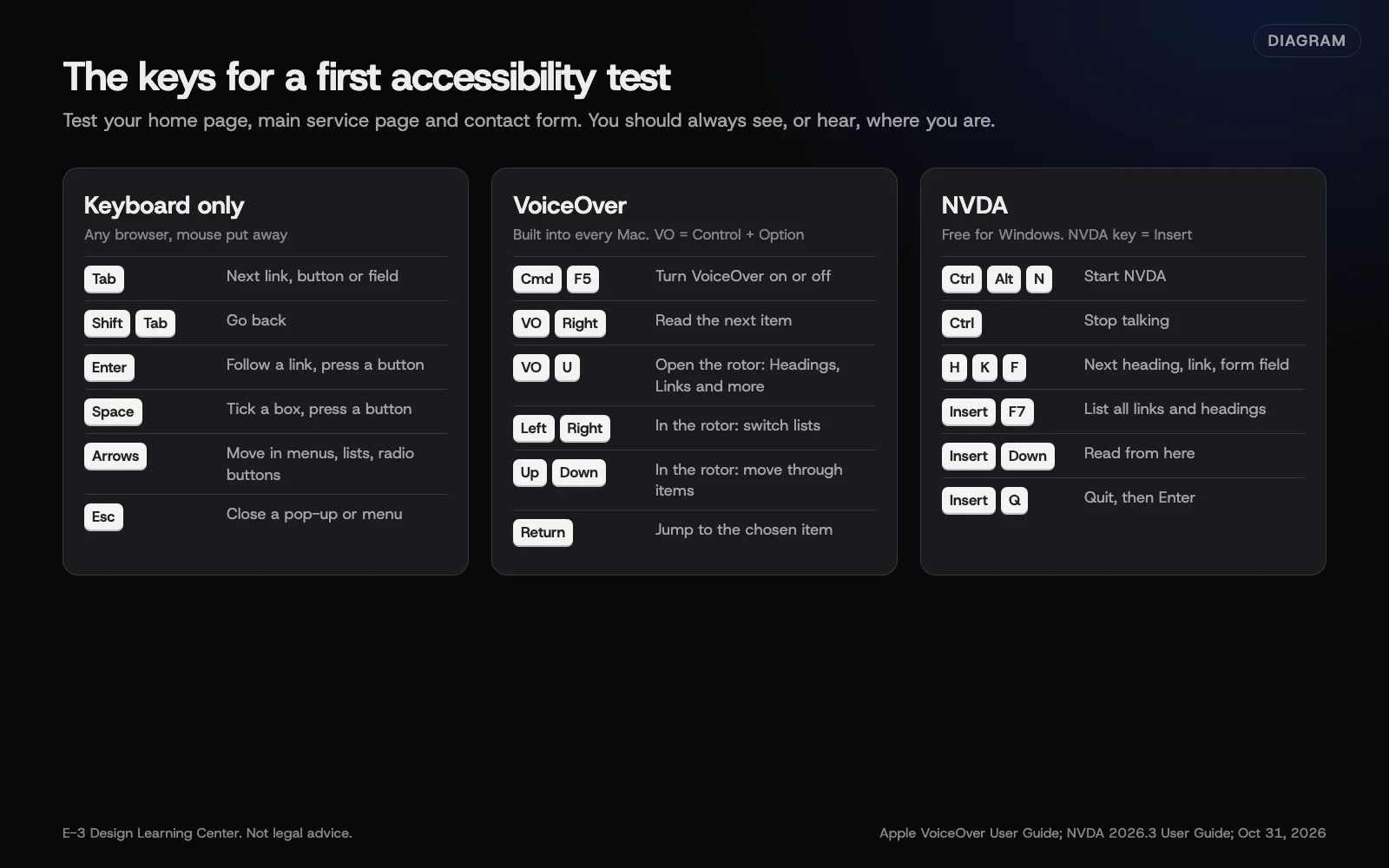 Diagram: the keys for a first keyboard and screen reader test. From Apple’s VoiceOver User Guide and the NVDA 2026.3 User Guide, checked October 31, 2026.
What should I listen for?
You don’t need to be fluent with a screen reader to find the big problems. Listen for these:
- Headings. Does the headings list make sense on its own, like a table of contents? Is there one main heading?
- Links. Does each link name say where it goes? Ten links called “Read more” or “Click here” are a problem.
- Buttons. Does each button say what it does? “Button” with no name, or an icon read as a file name, is a fail.
- Images. Do meaningful images have a useful description? Are decorative ones skipped? See how to write alt text.
- Form fields. Does each field announce its label, and whether it’s required? Are errors read out?
- Phone number and address. Can you find them quickly?
Why does this matter?
People who are blind, have low vision, or can’t use a mouse rely on exactly these paths. Automated checkers can’t tell whether a focus order makes sense or a link name is clear. The W3C’s Easy Checks put it plainly: a page “could seem to pass these checks, yet still have significant accessibility barriers.” A short manual test finds what scans miss.
What are the common mistakes?
- Testing with the mouse still in hand. You’ll click without noticing.
- Judging the screen reader by its voice speed. Turn the speed down. Real users often run it much faster, but you’re testing, not reading.
- Skipping the form. Forms are where barriers cost you leads.
- Testing once. Retest after any theme, plugin or page builder update.
- Treating your test as an expert audit. It’s a good first pass, not proof of conformance.
What if this didn’t work?
- VoiceOver or NVDA won’t stop talking. Press Control to stop speech, then turn it off with the same shortcut you used to start it.
- Command-F5 does nothing. Some keyboards need the Fn key too. Use System Settings instead.
- You find many problems in menus and pop-ups. These usually come from the theme or a plugin, and need a developer.
- You’re unsure whether something is a real fail. Run a free checker as a second opinion. Our guide to free accessibility checkers shows how.
How much does it cost, and how long does it take?
Both screen readers are free. A keyboard test of three pages takes about ten minutes. A first screen reader pass takes longer while you learn the keys: allow an hour. After that, a routine check after each change takes a few minutes.
How does E-3 handle this?
If you’d rather not run these tests yourself, we can, and turn the results into a fix list as part of website care. Our own results for this site are on our accessibility page.
Related questions
Sources
- Turn VoiceOver on or off (VoiceOver User Guide for Mac, Apple)
- Use the VoiceOver rotor (VoiceOver User Guide for Mac, Apple)
- Turn on and practice VoiceOver on iPhone (iPhone User Guide, Apple)
- Change Advanced settings in Safari on Mac (Safari User Guide, Apple)
- NVDA 2026.3 User Guide (NV Access)
- Guidance on web accessibility and the ADA (U.S. Department of Justice, March 18, 2022)
- Easy Checks: a first review of web accessibility (W3C WAI)
Next step
- Next: How do I check and fix color contrast on my site?The next guide in Website accessibility.
- Free website checkPublic checks on your own site, then an action plan of what to fix first.
Still stuck? Ask E-3 for an answer from our help guides.
Rather we handled website accessibility for you?
It’s part of what we do every week for small businesses, as part of website care. Start with a free check of your site and profile, or call and ask.