
Google Search Console: the complete small-business guide
Google Search Console is Google's free report on how your site does in Google Search. Add your site as a Domain property, verify it with a DNS record, and submit your sitemap. Then check four things monthly: the Performance report, Page indexing, Core Web Vitals, and Manual actions and Security issues.
The short version
- Search Console is free and comes from Google. It shows how Google sees your site.
- Add your site as a Domain property and verify it with a DNS record.
- Submit your sitemap so Google has a full list of your pages.
- Once a month, check Performance, Pages, Core Web Vitals, and Manual actions and Security issues.
- The business should own the property. Add your web company as a user.
What is Search Console, and why use it?
Search Console is the one place Google tells you directly how your site is doing in its search results. It lists the searches that showed your pages, which pages Google has stored in its index, and the problems it found along the way. You won’t find that information anywhere else, because only Google has it.
Google Analytics answers a different question. It records what visitors do after they arrive, from any source. Search Console covers the moment before the click, on Google only. Most sites need both, and you can link them; see how to link Search Console to GA4.
Our answer on what Search Console is and whether you need it gives the quick version. This guide walks through each report in depth, checked against Google’s Search Console Help and Search Central pages on October 31, 2026.
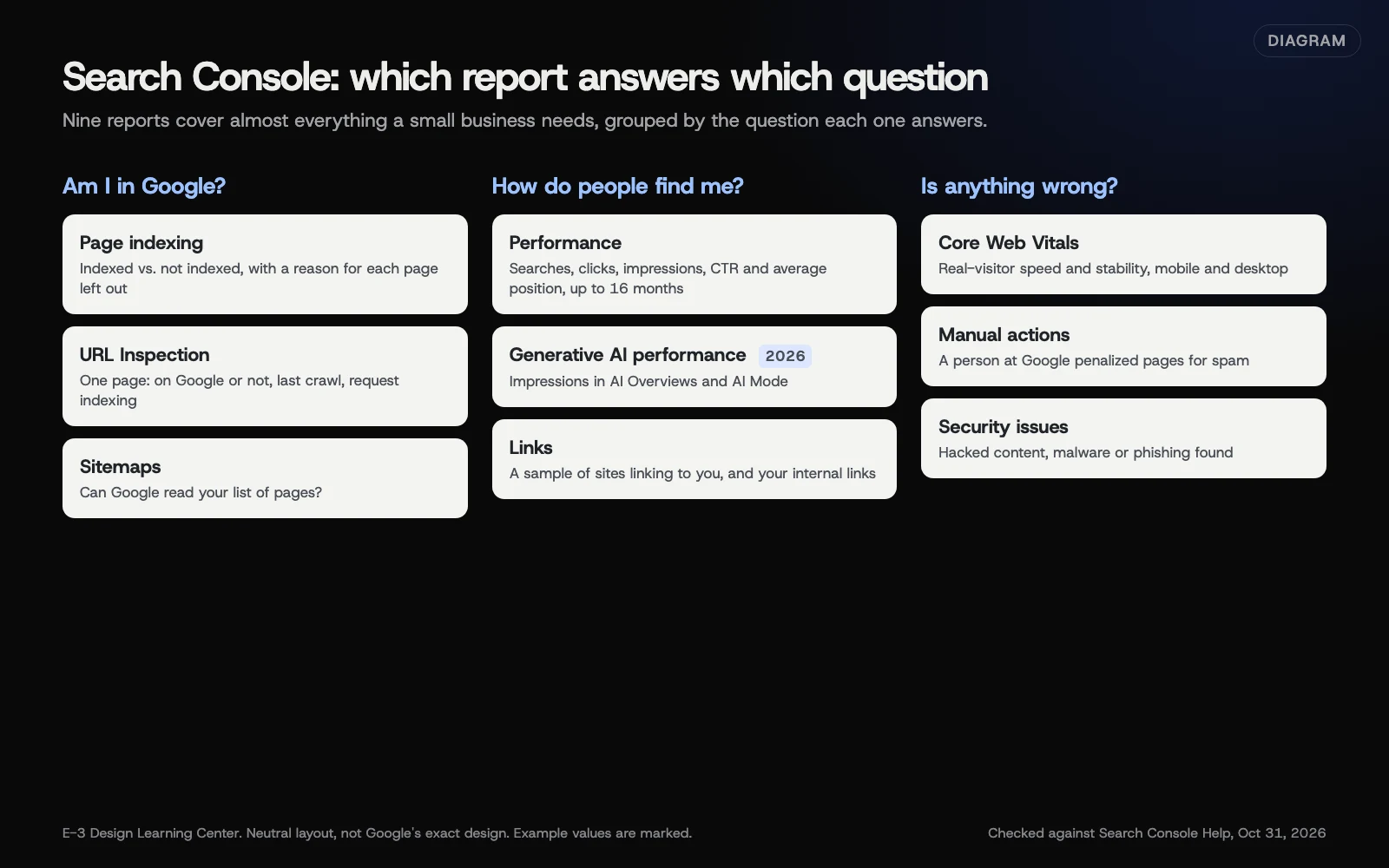 Diagram: the Search Console reports a small business uses most, and the question each one answers. Based on Search Console Help (October 2026).
How do I set up Search Console?
1. Choose a property type
A property is the site, or part of a site, that Search Console reports on. Google’s property guide offers two kinds:
| Domain property | URL-prefix property | |
|---|---|---|
| You enter | yourbusiness.com | https://www.yourbusiness.com/ |
| Covers | http and https, with and without www, and every subdomain | Only addresses that start with that exact prefix |
| Verified by | A DNS record only | Several methods, such as an HTML file, a meta tag, or Google Analytics |
For most small businesses, a Domain property is the better choice. It catches all your traffic, even if some pages still load on an old http or non-www address.
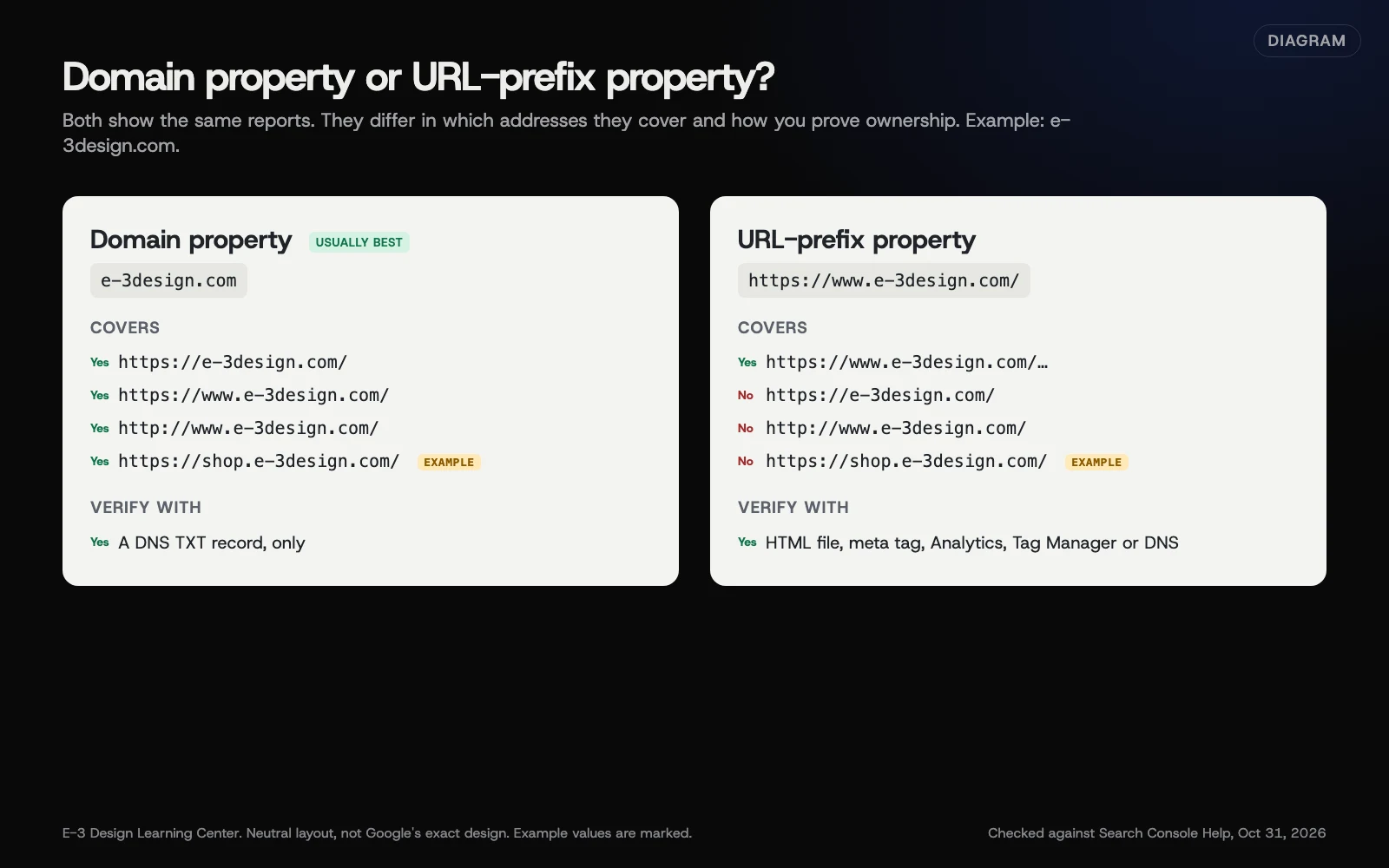 Diagram: what a Domain property and a URL-prefix property each cover, using e-3design.com as the example. Based on Search Console Help (October 2026).
2. Verify that you own it
Google won’t show you anything until you prove you control the site. For a Domain property, that means adding a TXT record at whichever company runs your domain’s DNS. Our help article on verifying your site with Search Console gives the exact steps, what to do when verification fails, and why you should leave the record in place afterwards.
3. Add the right people
Only owners can add users, under Settings, then Users and permissions. Google’s permissions page lists owners, full users, restricted users and associates. A property can have up to 100 users who aren’t owners. Keep ownership inside the business and give your web company a user role. The verification help article above shows the clicks, and our help article on sharing access safely covers the wider rule: never share your Google password.
4. Submit your sitemap
A sitemap is a file listing the pages you want Google to find. Most WordPress sites make one for you. Submitting it in the Sitemaps report tells Google where it is and shows whether Google could read it. See how to submit a sitemap.
New properties look empty at first. Google’s data page says collected data should normally be available in 2 to 3 days.
Which reports should I use, and what does each one tell me?
Am I in Google?
- Page indexing. Shows how many of your pages Google has indexed and gives a reason for each one it left out. Many reasons are normal. Our guide to Page indexing statuses explains which ones need fixing.
- URL Inspection. Checks one page: whether it’s on Google, when Google last crawled it, and which version Google treats as the main one. It’s also where you ask Google to crawl a new or changed page. See inspecting a page and requesting indexing.
- Sitemaps. Confirms Google can read your sitemap. See submitting a sitemap.
How do people find me?
- Performance. The searches that showed your site, with clicks, impressions, click-through rate and average position, by query, page, country and device. It keeps 16 months of data. See reading the Performance report.
- Generative AI performance. New in 2026: impressions in AI Overviews and AI Mode, in a report of their own. See how Search Console shows AI features.
- Links. A sample of the sites that link to you and the pages they link to. See what the Links report tells you.
Is anything wrong?
- Core Web Vitals. How fast and stable your pages feel to real visitors on phones and computers. See using the Core Web Vitals report, and our answer on what Core Web Vitals are.
- Manual actions. Whether a person at Google has penalized the site for breaking its spam policies. It should show a green check. See manual actions and how to fix them.
- Security issues. Whether Google found hacked content, malware or phishing. If it found any, treat it as urgent and follow our answer on why Google says your site may be harmful.
- Removals. A tool to hide a page from Google results for about six months while you fix or delete it. See removing a page from Google quickly.
What should I check each month?
A monthly check takes about 15 minutes once you know where to look:
- Performance: compare the last 28 days with the same period last year. Note total clicks and your top 10 queries and pages.
- Pages: look for a sudden jump in Not indexed, especially on pages that matter.
- Core Web Vitals: note any URLs marked Poor on mobile.
- Manual actions and Security issues: both should say no issues.
- Messages: read anything new in Search Console’s message center. Google also emails about serious problems, such as a manual action.
If something changed, write down the date and what you did. Search Console has had custom annotations since November 17, 2025, per Google’s annotations post. Right-click the Performance chart, select Add annotation, and add a note of up to 120 characters, such as “New site launched.” Everyone with access to the property can see it.
What are the most common mistakes?
These are common problems in a small business’s Search Console.
- Nobody can get in. A past web company set it up under its own account. The business should be a verified owner. See which logins your business should own.
- Only one version of the site is tracked. An old URL-prefix property for
http://wwwmisses the rest. Add a Domain property alongside it. - Panicking over “Not indexed.” Google itself says not every page needs to be indexed. Tag pages, redirects and duplicates are meant to stay out.
- Requesting indexing over and over. One request is enough. Repeating it doesn’t speed things up.
- Reading average position as a ranking. It’s an average of your best spot across many searches, places and devices. It moves for reasons outside your control.
- The verification record was deleted during a DNS cleanup or a move to a new host, and Search Console quietly stops working for that person.
- Old addresses after a redesign. If pages moved, check the Page indexing report for Not found (404) errors and add redirects. Our answer on redesigning without losing rankings covers the full list.
What has changed or been retired?
Older guides still mention some of these. This is the picture on October 31, 2026, when we last checked Google’s pages.
- Mobile Usability report and Mobile-Friendly Test: retired December 1, 2023. Google announced this in its page experience post of April 19, 2023. Use Lighthouse or our speed test to check pages on phones.
- Page Experience report: removed. The same post said it would become a new page. It no longer appears in Search Console. Core Web Vitals and HTTPS details still do.
- First Input Delay replaced by INP: March 2024. The Core Web Vitals report now measures Interaction to Next Paint instead.
- Sitemap “ping”: switched off. Google said on June 26, 2023 that its sitemaps ping endpoint would stop working within 6 months. Submit sitemaps in Search Console or list them in robots.txt instead. Old plugins that still ping do no harm, and no good.
And a few things are new:
- Branded queries filter. Since November 20, 2025, the Performance report can split searches for your business name from all other searches. Google’s branded filter post says it’s for top-level properties with enough search volume.
- Query groups. Larger sites see similar searches grouped together in the Insights report, launched October 27, 2025.
- Generative AI performance reports and a control to opt out of AI features. Announced June 3, 2026 and available to all sites since August 31, 2026, per Google’s AI reports post. See how Search Console shows AI features.
- Image searches reported separately. Since September 24, 2026, a Web: multimodal search type covers searches made with Google Lens, Circle to Search and image uploads.
What if my traffic suddenly drops?
Start in Search Console, because it can rule out the serious causes quickly. Check Manual actions and Security issues first. Then compare the last 28 days with the same period last year in Performance, and look at which pages lost clicks. Then check Pages for newly excluded pages, such as a noindex left on after an update. Our answer on why website traffic suddenly drops walks through the full diagnosis, and our answer on why a site doesn’t show up on Google covers sites that were never there.
How much does it cost, and how long does it take?
Search Console is free. Setup takes 15 to 30 minutes once someone can add a DNS record, plus a day or two for verification in some cases. Reports start filling in after 2 to 3 days, and the Performance report needs a few weeks before trends mean much. After that, the monthly check above is about 15 minutes.
How does E-3 handle this?
For the sites it manages, E-3 sets up Search Console in an account in the client’s name and adds itself as a user. Search Console is part of our SEO and AI search service, and any site change it prompts is tried on a staging copy before the live site.
“How do I verify my site with Google Search Console?” is a question our clients ask regularly, with about 20 requests in our records. One way it goes wrong is a DNS record added at the wrong company. E-3 saves the existing DNS records before changing them.
Related questions
Sources
- Add a website property to Search Console (Search Console Help)
- Verify your site ownership (Search Console Help)
- Managing owners, users, and permissions (Search Console Help)
- Performance report for Search results (Search Console Help)
- Page indexing report (Search Console Help)
- About Search Console data (Search Console Help)
- The role of page experience in creating helpful content (Google Search Central Blog, April 19, 2023)
- Introducing Search Generative AI performance reports in Search Console (Google Search Central Blog, June 3, 2026)
- Introducing the branded queries filter in Search Console (Google Search Central Blog, November 20, 2025)
- Sitemaps ping endpoint is going away (Google Search Central Blog, June 26, 2023)
Every Google Search Console guide
- How do I submit a sitemap in Search Console?Find your sitemap's address, often yourdomain.com/sitemap.xml or /sitemap_index.xml on WordPress. In Search Console, open Sitemaps, paste the address into Add a new sitemap and select Submit. A Success status means Google read it. Submitting helps Google find your pages, but Google says it doesn't guarantee they'll be crawled or indexed.
- How do I check a page and request indexing in Search Console?Paste the page's full address into the search bar at the top of Search Console. The result says whether the URL is on Google. Select Test live URL to check the current version, then Request indexing if it's new or changed. Google says a request doesn't guarantee indexing, and indexing usually takes a day or more.
- What do the Page indexing statuses in Search Console mean?The Page indexing report lists every page Google knows about as Indexed or Not indexed, with a reason for each page left out. Many reasons are normal, such as redirects and alternate pages with a proper canonical tag. Fix the ones that hit pages you want found: noindex, Not found (404), server errors and robots.txt blocks.
- How do I read the Search Console Performance report?The Performance report shows how often your site appeared in Google Search (impressions), how often people clicked (clicks), the share of impressions that got a click (CTR) and your average top spot (position). Use the Queries and Pages tabs to see which searches and pages bring visitors, and compare with last year rather than last week.
- How do I use the Core Web Vitals report in Search Console?Open Core Web Vitals under Experience in Search Console and start with the Mobile view. Pages are grouped as Poor, Need improvement or Good, based on real visits from Chrome users over the last 28 days. Open a Poor issue, test an example page, fix the cause across the group, then select Start tracking to begin Google's 28-day check.
- What is a Google manual action, and how do I fix one?A manual action means a person at Google found pages that break its spam policies, so some or all of your site ranks lower or disappears. Check Security & manual actions, then Manual actions in Search Console. Fix every affected page, not just the examples, then select Request Review and explain exactly what you changed.
- How do I remove a page from Google quickly?Search Console's Removals tool hides a page from Google results for about six months. Open Removals, select New request, enter the address, submit. That buys time but deletes nothing. To keep it out for good, delete the page so it returns 404 or 410, or put private content behind a password. Use noindex only for public pages.
- What does the Search Console Links report tell me?The Links report shows a sample of the sites linking to yours, which pages they link to, the words they use, and how your own pages link to each other. Use it to find pages that need more internal links. Google says it typically ignores links from known spam sites, so most sites never need to disavow.
- How does Search Console show AI Overviews and AI Mode?Since August 31, 2026, every Search Console property has a Generative AI performance report showing how often its pages appeared in AI Overviews and AI Mode. It counts impressions, not clicks, and those appearances also count in the main Performance report. A new setting lets you opt out, but then you get no traffic from those features.
Common questions
- Is Google Search Console free?
- Yes. Google doesn't charge for it. You only need a Google Account and a way to prove you control the site, usually a DNS record.
- What's the difference between Search Console and Google Analytics?
- Search Console shows how your site appears in Google Search before anyone clicks. Google Analytics shows what visitors do once they reach your site, from every source.
- Can I turn off AI Overviews for my site?
- Since August 31, 2026, every site has a Search generative AI control in Search Console settings. Excluding your site removes it from AI Overviews and AI Mode, and it then gets no traffic from them.
Next step
- Start here: How do I submit a sitemap in Search Console?The first guide in Google Search Console.
- Free website checkPublic checks on your own site, then an action plan of what to fix first.
Still stuck? Ask E-3 for an answer from our help guides.
Rather we handled google search console for you?
It’s part of what we do every week for small businesses, as part of seo and ai search. Start with a free check of your site and profile, or call and ask.