
How do I add GA4 to WordPress or another website builder?
Pick one way to add the Google tag. On WordPress, use Google's Site Kit plugin or a trusted plugin's Google Analytics field. On Wix or Squarespace, paste your G- Measurement ID into their Analytics setting; Shopify connects through its Google & YouTube sales channel. Otherwise paste the full tag into every page's head, then check Realtime.
The short version
- Use one method. Two methods can send the same page view twice and inflate your numbers.
- WordPress: Google’s Site Kit plugin is the simplest. Some SEO and analytics plugins have a G- field instead.
- Wix, Squarespace and similar: paste your G- ID into the builder’s Google Analytics setting. Shopify: use its Google & YouTube sales channel.
- Anything else: paste the full Google tag right after the opening
<head>on every page. - Check it worked in Realtime by visiting your site on your phone.
Which method should I use?
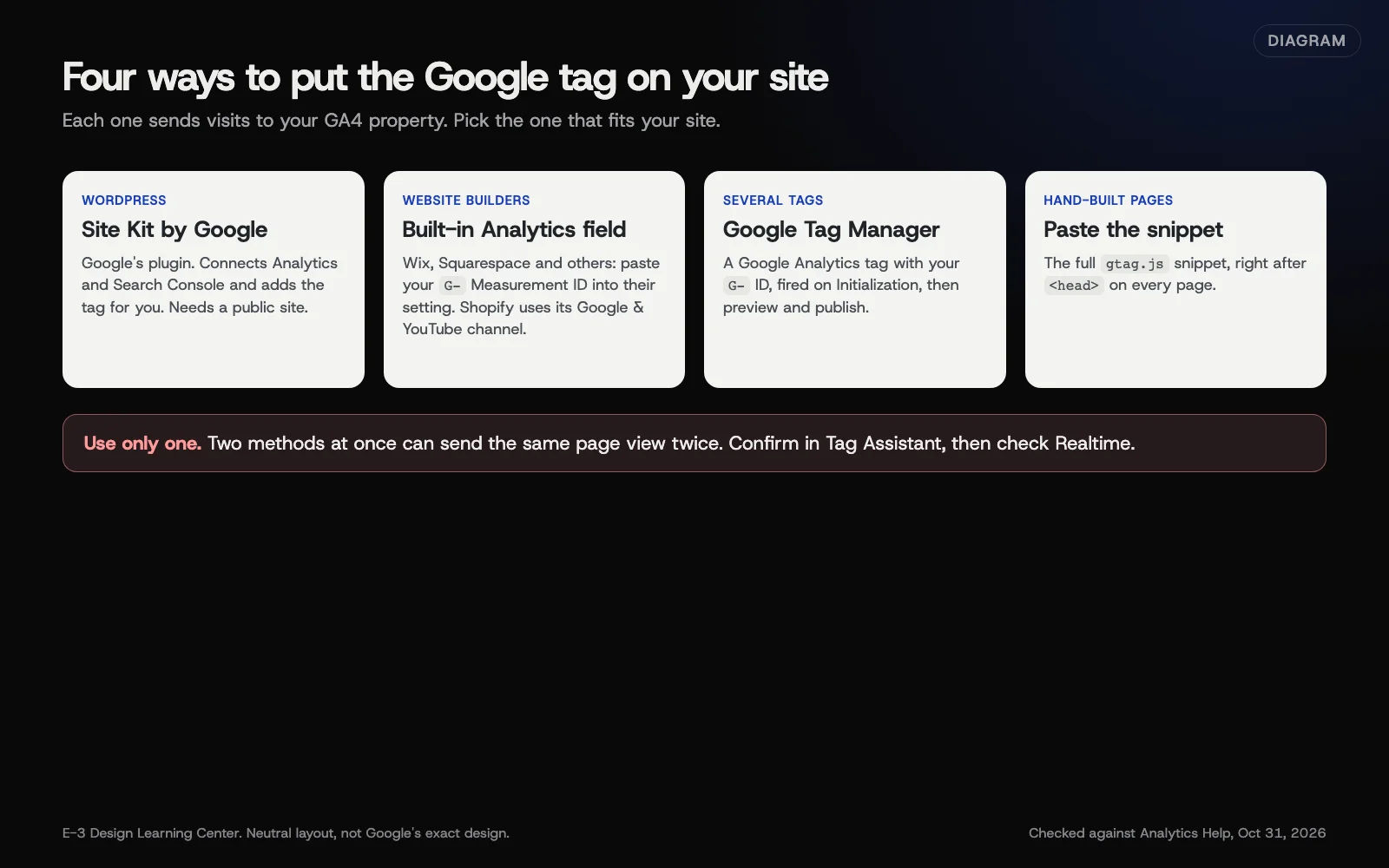 Diagram: four ways to put the Google tag on a site, and the one rule that matters: use only one. Based on Analytics Help and Tag Manager Help (October 2026).
| Your site | Best method | Notes |
|---|---|---|
| WordPress you manage yourself | Site Kit by Google | Also connects Search Console and PageSpeed Insights |
| WordPress with an SEO or analytics plugin you already use | That plugin’s Google Analytics field | Don’t add Site Kit’s tag as well |
| Wix, Squarespace, GoDaddy, Duda and others | The builder’s Google Analytics setting | Paste the G- ID only. Some builders limit this to paid plans |
| Shopify | Shopify’s Google & YouTube sales channel | Follow Shopify’s own setup steps |
| A site that already uses Google Tag Manager | Add GA4 inside Tag Manager | See whether you need Tag Manager |
| Hand-built pages | Paste the gtag.js snippet | Right after <head> on every page |
You’ll need your Measurement ID or tag. If you haven’t made a property yet, start with creating a GA4 property and web data stream.
How do I add it to WordPress?
With Site Kit by Google
Site Kit is Google’s own WordPress plugin. Its plugin page says it needs WordPress 5.2 or later, PHP 7.4 or later and a site that’s publicly reachable. Google’s builder and CMS page says Site Kit can create the account, property and data stream for you during setup.
- In WordPress, go to Plugins, then Add New, and search for “Site Kit by Google.”
- Select Install Now, then Activate.
- Select Start setup and sign in with the business’s Google Account.
- Follow the steps to connect Search Console, then Analytics. Choose your existing property, or let Site Kit create one.
- Finish setup. Site Kit adds the tag for you.
Each WordPress administrator connects their own Google Account, so use the business account for the main connection.
With a theme header (only if you have no plugin option)
Google’s WordPress tag page describes pasting the snippet into Appearance, then Theme File Editor, then Theme Header (header.php). We don’t recommend this for most owners. A theme update or switch can wipe the code, and a typo in that file can break the site. A plugin is safer.
How do I add it to a website builder?
These steps follow Google’s builder and CMS page.
- In Analytics, go to Admin, then Data streams, and select your web stream.
- Copy the Measurement ID (G-).
- In your builder, find its Google Analytics setting. Google’s page links each builder’s own instructions.
- Paste the G- ID and save.
Check your builder’s plan first. Wix’s Google Analytics help says you need a Premium plan and a connected domain.
Shopify works differently. Shopify’s GA4 setup page has you create the property, then install the Google & YouTube sales channel and connect the tag there. Shopify also notes Analytics can’t track events while the store is in private mode.
Google’s page lists platforms that don’t accept a G- ID, including PrestaShop, VTEX and Square Online. For those, paste the full Google tag into the builder’s custom code feature instead.
How do I add it by hand?
- In your data stream, under Google tag, select View tag instructions, then Install manually.
- Copy the whole snippet, from
<!-- Google tag (gtag.js) -->to the closing</script>. - Paste it immediately after the
<head>tag on every page.
How do I check it’s working?
- In Analytics, open Reports, then Realtime.
- On your phone, with Wi-Fi off, visit your website and open a couple of pages.
- Within a minute or two you should appear as a user, with the pages you visited.
Google’s setup page says data collection can take up to 30 minutes to begin, so wait before you worry. Leave a day before judging the standard reports.
What are the common mistakes?
- Two tags. A plugin and a theme both add GA4, or Site Kit and an SEO plugin both do. The same page view can be sent twice, so some numbers inflate. Before you remove one, confirm the duplicate: Tag Assistant should show two page_view events for the same G- ID on one page load.
- An old UA- code. Universal Analytics stopped processing data in 2023. Remove old UA- codes and use your G- ID.
- The tag on the staging site only. After a launch, check the live site has the tag.
- Pasting the G- ID where the full tag is needed, or the other way round. Follow your builder’s instructions.
- Testing on office Wi-Fi with a filter on. If you’ve filtered internal traffic, your own visits won’t show. Use your phone’s data.
What if Realtime shows nothing?
- Wait 30 minutes, then try again.
- View your page’s source and search for your G- ID. Finding it confirms the tag is in the page. Not finding it doesn’t prove it’s missing, because Tag Manager, Site Kit or Shopify can load the tag later. Tag Assistant gives the clearer answer.
- Check caching. A caching plugin or CDN may still be serving old pages. Clear the cache.
- Check the ID. One wrong character sends data to nowhere.
- Check consent. If your cookie banner blocks tags until a visitor accepts, accept it on your test visit.
If you’re stuck, Google’s free Tag Assistant can show which tags fire on a page.
How much does it cost, and how long does it take?
Google Analytics, Site Kit and Tag Manager are free. Some website builders only allow analytics on paid plans, so check yours. Site Kit or a builder setting takes 10 to 15 minutes. Allow up to 30 minutes for data to start, and a day for the standard reports.
How does E-3 handle this?
When we set up Analytics for a client, the account is in the client’s name and E-3 is added as a user, so the business always owns its data. It’s part of our SEO and AI search service and our website care.
Related questions
Sources
- Set up the Google tag with a website builder or CMS (Analytics Help)
- Set up Analytics for a website and/or app (Analytics Help)
- Set up your Google tag with WordPress Editor (Tag Manager Help)
- Site Kit by Google (WordPress.org plugin directory)
- Set up Google Analytics (Shopify Help Center)
- Adding Google Analytics to your Wix site (Wix Help Center)
Next step
- Next: Do I need Google Tag Manager for GA4?The next guide in Google Analytics 4.
- Free website checkPublic checks on your own site, then an action plan of what to fix first.
Still stuck? Ask E-3 for an answer from our help guides.
Rather we handled google analytics 4 for you?
It’s part of what we do every week for small businesses, as part of seo and ai search. Start with a free check of your site and profile, or call and ask.